
- "What is the invoice lines report used for?"
Resolution Steps
- The Invoice Line report in Molo is a powerful report that allows you to pull out all receivable invoice and credit note line items.
- How the Report Retrieves Data:
The Date Range is used to find all invoices by their Invoice Date. The system then pulls out all line items that are active, meaning not voided or deleted. If you want to include voided and deleted lines, simply check the box labeled Show Voided and Deleted Lines. The report ignores payments and allocations inside the captured invoices.
- Go to Reports → Invoicing & Payments.
- Click Invoice Lines.
- Enter the start date and end date to define the period of invoices you want to review.
- Apply Filters (Optional)
- Show Voided/Deleted Lines – include invoice lines that were canceled or removed.
- Run for Entire Company – combine results across multiple marina locations.
- Filter by Contact – limit results to specific customers.
- Filter by Items – choose particular items from your inventory.
- Time-Based Rates – show only rates charged by hour or day.
- Seasonal Rates – show only rates tied to seasonal pricing.
- Inventory Category – focus on a single inventory category (e.g., fuel, rentals, storage).
- Click Run Report to generate detailed results.
- Each invoice line will display:
- Invoice Number & Date – identifier and creation date.
- Due Date – payment deadline.
- Customer Contact – who the invoice belongs to.
- Reservation/Space Link – if tied to a reservation or slip.
- Item Details – item name, item code, and category.
- Pricing Info – unit price, quantity, subtotal.
- Taxes – tax rate (percentage) and tax total (dollar value).
- Final Total – subtotal plus taxes.
- Creation User – staff member who created the invoice.
- Posting Date – when the invoice was posted.
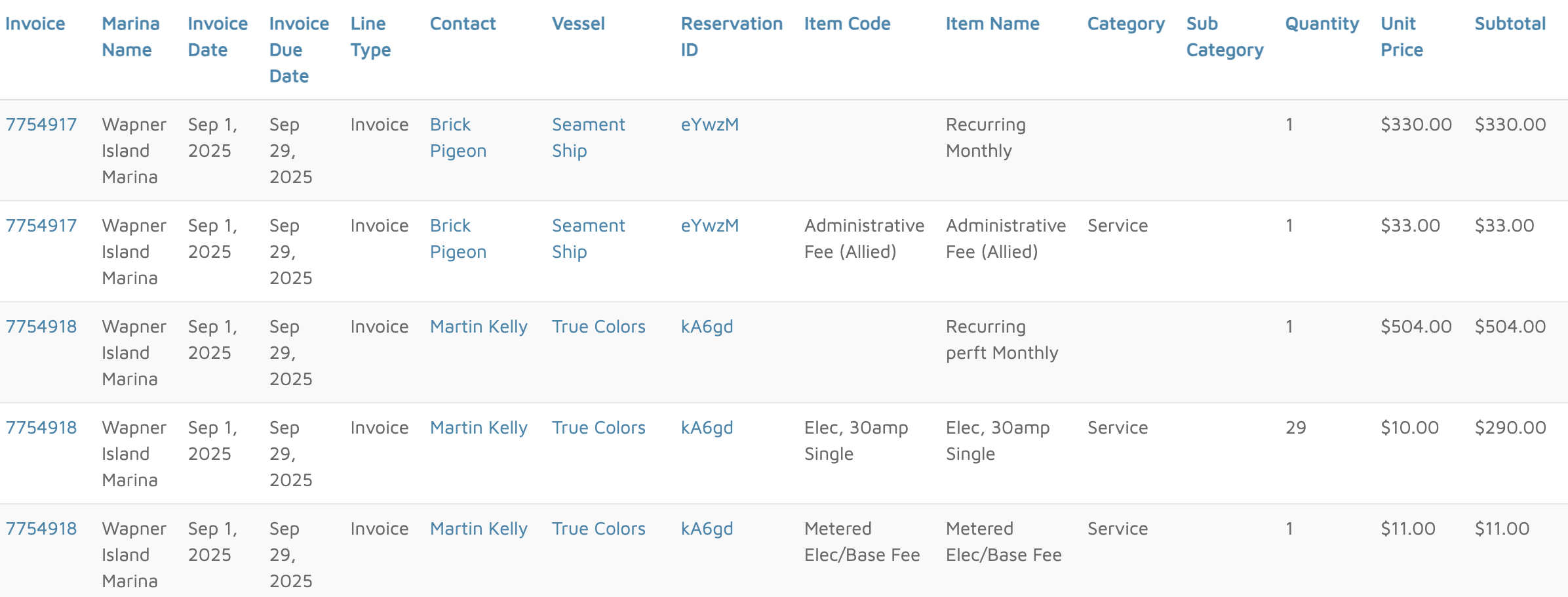
Verification: Use this report to track invoices created.