
- "What is the transaction detail report used for?"
Resolution Steps
- From the dashboard, go to Reports > Invoicing & Payments.
- Click Transaction Detail.
- Enter the start date and end date for the period you want to review.
- Apply Filters (Optional) You can refine the report by selecting specific criteria:
- Voided Transactions – include or exclude transactions that were voided.
- Contact – filter by specific customers or contact types.
- Transaction Type – limit results to:
- Reservation transactions
- Work order transactions
- Online-only transactions
- Exclude Walk-ins – remove walk-in customers from the report.
- Cash Removal – show recorded cash drawer removals.
- Reservation ID – display linked reservation IDs when applicable.
- Company-Wide View – run across multiple locations if managing more than one marina.
- User Filter – filter by staff member who processed the transaction.
- Reference Search – search by last four digits of a card, a check number, or other reference code.
- Click Run Report
- Each row will display:
- Payment Type & Method – cash, check, credit card, or bank account.
- Reference – last four digits of the card or account, or check number.
- Source – where the payment was made (Online, Mobile App, Web App, or Manager App).
- Date & Time – when the payment was processed.
- Amount – total paid per transaction.
- Invoice Number – the invoice tied to the transaction.
- Creation Date & User – when and by whom the payment was processed.
- Customer & Reservation Info – which contact and reservation/work order the transaction relates to.
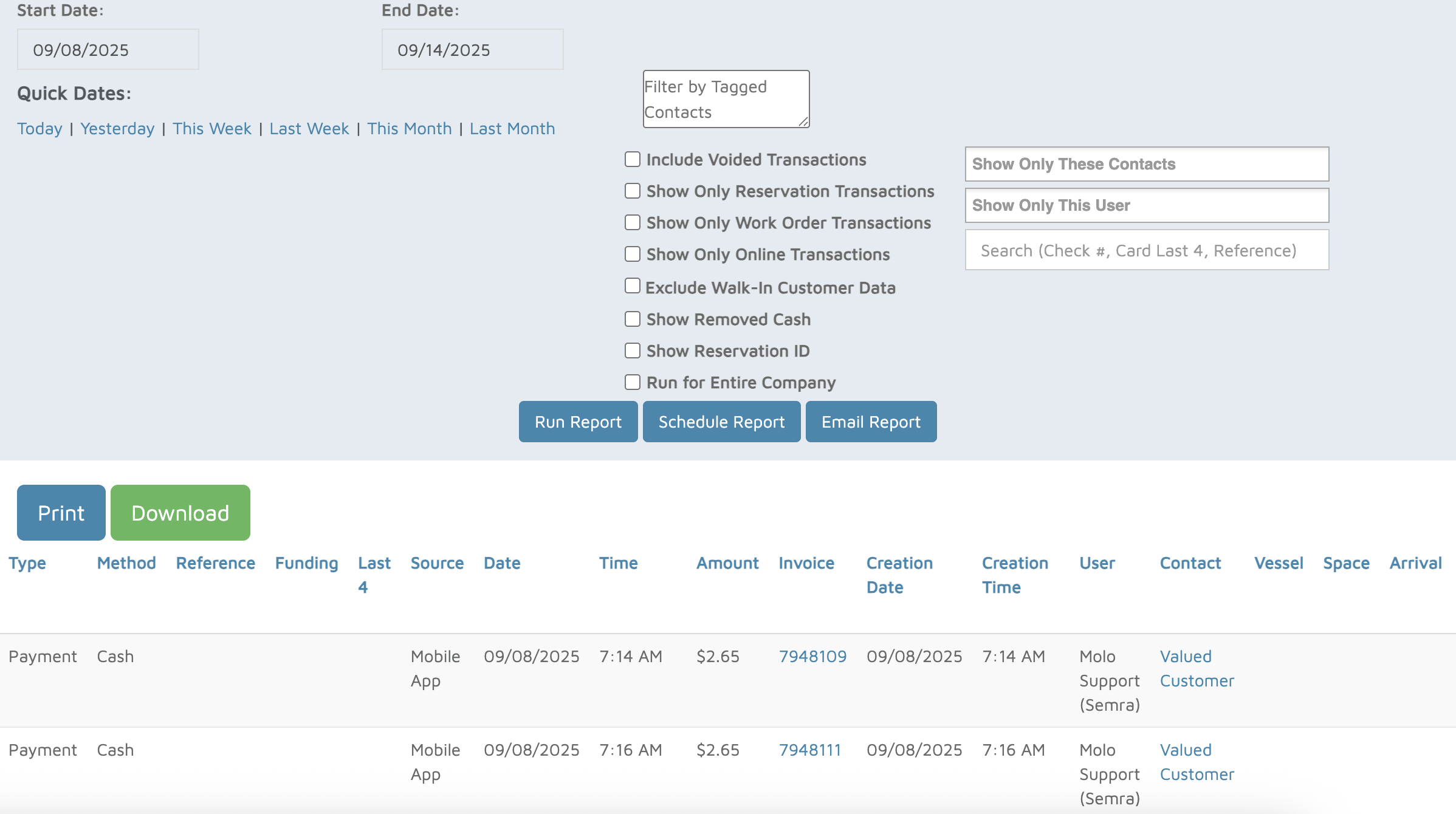
Verification: Use this report to track payments processed.