
- "Can you explain the reservation revenue report?"
Resolution Steps
Navigate to Reports > Finance > Reservation Revenue.
Select the Start Date and End Date - the report includes reservations that start, occur during, or end within the selected period.
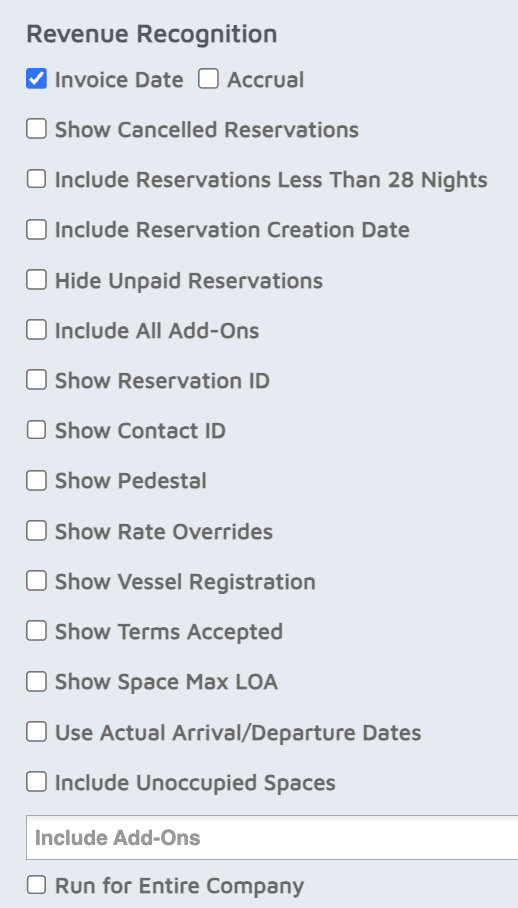
Apply Filters (Optional) - multiple filters can be selected.
Invoice Date vs. Accrual – choose whether the report calculates based on invoice issue date or accrual accounting.
Show Cancelled Reservations – decide if canceled reservations should appear.
Include Reservations Less Than 28 Nights – filter out stays longer than 28 nights (to isolate transient reservations).
Include Reservation Creation Date – filter by when the booking was made rather than arrival date.
Hide Unpaid Reservations – only include fully or partially paid reservations.
Include All Add-ons – include fees like electric, trailer, or other custom add-ons.
Show Reservation ID & Show Contact ID – display unique identifiers for tracking.
Show Pedestal – show linked pedestals for each reservation.
Show Rate Overrides – highlight bookings where staff manually changed pricing.
Show Vessel Registration – include vessel info (length, beam, draft, make, model).
Show Terms Accepted – filter by reservations where terms & conditions were accepted.
Show Space Max LOA – show max LOA of the space or whether it’s occupied/unoccupied.
Use Actual Arrival/Departure Dates – display real check-in/check-out dates.
- Include Unoccupied Spaces - displays unoccupied spaces.
Run for Entire Company – if you manage multiple marinas, run the report across all locations.
Click Run Report.
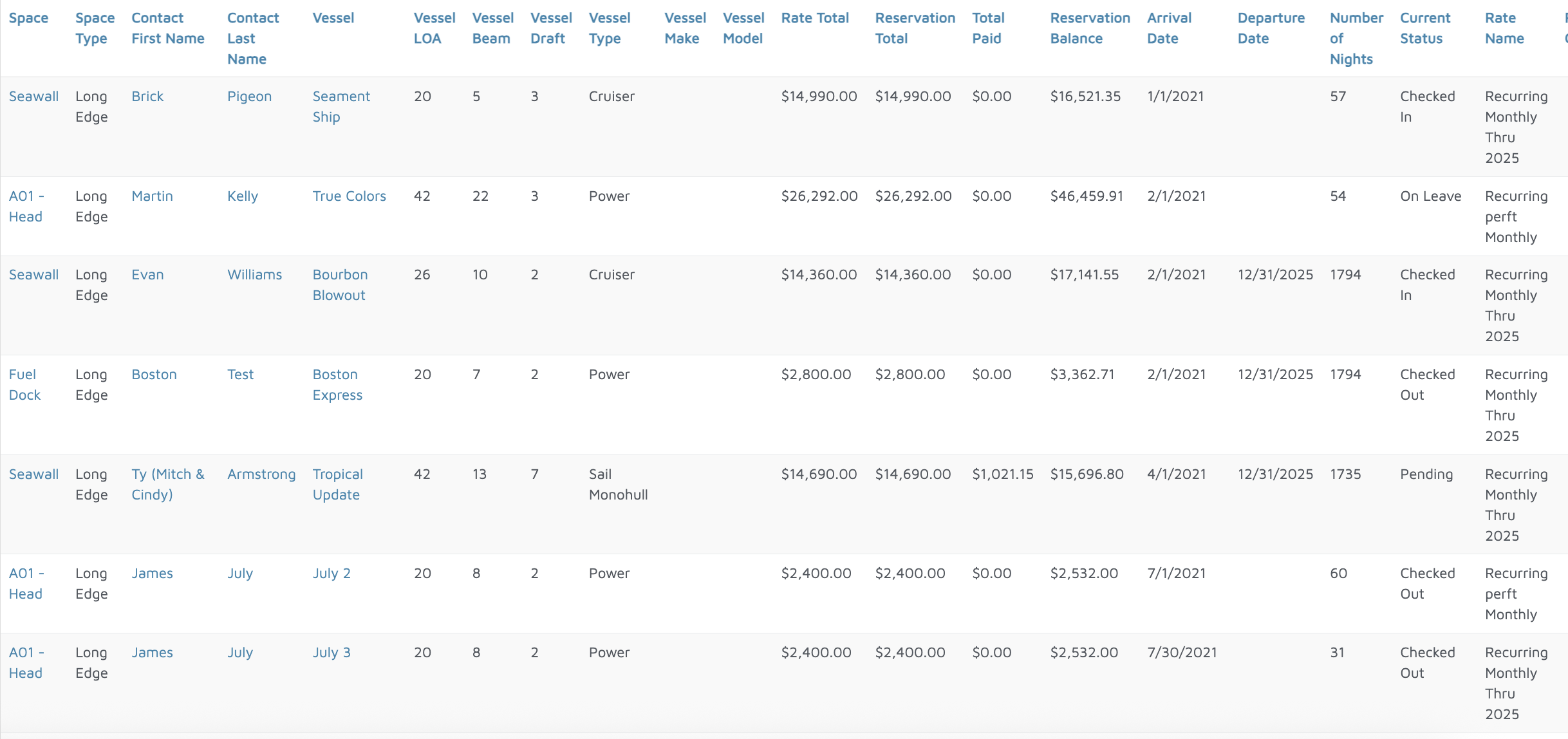
The report will display:
Space details – type, size, max LOA, occupied/unoccupied.
Contact & Vessel Info – customer name, vessel type, make/model, registration.
Reservation Details – status (pending, checked-in), nights stayed, arrival/departure.
Rates & Totals – rate name/type, reservation total, amount paid, balance due.
Add-ons – listed separately or rolled into totals.
Monthly Breakdown – per-reservation revenue split by month.
Grand Total – sum of all revenue at the bottom of the report.
Verification: Confirm the report shows accurate data.