
- "I need to update my inventory when purchasing items via a vendor bill."
- "How do I enter a vendor bill?"
Resolution Steps
- Note: This article applies only to marinas using the new version of the Vendor Bill—refer to the legacy version article if needed.
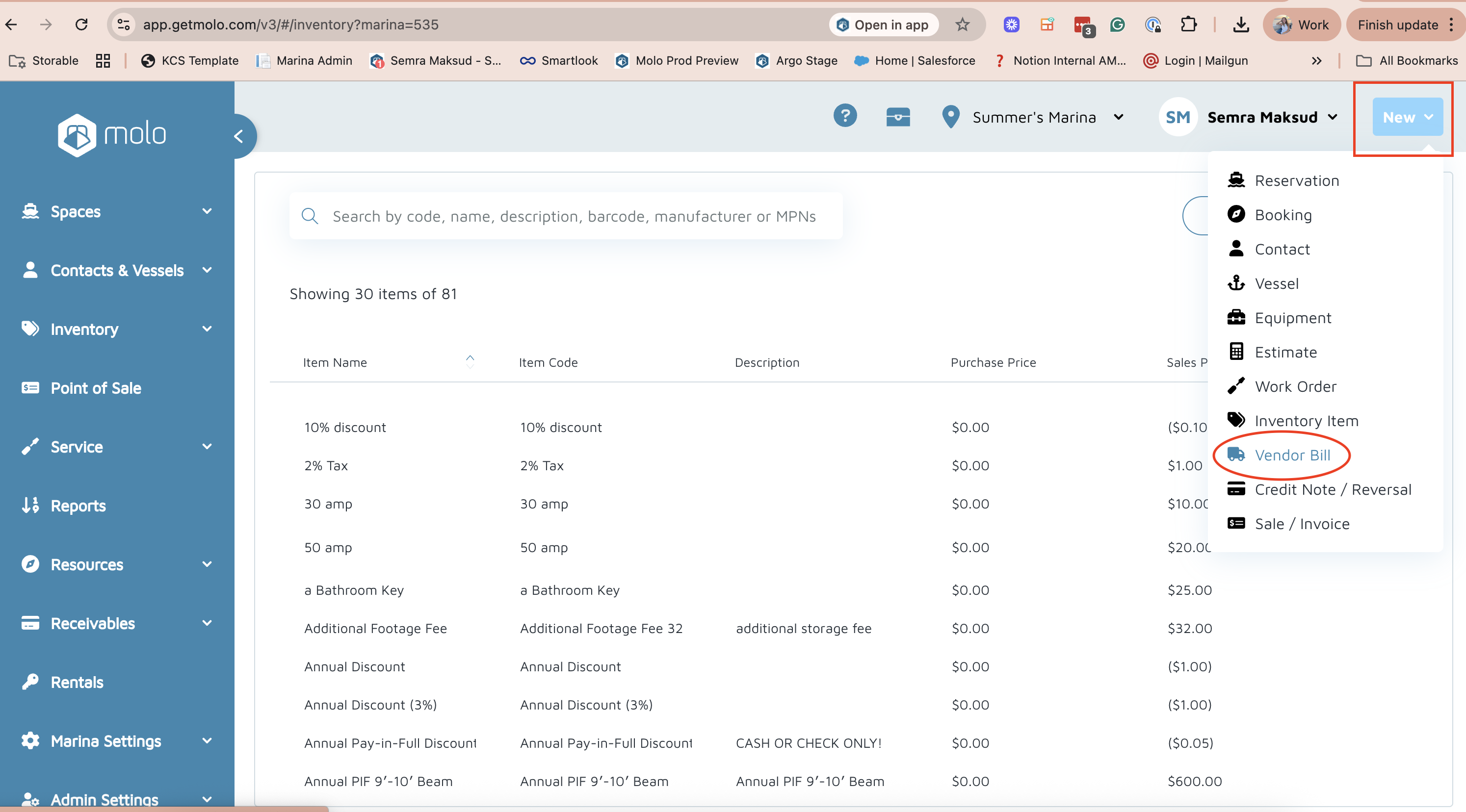
- In the top-right corner, click New > Vendor Bill.
- Enter the Reference Number, Vendor, and Invoice Dates.
- Click Next.
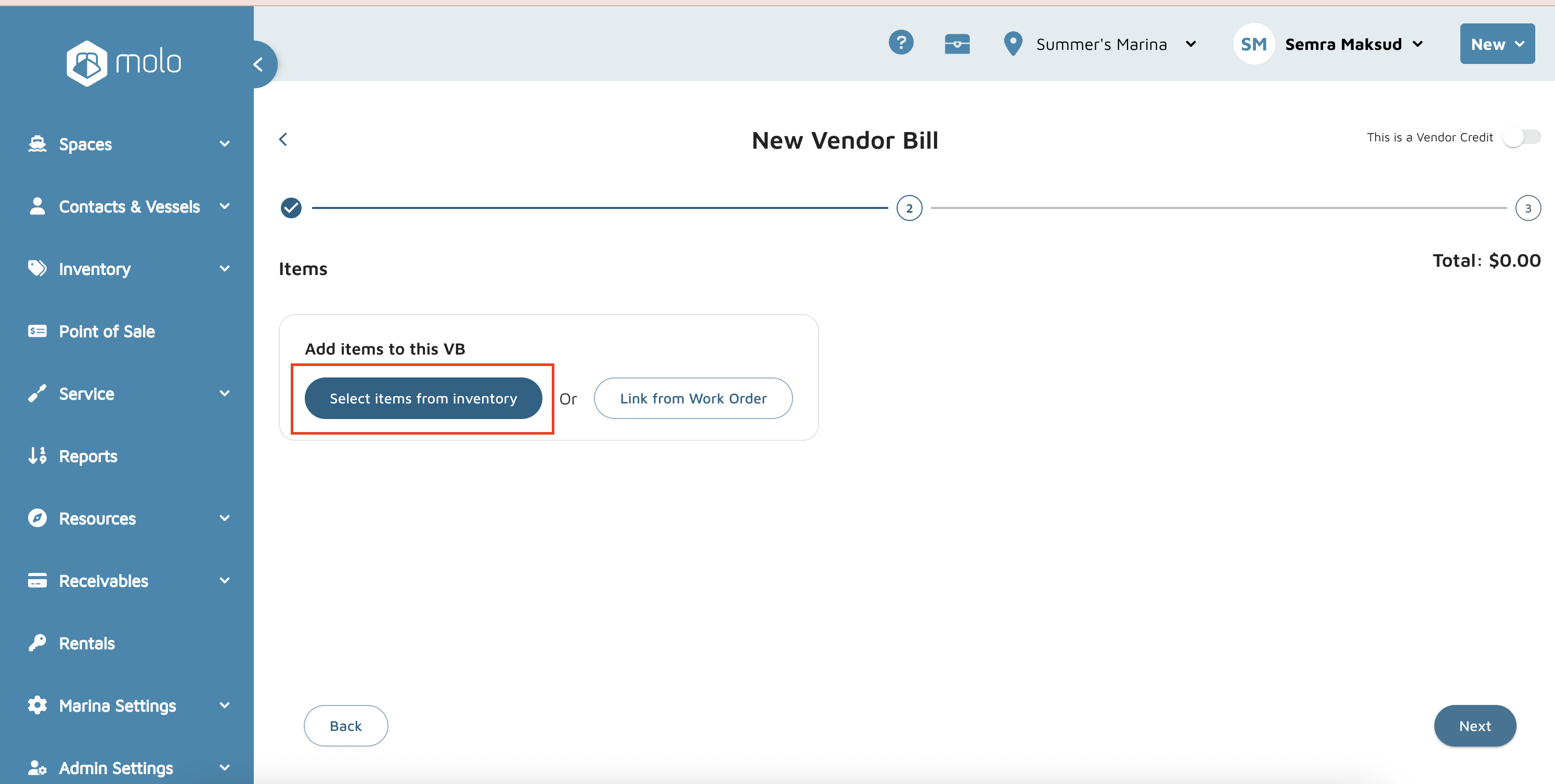
- Click Select items from inventory.
- Use the search box to find the desired inventory item.
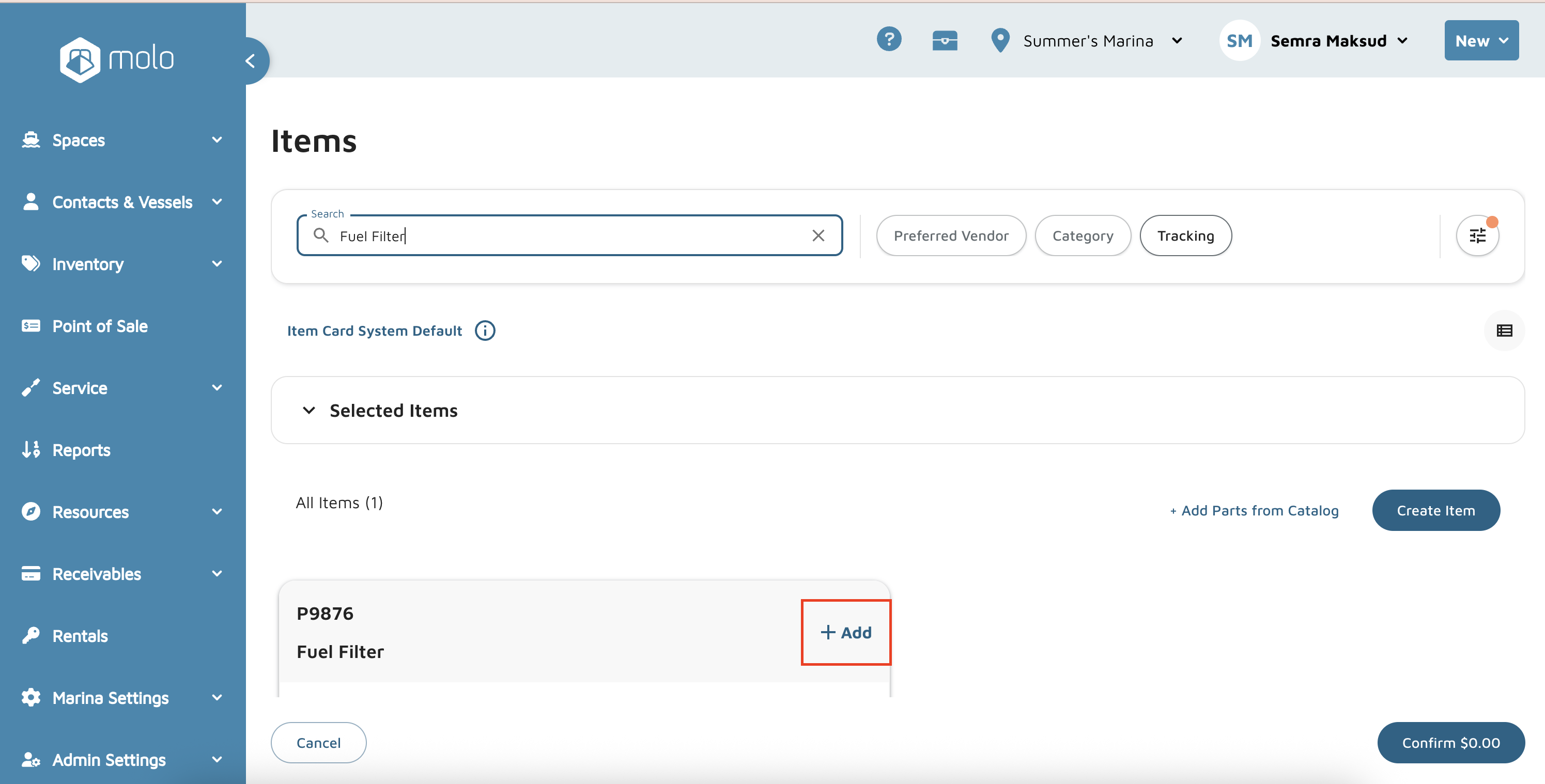
- Click + Add next to the desired inventory item.
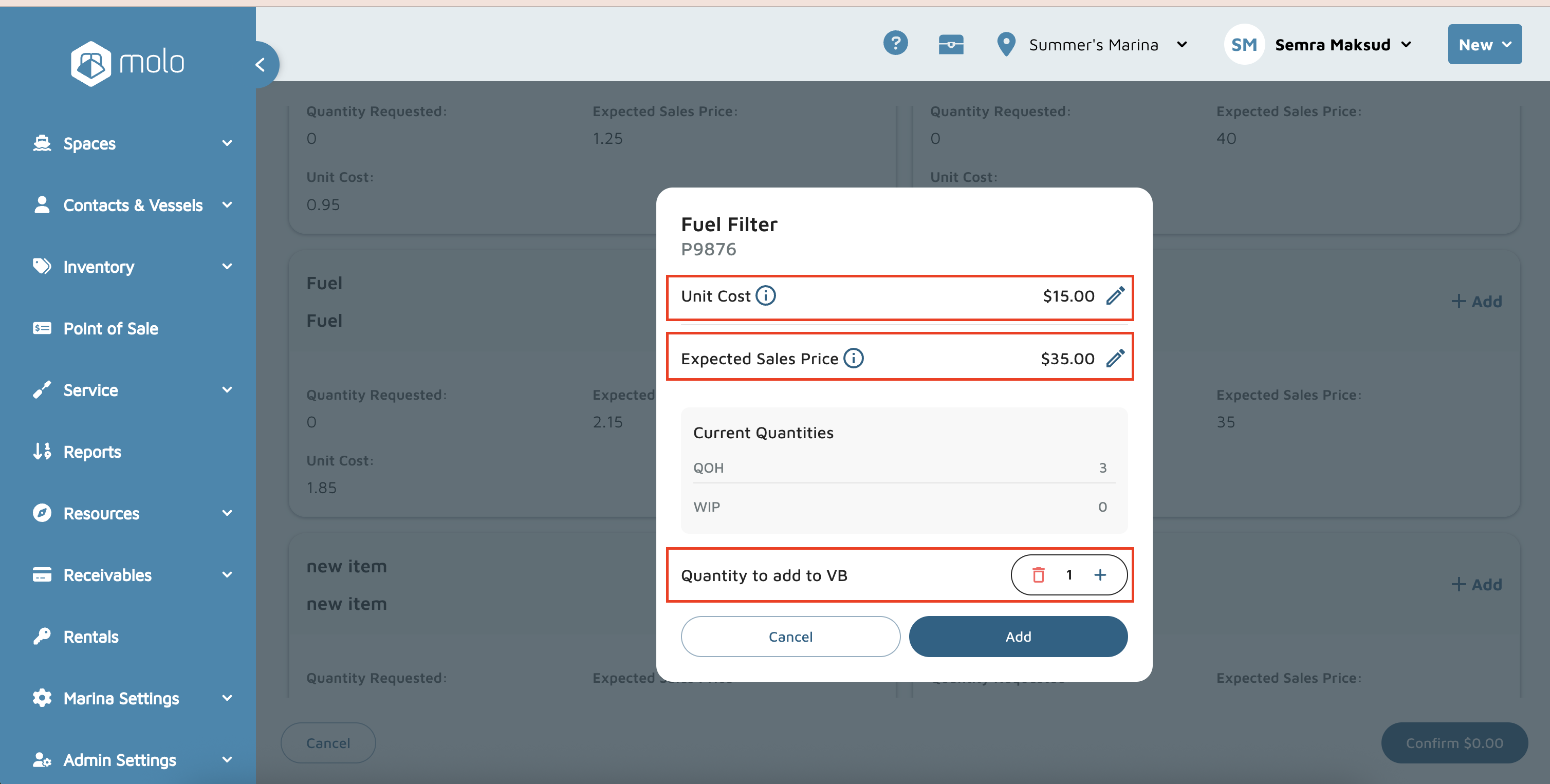
- In the pop-up that appears, enter the Unit Cost and Expected Sales Price.
- In the Quantity to Add to VB field, enter the quantity being added.
- Click Add.
- In the bottom-right corner of the screen, click Confirm.
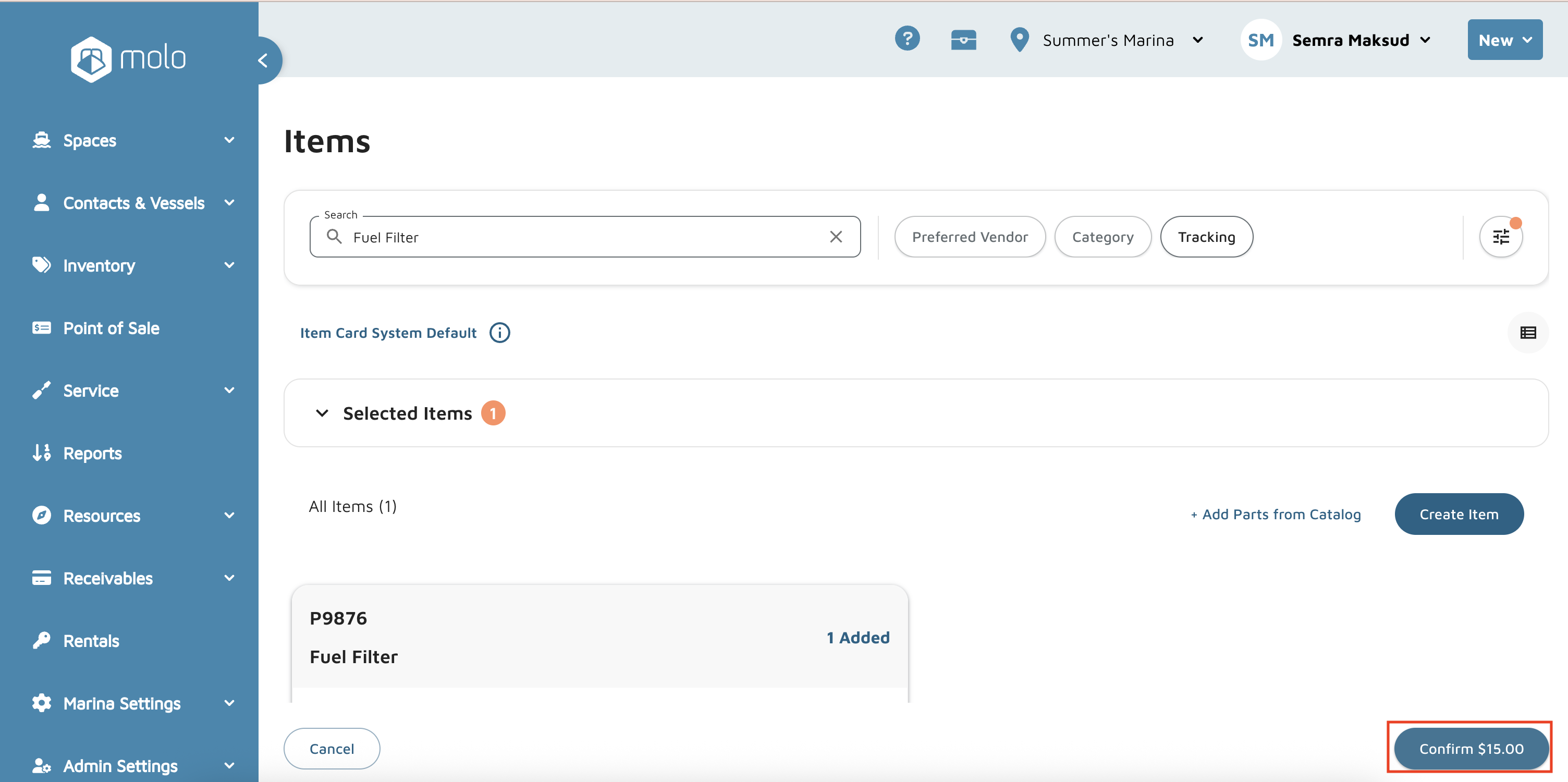
- Click Next.
- Click the + Add on the right side to enter any Internal Notes or Notes for Vendor.
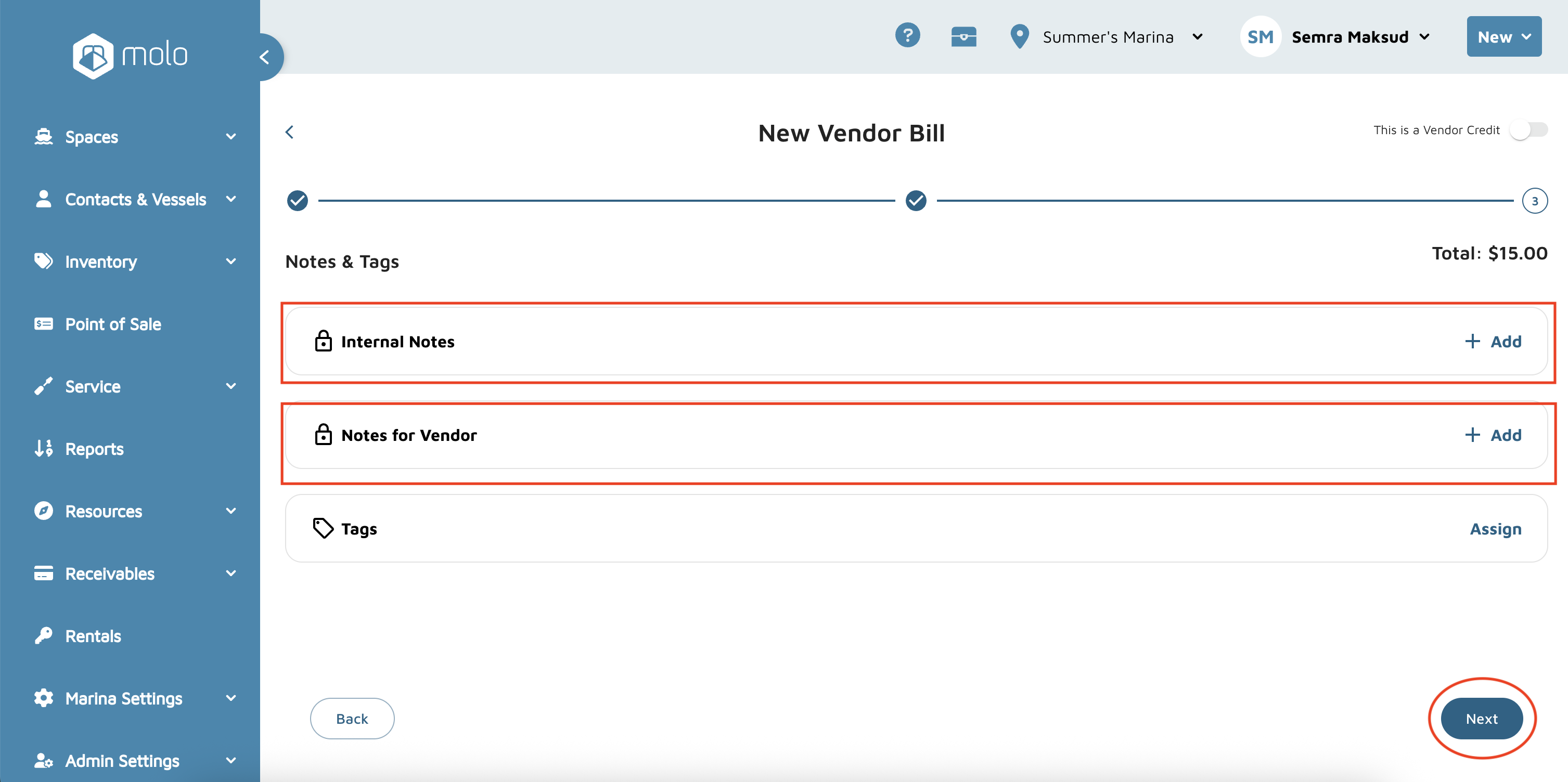
- Click Next again.
- On the Confirmation screen , review that everything looks good and then click Submit.
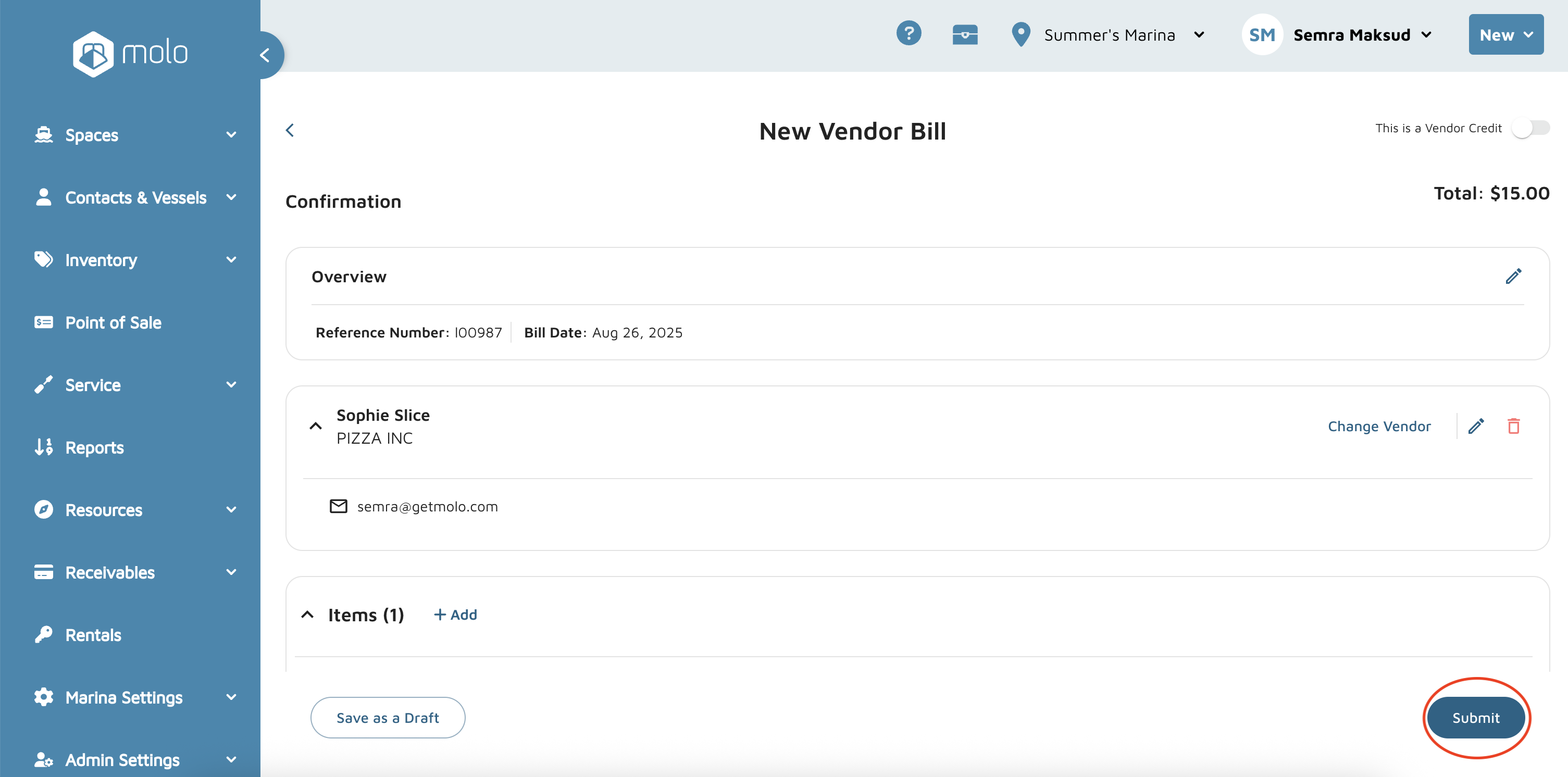
- Then navigate to the Inventory screen to verify the added quantity.
Verification: On the menu bar, click on Inventory > Vendor Bills. The new bill should be there.