
This guide explains how to add/run Finance Charges. For information on how to configure Finance Charges, please see Finance Charge Setup.
- "How do I add finance charges to statements for overdue customer balances?"
- "How do I add late fees to customer accounts?"
Resolution Steps
- Ensure a finance charge item has already been created in Molo inventory. This is required for the process to function.
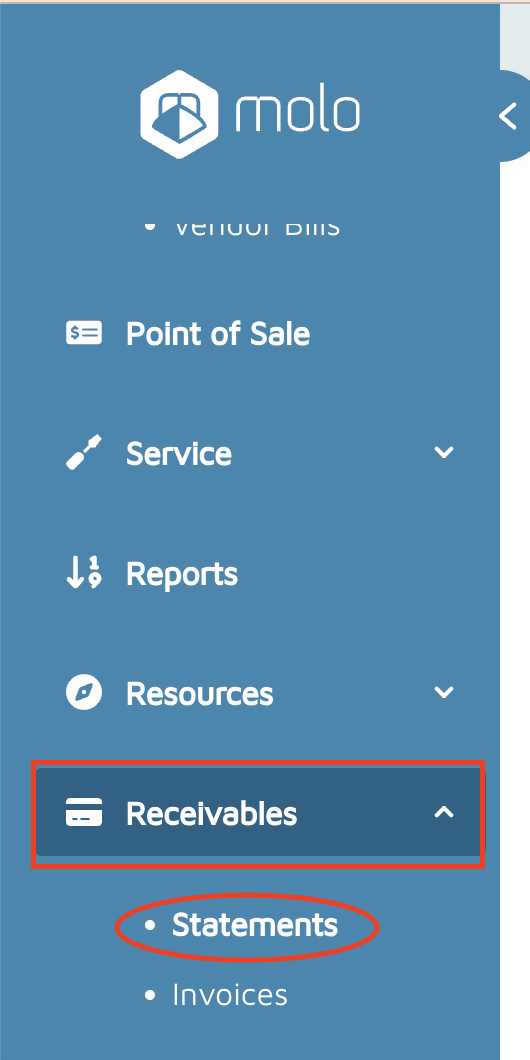
- Go to Receivables → Statements
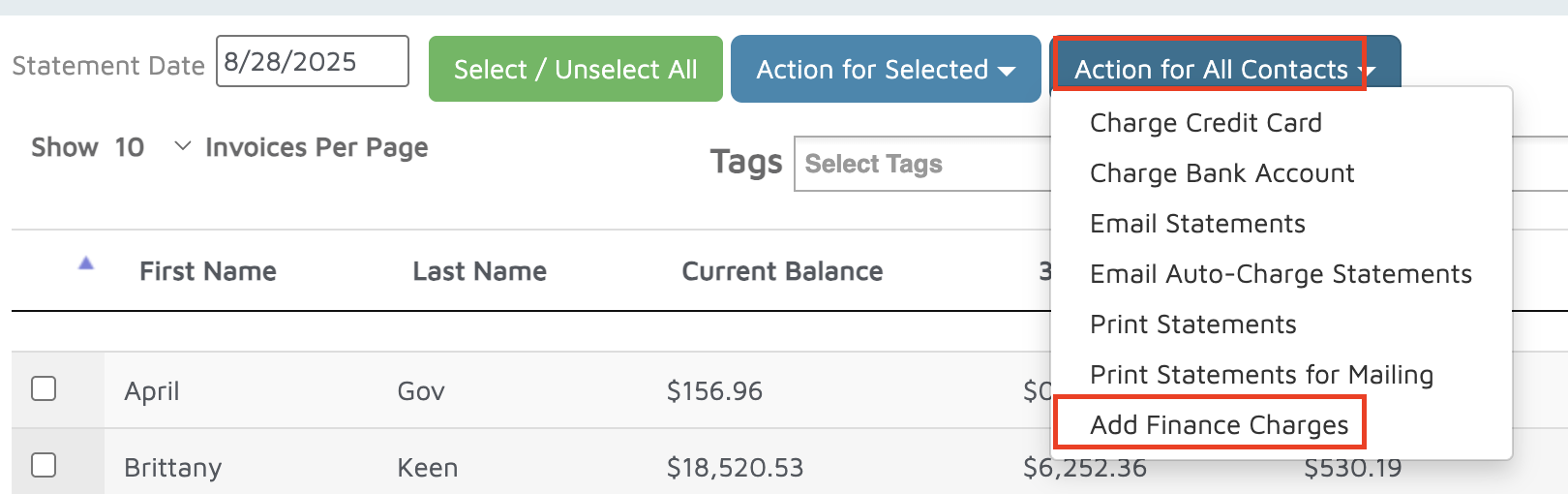
- Use one of the following:
- Action for Selected — to apply charges to specific contacts.
- Action for All → Add Finance Charges — to apply charges to everyone on the list.
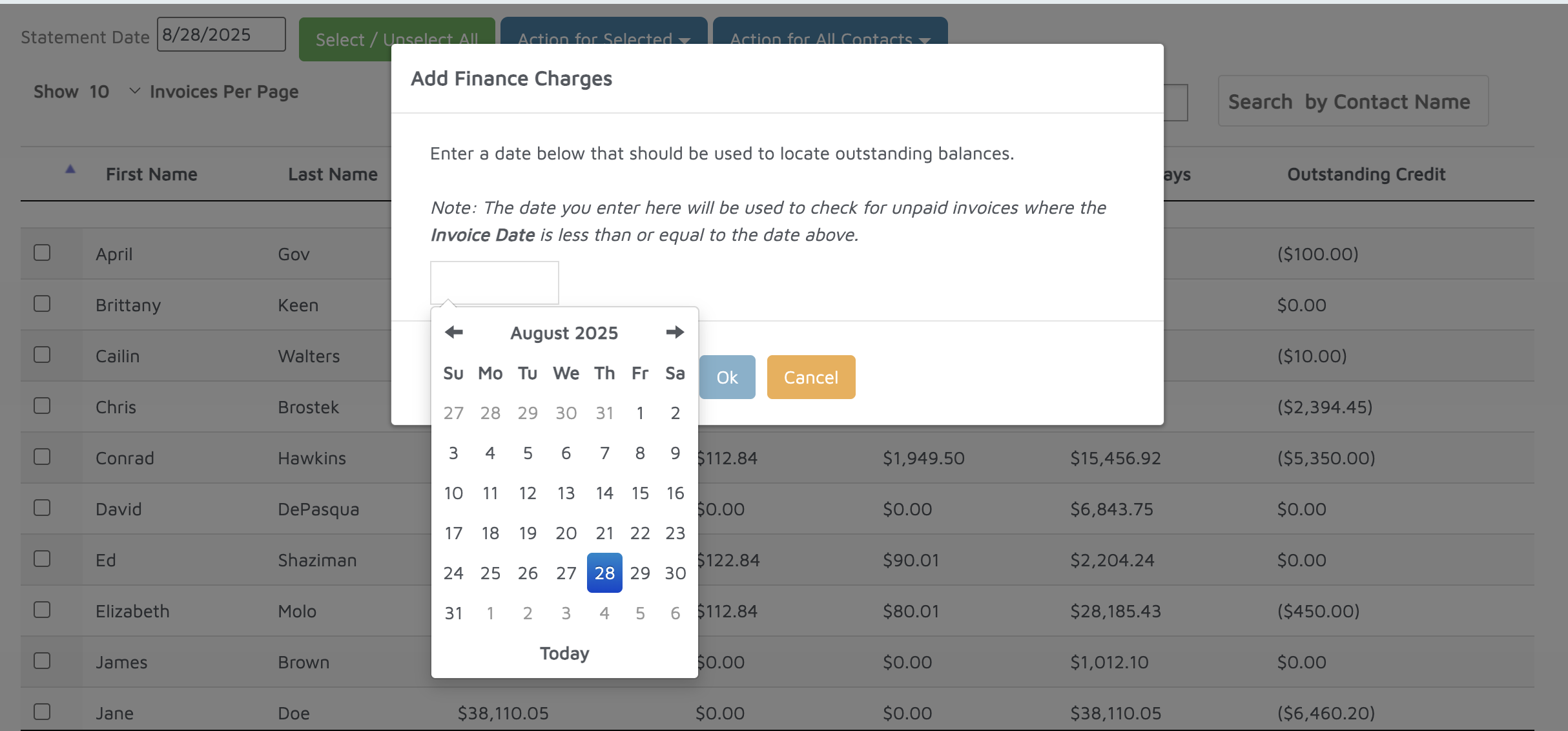
- Select the appropriate date for applying the finance charges using the calendar picker, and Molo will generate a standalone invoice for each selected customer using your finance charge item.
- After clicking OK on the Add Finance Charges screen, the process may take several minutes based on your volume of contacts and outstanding invoices. Molo will send you an email when it completes, and you can continue using the system in the meantime.
Verification: Run the Finance Charges Audit Report to see which customers were charged and the associated invoices.
Tips and Tricks:
Many marinas name their Finance Charge Item something like: Finance Charge, Late Fees, 30 Day Late Fee, or something similar - whatever you want to call the line item that the customer will see.
- Once you click "OK" on the Add Finance Charges screen, it can sometimes take several minutes for the finance charges to be added, depending on how many contacts and outstanding invoices you have. Don't worry - Molo will email you when the process of adding finance charges is complete, and you can continue to use Molo normally while the charges are being added!
- If you don't receive this email, or don't know if you're configured to - reach out to Molo support to ask!
- Finance charges can be added as either a flat fee, or a percentage of the outstanding balance.
- If you use Add Finance Charges and a selected customer does not have an outstanding balance as of the date selected (e.g. they are in good standing), no finance charge will be added, regardless of if they are selected or not!
- Once the Finance Charges are added, you would be able to see who was charged and the invoices by running the Finance Charges Audit Report
- If Finance Charges are added to a customer, Molo will also add an Invoice Line note that will show what Invoices were reviewed to come up with the Finance Charge value. That can be see when printing/emailing the invoice or by running the Invoice Lines Report