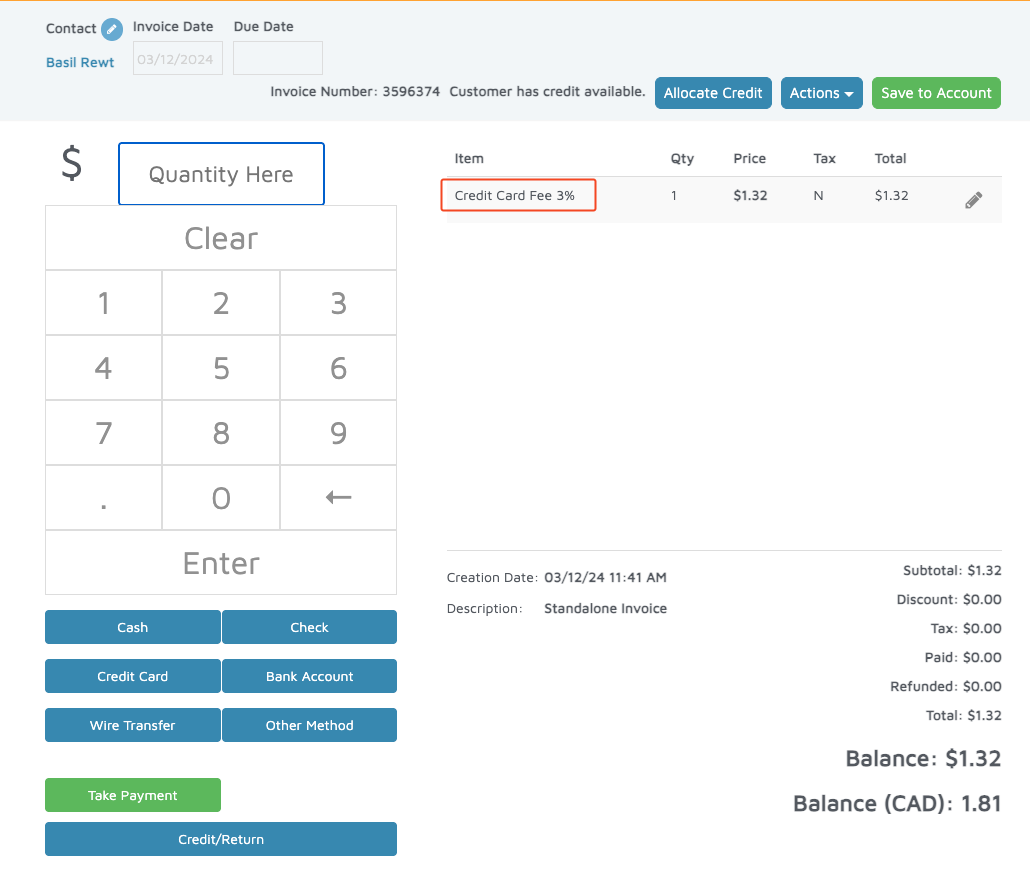
- "How do I set up credit card surcharging?"
- "How do I choose which invoices get surcharge?"
Resolution Steps
- Navigate to Admin Settings > POS Settings > Surcharges.
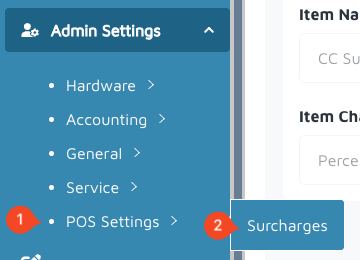
- Click Add Surcharge.
- Complete the following:
- Surcharge Name: Assign a name to this surcharge.
- Invoice Type (can select multiple): Specifies the types of invoices where surcharging will apply. Verify with the customer what types of invoices should receive surcharge.
- Reservation: Reservation invoices
- Service: Service invoices
- Standalone: POS invoices/transactions
- Deposit: Prepayments and Security Deposits
- Payment on Account
- Surcharge Enabled (can select multiple): Specifies the types of payment methods where surcharging will apply. It is common practice to select all.
- Auto-Charge: Payments using auto-charge in Receivables > Statements
- POS: Transactions in POS Module
- E-Transaction Center: Online Payments
- Credit Card (can select multiple): Specifies the types of payment networks where surcharging will apply. It is common practice to select all.
- Item Name: From the dropdown menu, select the Inventory Item that was created for surcharging.
- Item Charge Method: This field is automatically populated after selecting the Item Name.
- Item Sales Price: This field is automatically populated after selecting the Item Name, but it can be modified if needed.
- Surcharge Name: Assign a name to this surcharge.
- Click Save.
Verification: The new surcharge name will appear under Admin Settings > POS Settings > Surcharges. Additionally, a new standalone invoice containing the surcharge will be created each time a credit card payment is processed.