
- "How do I set up an estimate?"
- "What do I need when making an estimate?"
- "How do I create a work order?"
- "How do I convert an estimate to a work order?"
Resolution Steps
- On the left menu, navigate to Service > Estimates.
- Click on the desired estimate.
- Complete the following:
Details section (optional)
- Location: (optional)
- Category: (optional)
Equipment section (optional)
- Click Show/Hide Equipment to add existing equipment.
- Click Add Equipment to create and add a new equipment.
Estimate Comments section (optional)
- Add internal comments that are not visible to customers.
- Add customer comments that are visible to customers.
Jobs section (required)
- Click on Add Empty Job or Add Job Template to create a new job for the estimate. This will produce the cost of the estimate.
Estimate Notes section (optional)
- Click Add Note to create a note visible only in Molo.
Terms And Conditions (required)
- A default Terms and Conditions may already exist in the new estimate.
- Click on Add Terms and Conditions to assign a different one.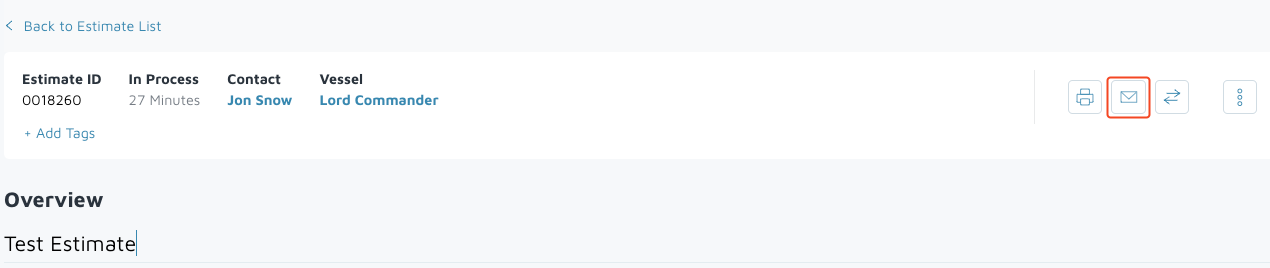
- To e-mail an estimate for customer approval:
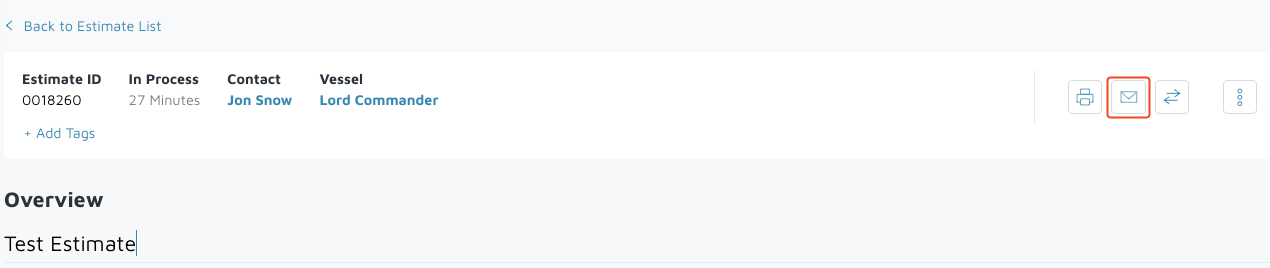
- Click the Mail icon to open the Send Email window.
- Type the customer's email and select Allow Online Approval if the marina wants customers to approve the estimate online.
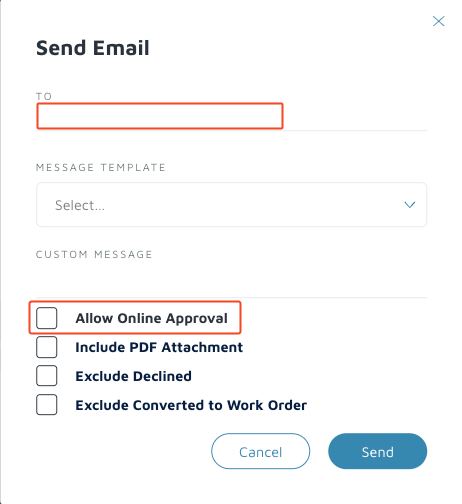
- Click Send.
- Click the Mail icon to open the Send Email window.
- If the customer approves the estimate or the marina wants to change the estimate to a work order, click Create New Work Order.
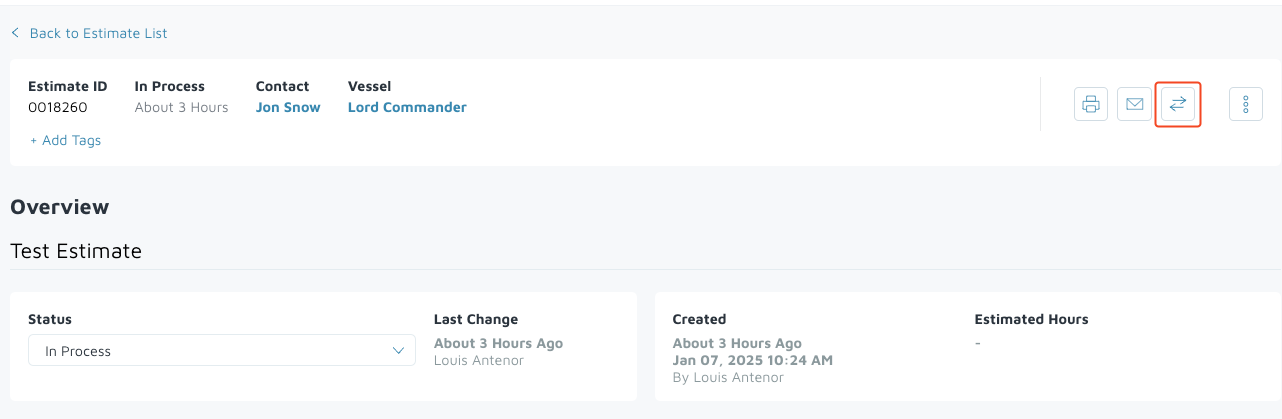
- In the Convert Estimate to Work Order screen, select the desired data to include in the work order. Typically, all four (4) items are selected.
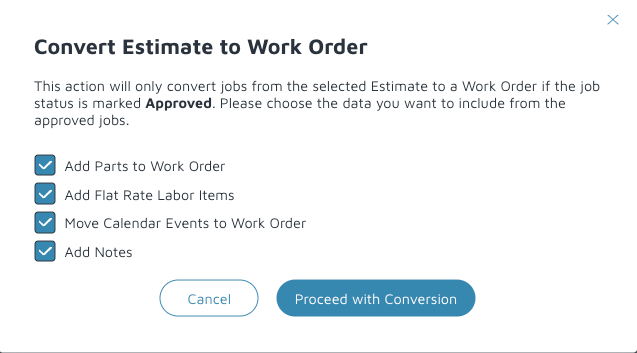
- Click Proceed with Conversion to complete the conversion.
Verification: The estimate should be created.