
- "How can I set up Lock Date?"
- "How does a Lock Date work?"
Resolution Steps
- On the left menu, navigate to Admin Settings > Accounting > Financial Lock Date.
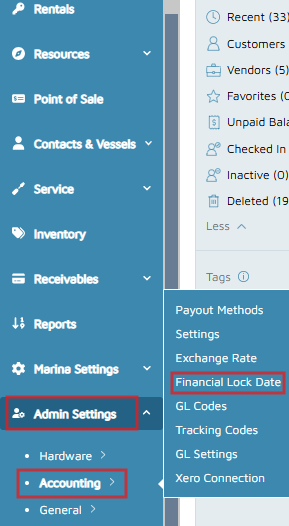
Choose the desired Lock Date, then click Save Lock Date.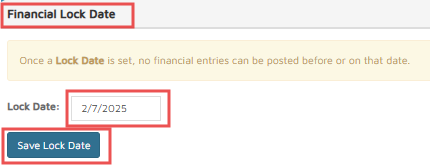
- Automatic Lock Date Configuration
- Molo support team can configure your lock date for automatic updating. Lock dates can be configured to set automatically after 1, 2, 3, 5, or 7 days, or to automatically set on the last day of the prior month.
- The Molo system runs a task each night at 12:45am (meaning the start of each calendar day) and re-sets the lock date. This is helpful because if someone changes the lock date to some time in the past during an afternoon but forgets to re-set it, our system will try to fix it every single night.
Verification/Confirmation: When editing an invoice from before the Lock Date, the system will not allow adding or removing entries on that invoice