- "I am trying to create a new inventory item, how do I do this?"
- "Where can I go to create a new inventory item?"
- "Why are there two options to add inventory items?"
Resolution Steps
- On the left menu, click Inventory.
- Click New Item.

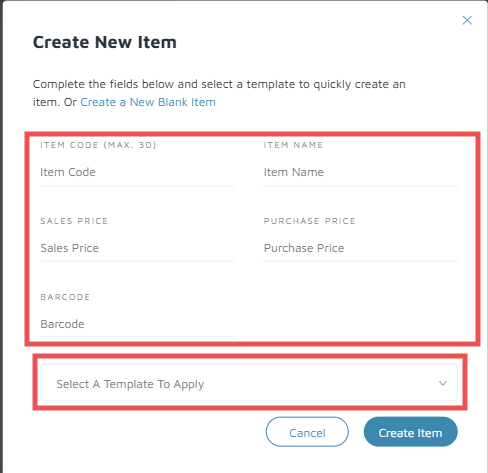
- In the Create New Item window, there are two options:
- Create a New Blank Item (common) - click on the link to start a blank Inventory Item form. Populate the following information:
Item Code: Unique identifier for the item; not visible to customers.
Item Name: Primary text shown to customers on invoices, estimates, and work orders. Should be clear and easy to understand for customer convenience.
Description: Internal-use field not visible to customers. Useful for adding alternate part numbers or spellings to improve searchability.
Category: Required field that helps group items for reporting. To request additional categories, contact Support via the Need Help? button.
Purchase Price: Required only for items purchased from vendors.
Sales Price: Price used when invoicing customers. Supports three decimal places for fuel items.
Inventory Tracked: Enables inventory tracking and audit trail for purchases and sales. Prevents item use if it would reduce quantity on hand below zero.
Taxable: When enabled, item is taxed at the default rate.
Override Tax Rate: Input a custom tax percentage for items that require a rate different from the default.
Item Charge Method: Determines how the item is billed.
Flat Fee: Default and most common option.
Per Foot / Per Meter: Used for charges based on boat length (e.g., detailing, painting, hauling).
Per Hour: For labor or services charged hourly. Required when billing labor via Work Orders with tracked hours.
Percent: Used for percentage-based charges (e.g., recycling or environmental fees).
Quantity Can Be Decimal: Allows decimals in quantity for work orders and invoices.
Available as Add-On: Enables the item to be used as an add-on in reservations.
Sublet Item: Allows the item to be added to Work Orders as a sublet, used when subcontractors perform work billed to the customer.
Allow Total Price Entry: Enables entry of the total price to calculate the quantity sold.
- Use an Item Template - complete the form then select a template to apply.
- Create a New Blank Item (common) - click on the link to start a blank Inventory Item form. Populate the following information:
- Click Create Item.
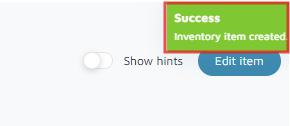
Verification: When the item is successfully created, a confirmation pop-up will appear on the right side of the screen.