
- "An invoice has been paid, but one or more items on the invoice had the wrong tax rate applied. How do I correct this transaction?"
Resolution Steps
- The proper way to correct this is to issue a credit note for the item(s) with the incorrect tax and then create a new invoice with the correct tax rate, using the credit to pay the new invoice.
- Create a Taxed Credit Note:
- Open the invoice you want to adjust in Refund mode.
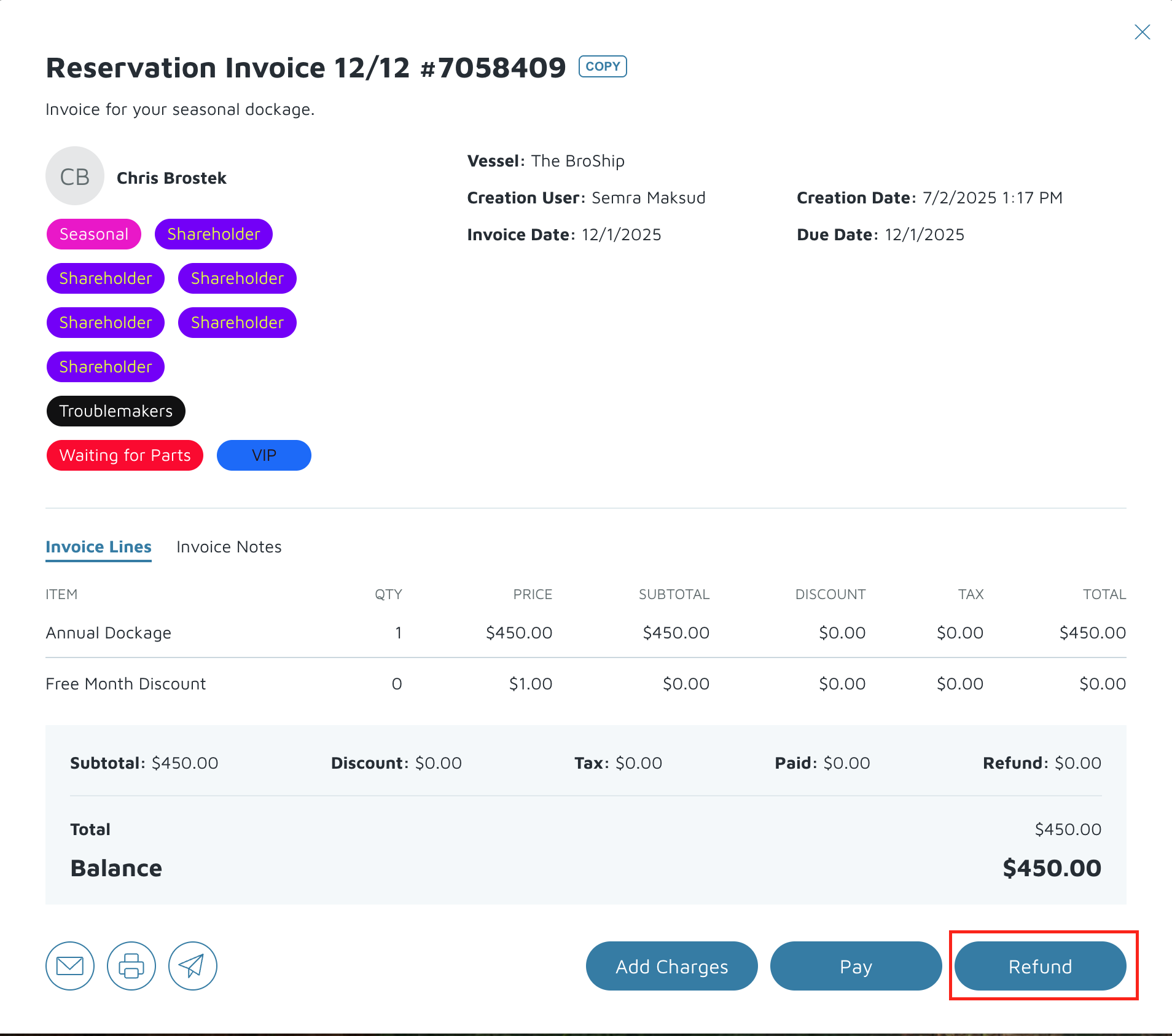
- Click Credit/Return.
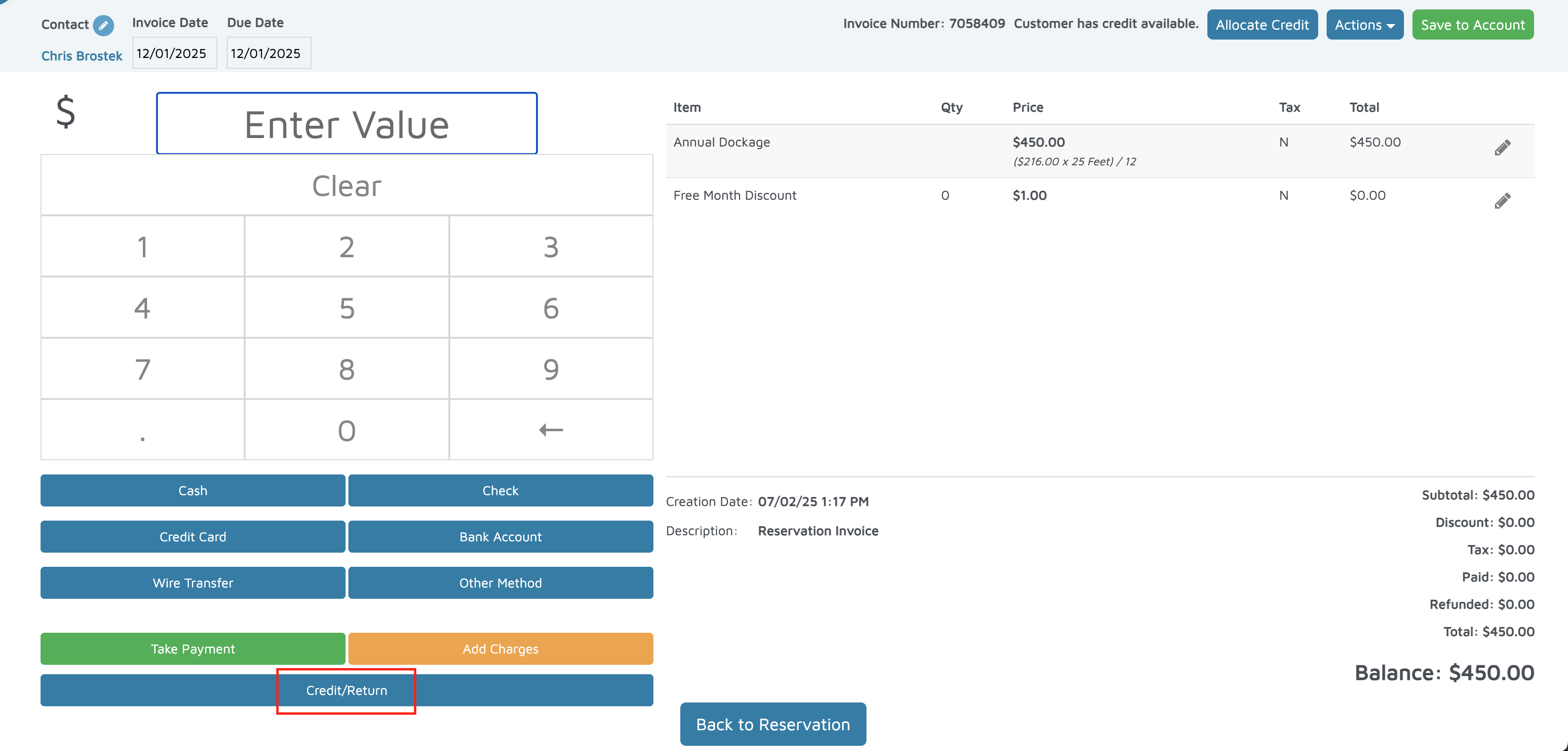
- Select the checkbox next to the specific item(s) that were purchased with an incorrect tax rate in the original invoice.
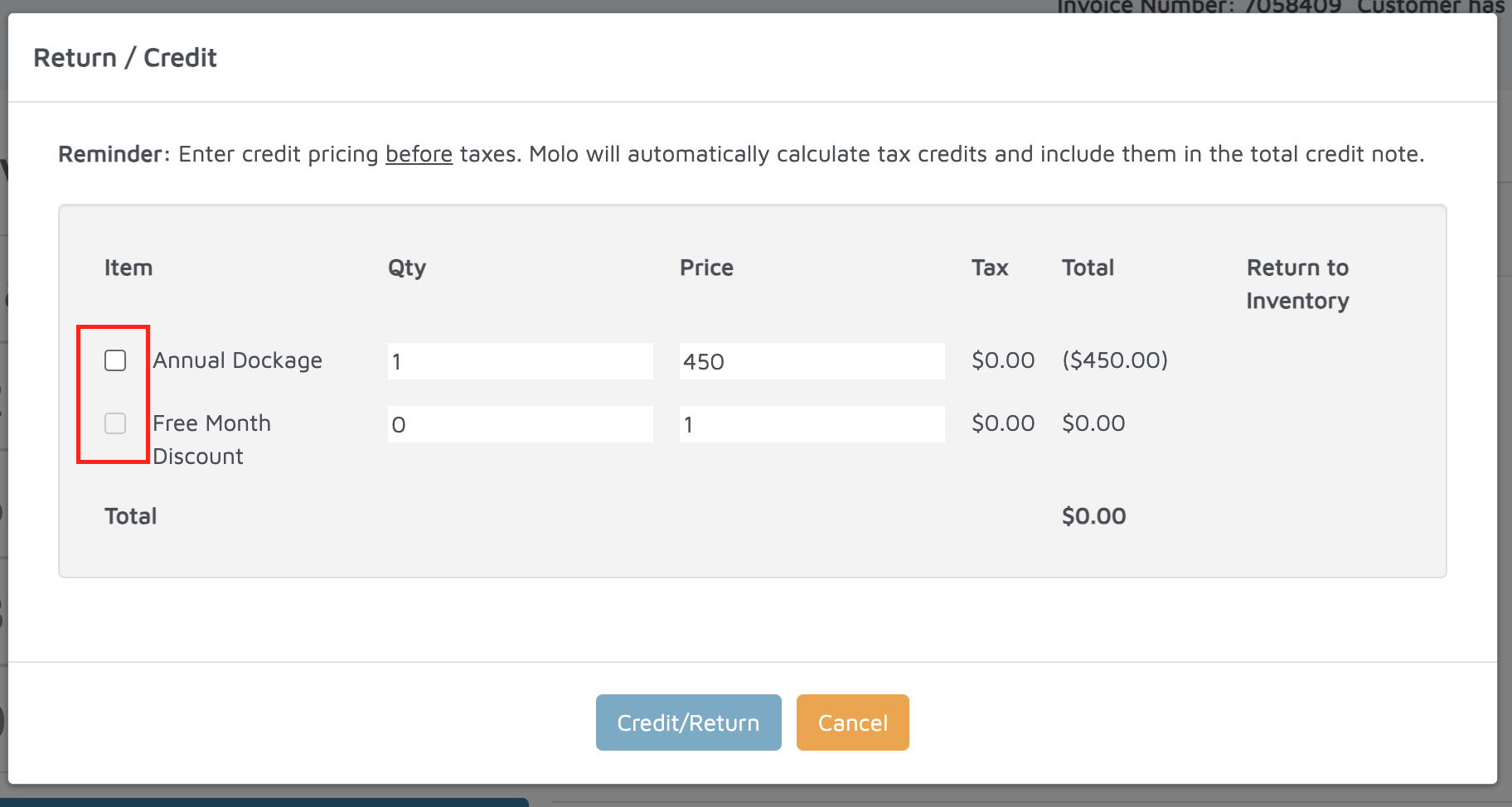
- Click on Save to account.
- Open the invoice you want to adjust in Refund mode.
- Create a New Invoice with Correct Tax:
- Create a new invoice for the customer and add the same item(s) you are adjusting.
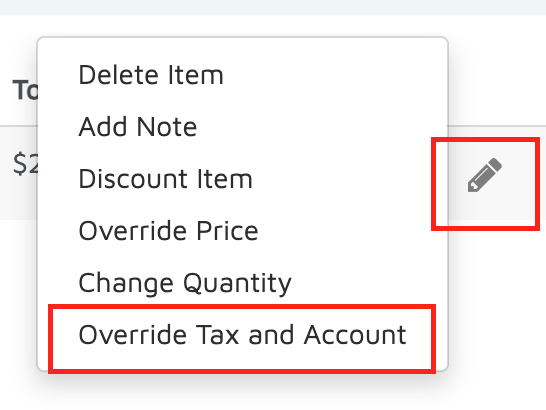
- Use the Pencil → Override Tax option to manually change the tax rate to the correct value(s).
- Finalize the Transaction:
- Use the Allocate Credit button on the new invoice and select the taxed credit note that was just made to pay the new invoice.
Verification: The tax amount on the invoice should be corrected.