
- "Is there a report that will show me space performance/occupancy and reservations in those spaces?"
Resolution Steps
- Navigate to Reports.
- Select Reservation and Spaces.
- Click on Space Performance.
- Enter the desired start date and end date.
- Click Run Report.
- Review the generated report, which includes:
- A summary table with slip type details:
- Occupied slips
- Vacant slips
- Inactive slips
- Total spaces
- Percentage occupied
- Occupied footage
- Total footage
- Footage utilization
- Revenue details:
- Total revenue for occupied slips
- Maximum potential revenue
- Revenue percentage achieved
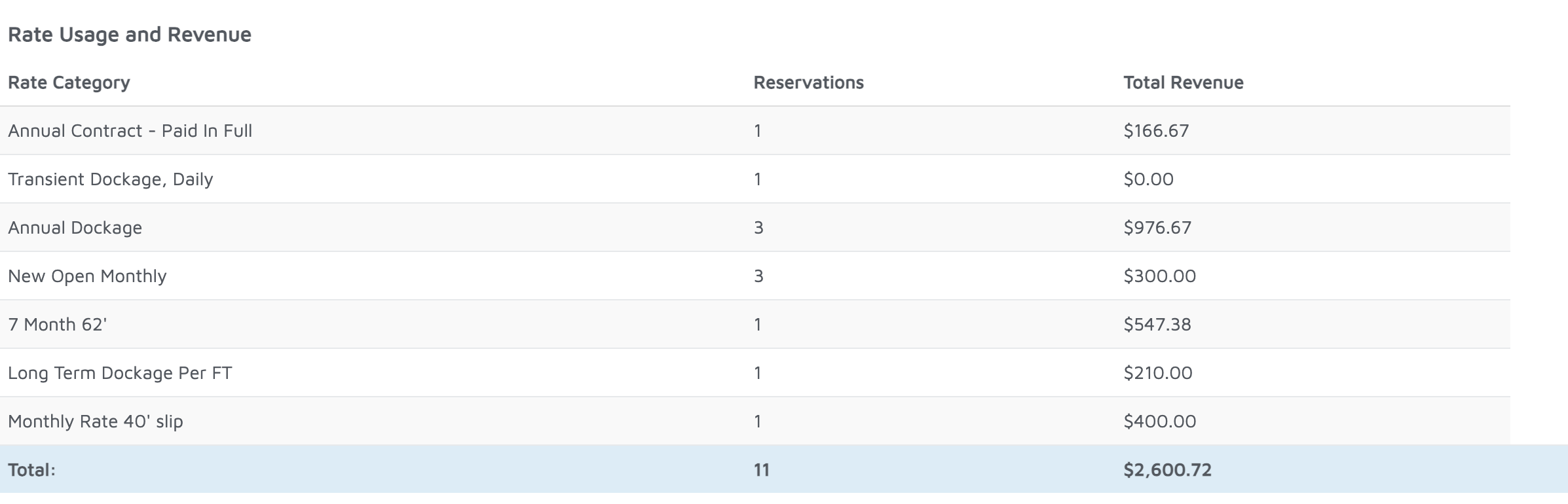
- Rate usage and revenue breakdown:
- Each rate utilized
- Revenue tied to those rates
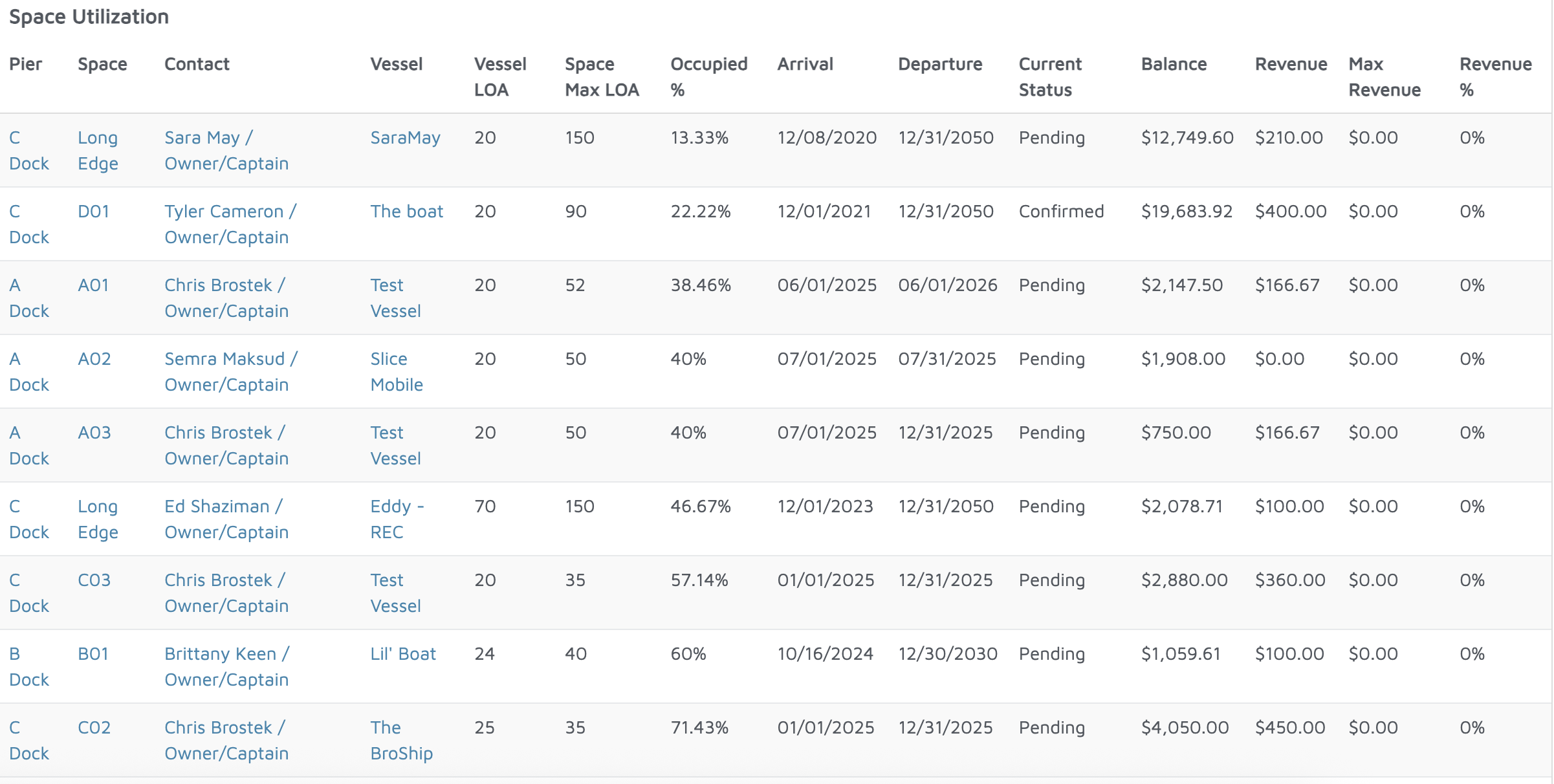
- Detailed space-level list, showing:
- Space information
- Contact and vessel details
- Occupied footage per vessel
- Revenue per space
- Reservation arrival and departure dates
- Reservation status
- Outstanding balance
- Total revenue
- A summary table with slip type details:
Verification: The report will populate space occupancy and performance for the time period selected.