
- “I’m not using QuickBooks or Xero — how do I make sure Molo tracks my income correctly?”
- “Where do I add my general ledger (GL) codes for reporting in Molo?”
Resolution Steps
- Step 1: Create GL Codes.
- Go to Admin Settings → Accounting → GL Codes.
- If you are unsure of your codes, you can also send your chart of accounts to your Implementation Manager or Client Success Manager for setup assistance.
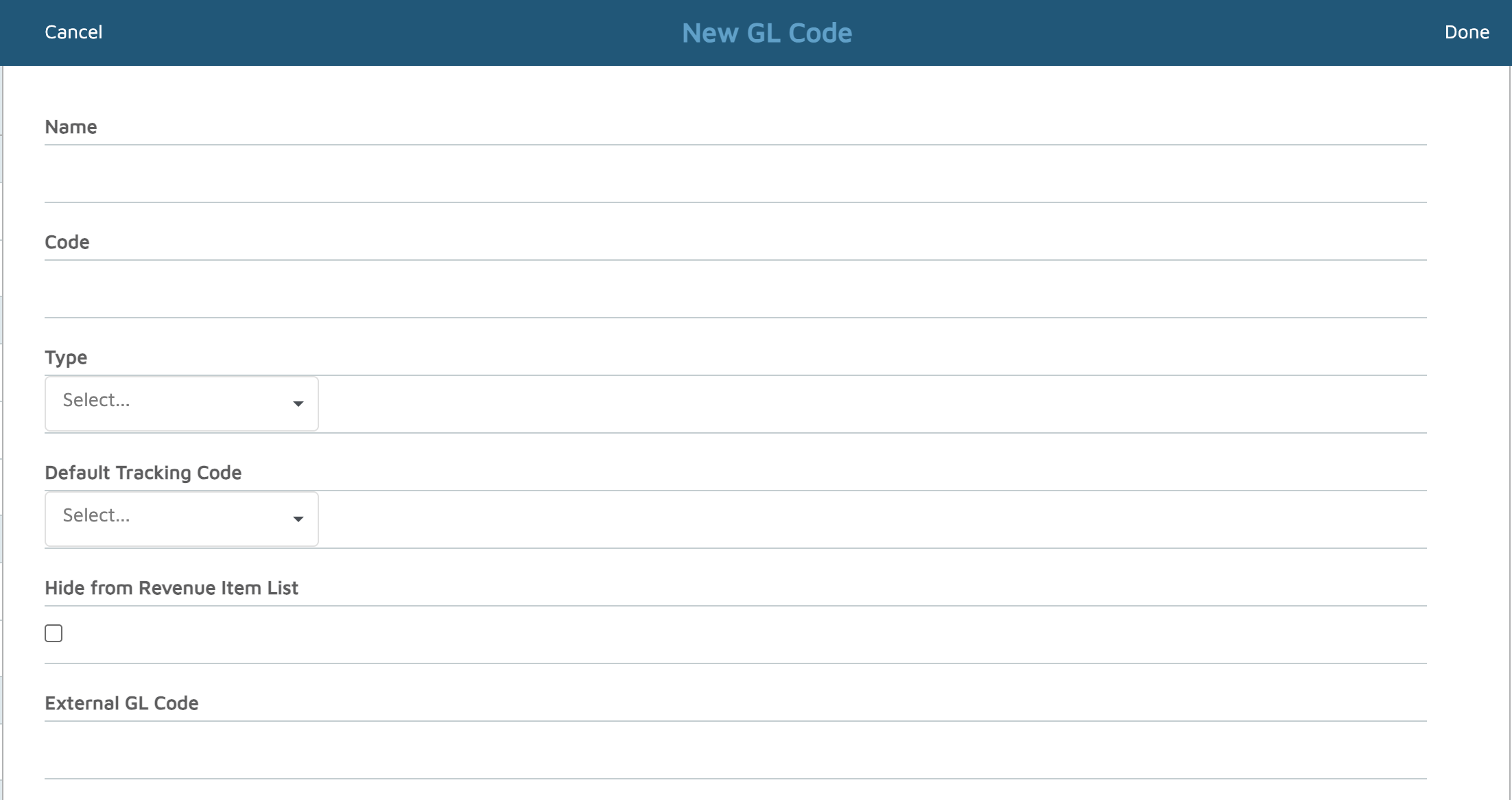
- Click “New GL Code”.
- Enter a descriptive Name for your account (e.g., Wells Fargo Checking).
- Enter the GL Code provided by your accountant or your chart of accounts.
- Choose the Account Type (for example, Bank Account).
- Click Done to save your new GL code.
- Step 2: Assign GL Codes to Account Settings
- Return to Admin Settings → Accounting → GL Settings.
- In each field (e.g., Revenue, Deposits, Bank Accounts), enter or select the GL code that should be associated with that transaction type.
- Example: Select your Wells Fargo Checking account where applicable.
- Click Save to update your chart of account settings.
Verification: Once saved, Molo will use these GL codes to properly classify your income, even without an accounting integration.