
- "How do I create inventory templates in Molo to quickly add new inventory items with consistent settings?"
Resolution Steps
- Go to the left-hand menu and select Inventory > Items
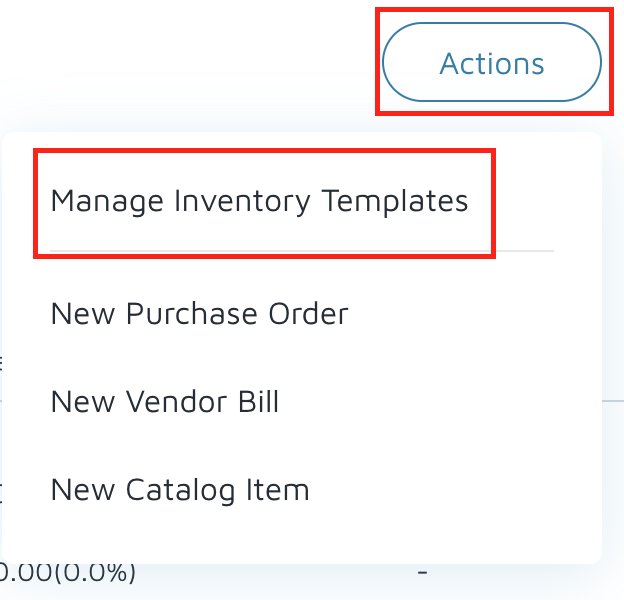
- Then select Actions > Manage Inventory Templates.
- Click New Template in the upper-right corner.
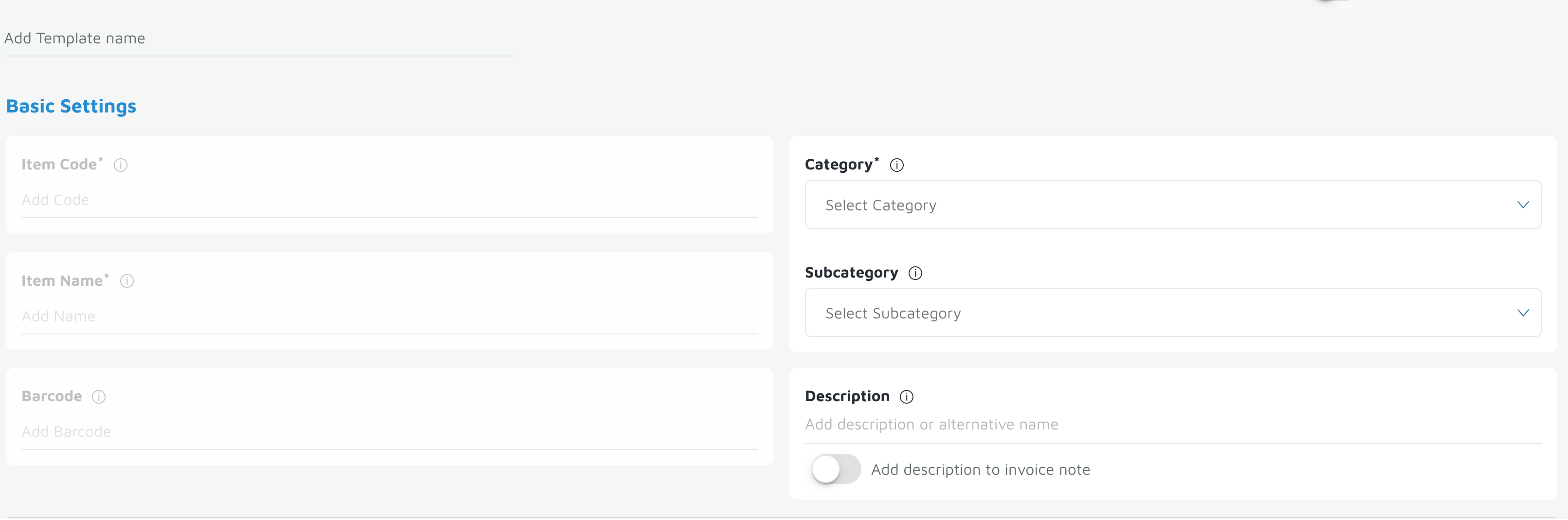
- Enter a Template Name. For example: “Chips”.
- Under Basic Settings, note that Item Code, Item Name, and Barcode will be grayed out — these will be unique per item.
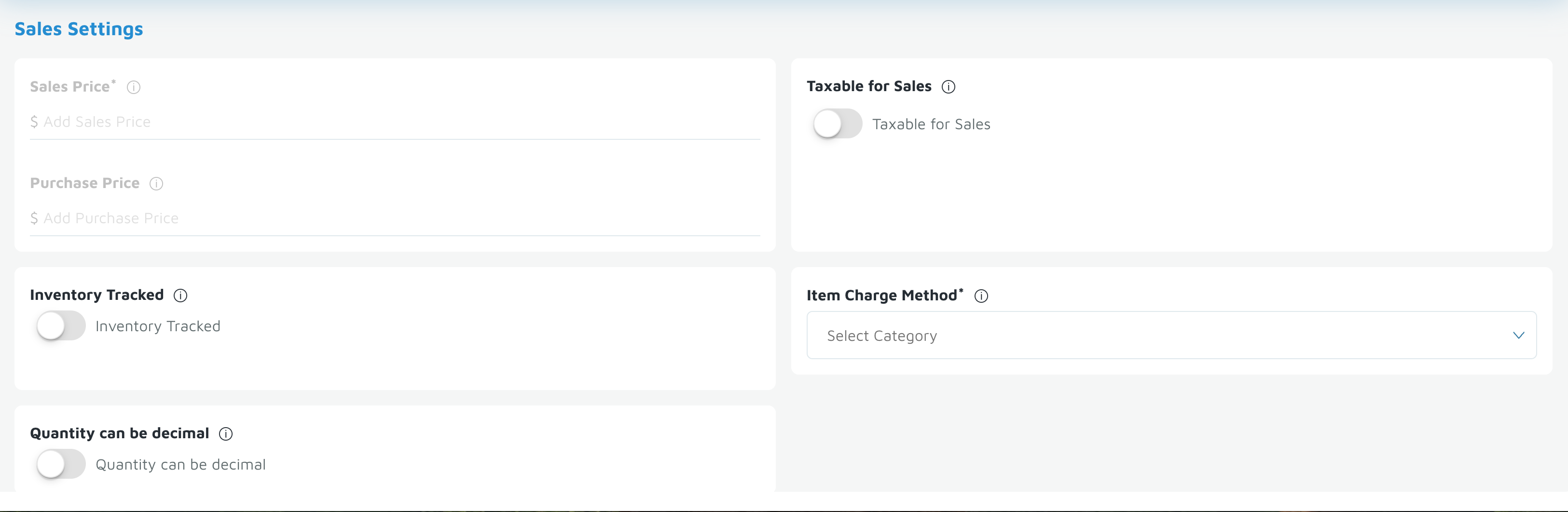
- Under Sales Settings, Sales Price and Purchase Price will also be grayed out since these may vary by item.
- Choose the appropriate Category for reporting (e.g., Store).
- Enter a Description (e.g., “Bag of Chips”) and choose whether you want this to appear on invoices.
- Select whether the item should be Taxable for Sales. You can confirm your tax rate with your Implementation or Customer Success Manager.
- Enable Track Inventory if you wish to monitor stock levels.
- Select a Charge Method (for example, Flat Fee).
- Under Part and Service Information, determine if the item should appear as a Part, Labor, or Charge within the service module (for use in estimates or work orders).
- Under Reservation Settings, choose if the item should be available as an Add-On or require Age Verification.
- Optionally, mark the template as Default Template if it will be your standard for new items.
- Click Save to create your template.
- To use your new template, return to Inventory and click New Item.
- Fill in your Item Code (internal reference) and Item Name (customer-facing name).
- Set a Sales Price (e.g., $2) and a Purchase Price (e.g., $1).
- Select your saved Template from the dropdown and click Create.
- Your new item is now added using the preconfigured template settings.
Verification: The template should appear when creating a new inventory item. Create a test item to see if it's there.