
- "How do I create a new rate in Molo and understand the difference between Time-Based, Seasonal, and Recurring Rates?"
Resolution Steps
- From the left-hand menu, navigate to Marina Settings > Space Settings.
- Select one of the following options based on the type of rate you want to create:
- Time-Based Rates — For transient customers staying short-term (e.g., nightly stays).
- Seasonal Rates — For customers staying for a defined period (e.g., annual or prepaid blocks).
- Recurring Rates — For customers paying monthly without a fixed departure date.
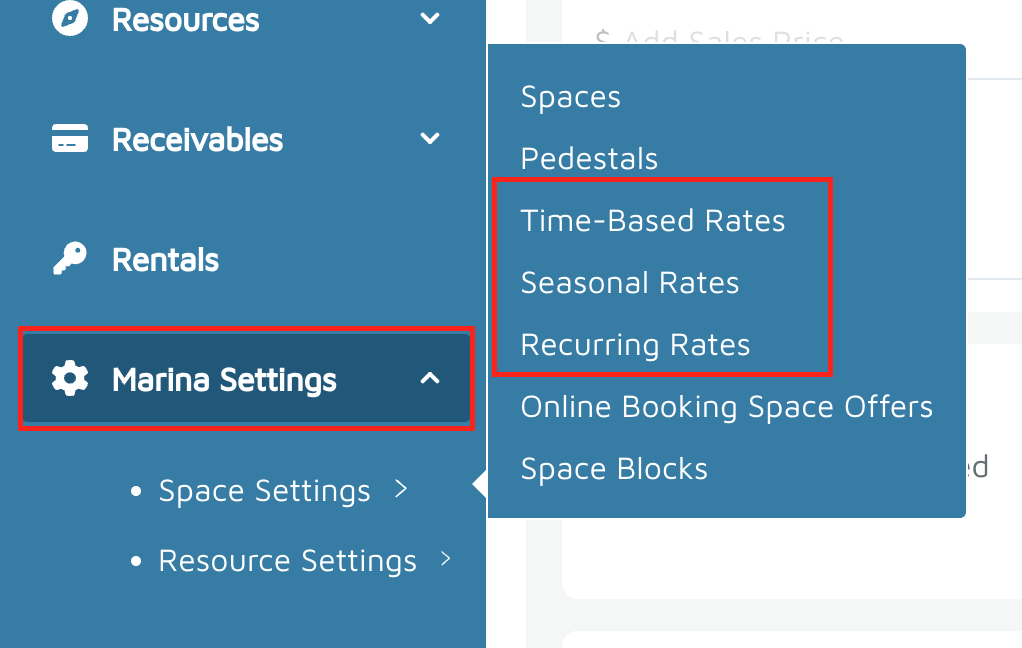
- Click New Time-Based Rate (or New Seasonal Rate / New Recurring Rate, depending on your selection).
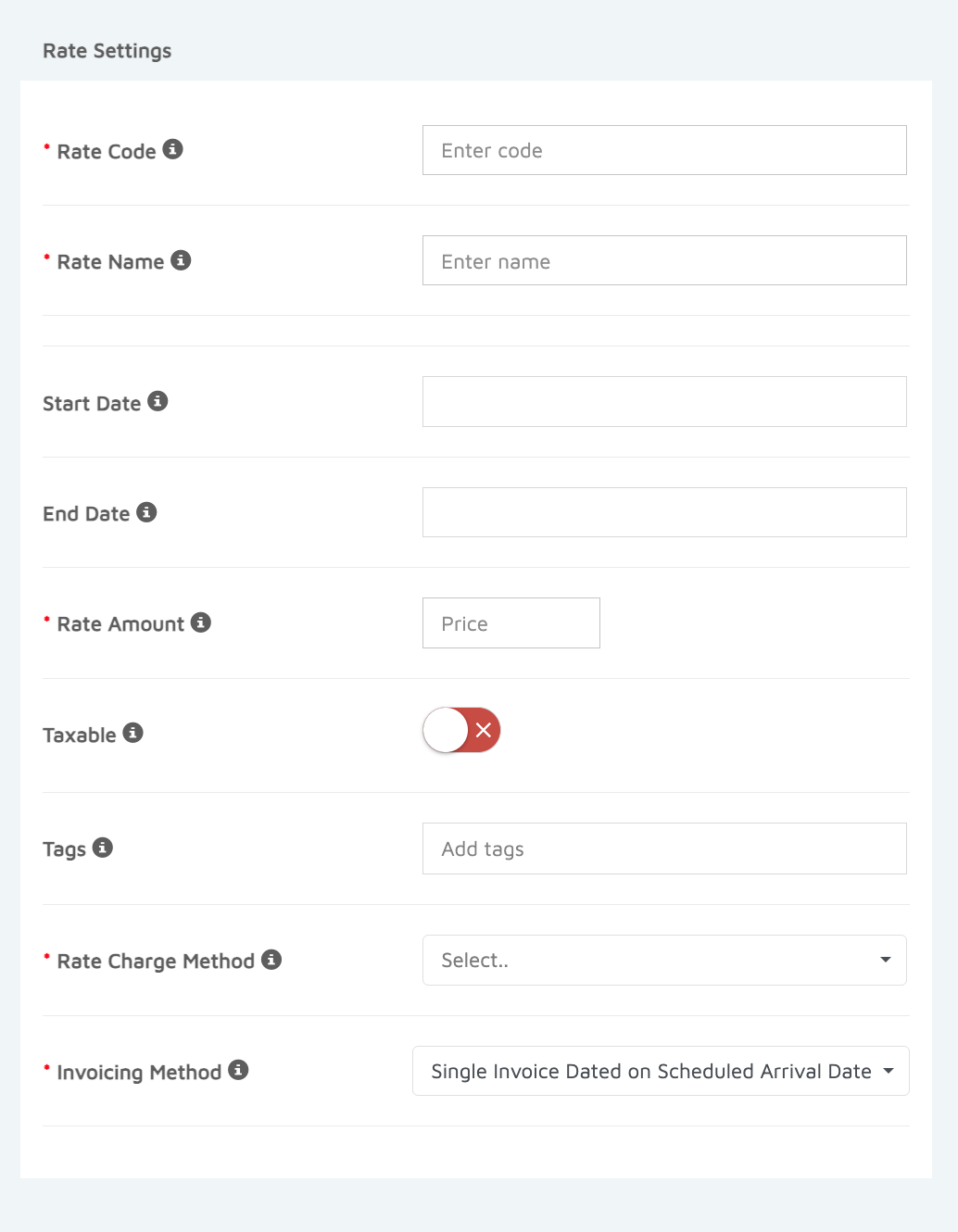
- Enter a Rate Code and Rate Name:
- Rate Code is your internal name (visible only to your team).
- Rate Name is customer-facing (visible on invoices and contracts).
- Set the Start Date and End Datefor the rate.
- These define the period during which the rate is active.
- Many marinas set these dates annually to match pricing updates.
- Enter a Rate Amount (e.g., $50) and choose a Rate Charge Methodfrom the dropdown:
- Examples: Per Night, Per Foot, Per Month, Flat Rate.
- Toggle Taxable on or off depending on whether this rate should include tax.
- Select an Invoicing Method to determine when invoices will be generated.
- Optionally, upload or select your Emailed and Printed Terms & Conditions and Online Payment Terms & Conditions:
- Including terms and conditions ensures that online payments act as legally binding agreements.
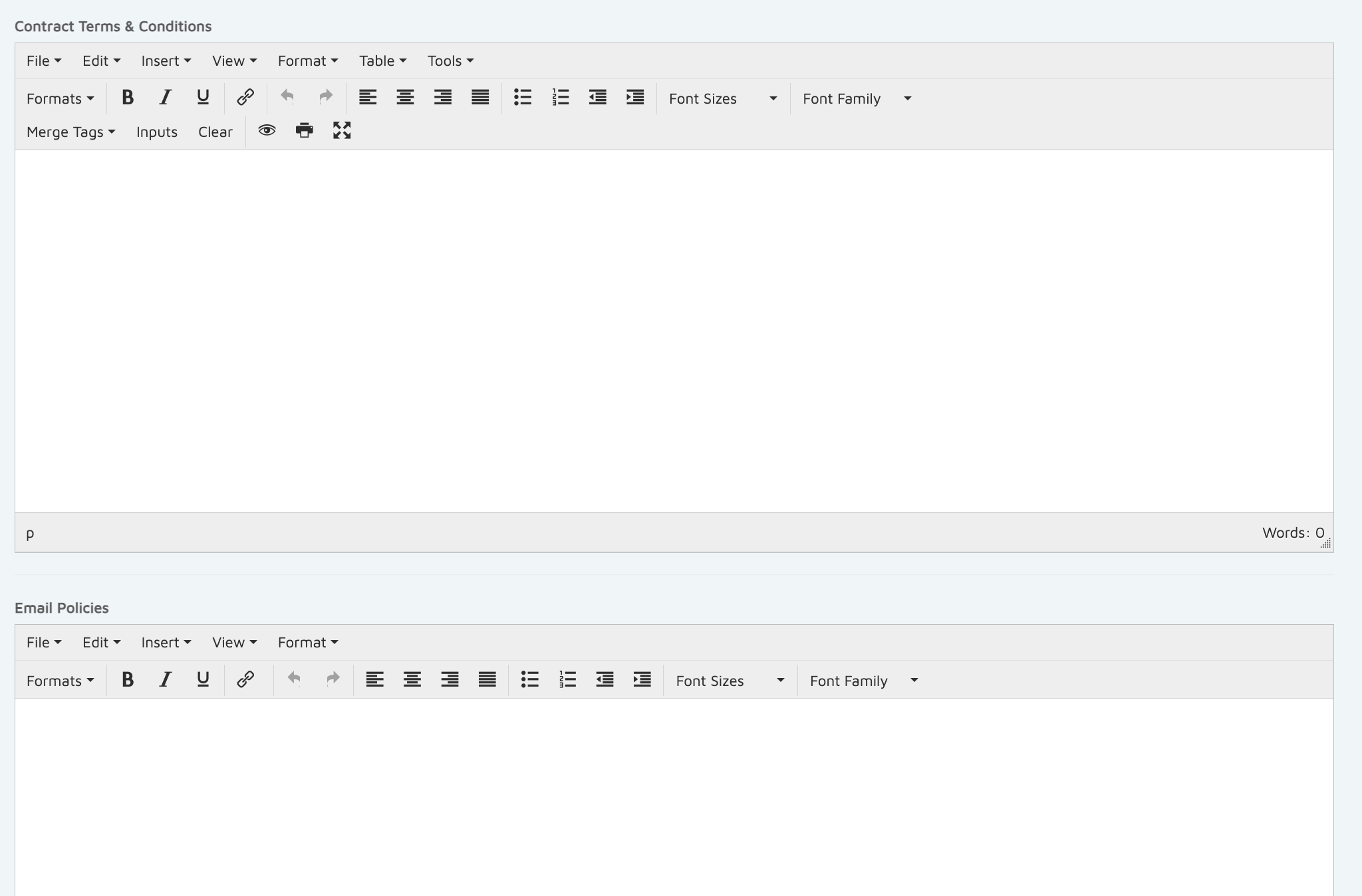
- Including terms and conditions ensures that online payments act as legally binding agreements.
- Click Create Time-Based Rate to save your rate.
- You will now see your new rate listed under Time-Based Rates.
- For Seasonal Rates:
- Start and End Dates define the active season.
- Rate charge methods typically include Flat Rate, Per Foot, or Per Square Foot.
- For Recurring Rates:
- Charge methods include Per Foot / Per Month or Per Square Foot / Per Month.
- Invoices for recurring rates automatically generate on the 26th of each month and are dated for the 1st.
Verification: The rate should appear when creating reservations.