
- "How does the user flow work?"
- "Can you help me with the user flow?"
Resolution Steps
Understand Help Mode
Help Mode provides on-screen guidance in certain areas of MOLO.
It auto-starts in specific workflows and walks users through steps with prompts and highlights.
Where Help Mode is Available
Managing Reservations:
Reservation Grid
Reservation List
Reservation Creation
Point of Sale (POS):
Creating invoices
Adding items
Using the pencil icon for edits
Saving invoices
Allocating credits and payments
Other Modules (being added):
Contacts
Vessels
Tags (managing, adding payment methods, creating invoices, reviews, etc.)
Navigating Help Mode
When a flow starts, follow the on-screen prompts.
At any time, you can:
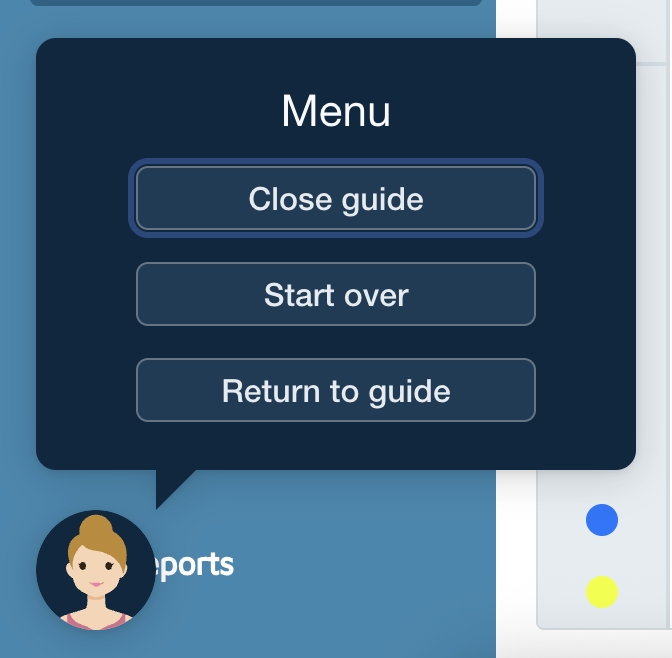
X / Close Guide → exit the flow.
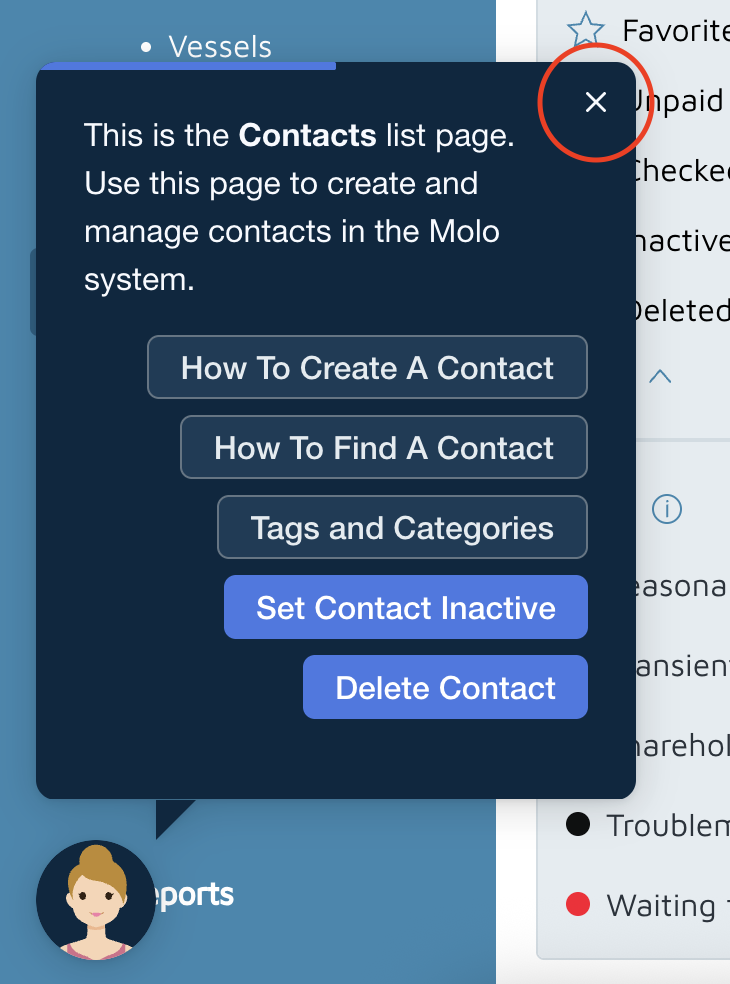
Return to Guide → restart from where you left off.
Start Over → begin the flow from the beginning.
Completing a Flow
At the end of a guide (e.g., completing a POS invoice and taking payment), a notice will appear confirming the flow is finished.
Close the guide when done.
Restarting Help Mode
If you close a guide, it will not auto-start again.
To use it again, click Enable Help Mode manually by clicking the ? icon at the top > Enable Help Mode.
Verification: The help mode pop-up should come up when selecting Contacts & Vessels > Contacts.