
- "How do I set up resources?"
Resolution Steps
- Note: Resources are used for stationary rentals, like RV sites or cabins.
On the blue menu bar, click on Resources.
Create Resource Types
Go to Marine Settings → Resource Settings → Resource Types.
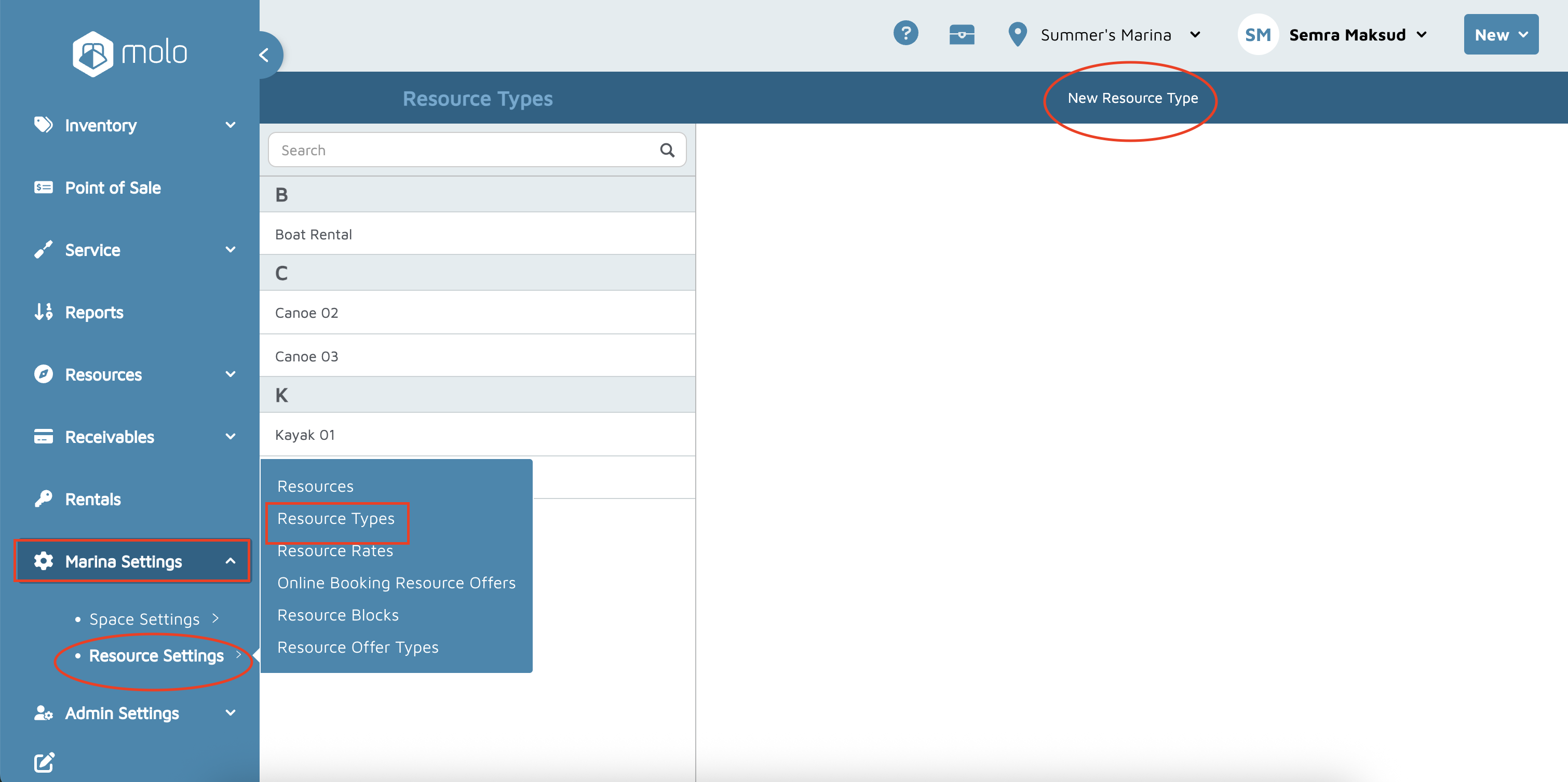
Click New Resource Type and add each type (e.g., Cabin, RV).
Click Done.
Create Resources (the actual units)
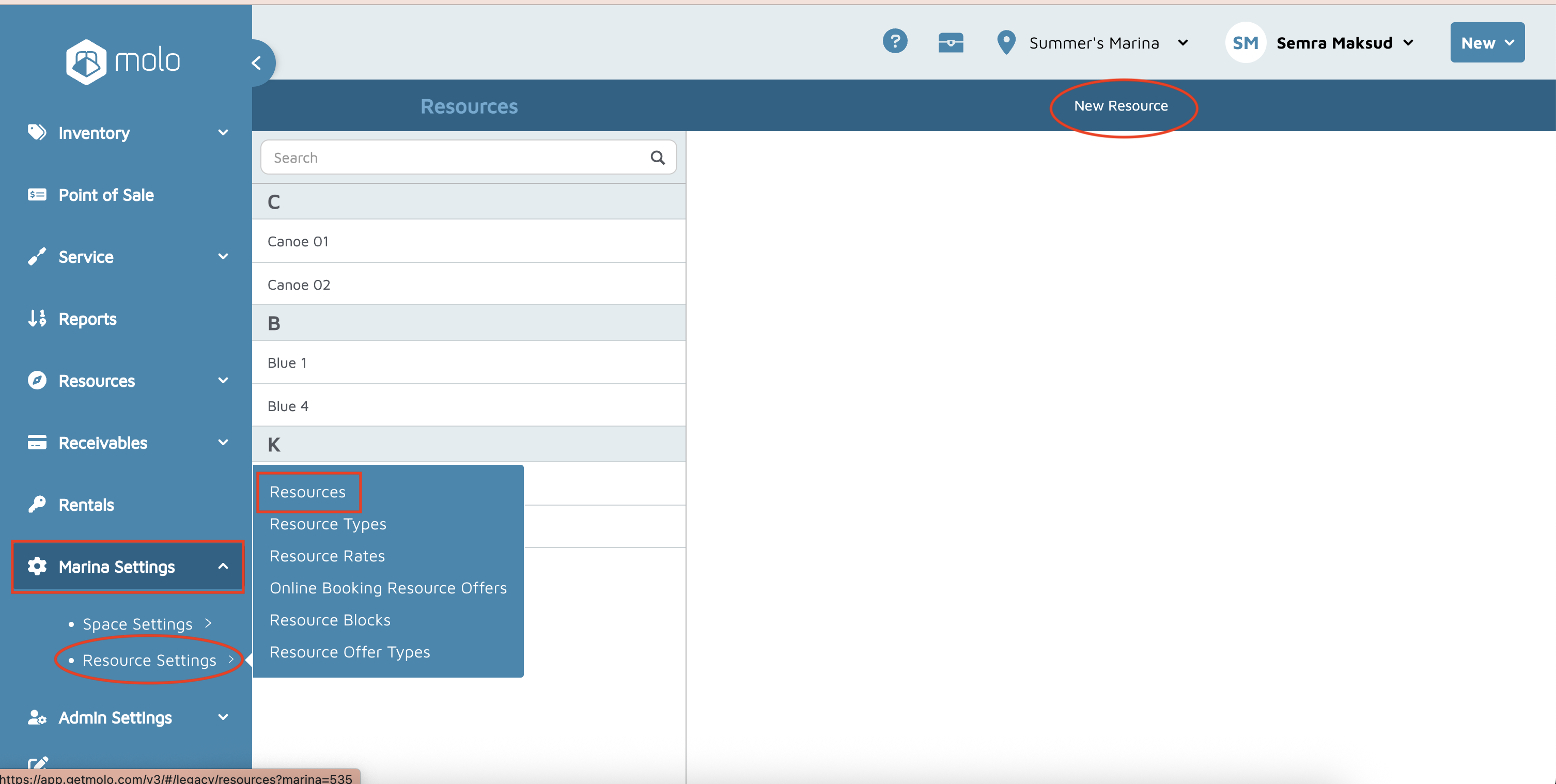
Go to Marine Settings → Resources → New Resource.
Fill in: Internal Name (e.g., Cabin 1), Customer-Facing Name, Resource Type (pick Cabin/RV), optional Description, optional Start/End Dates, optional Length.
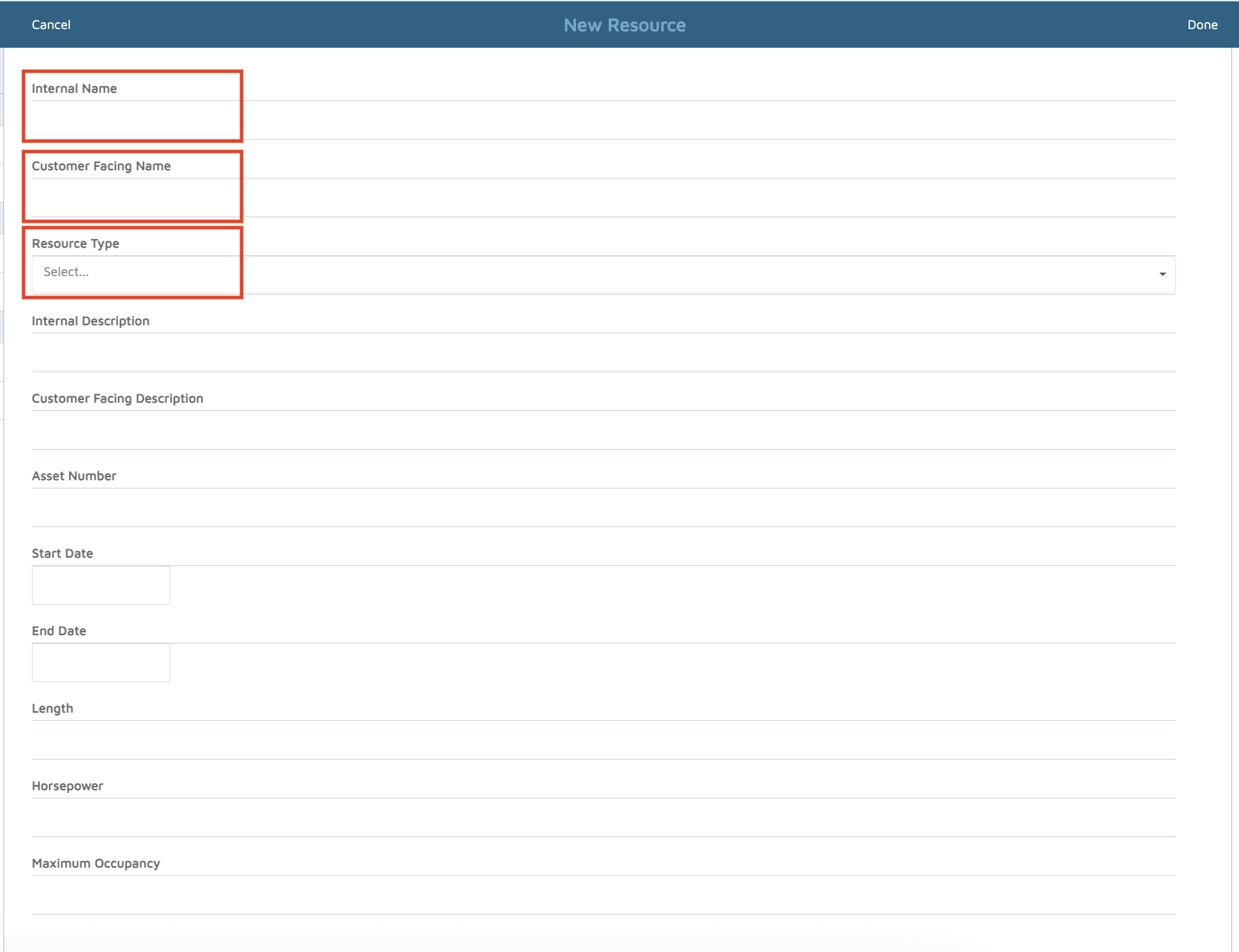
Click Done.
Set Resource Rates
Go to Marine Settings → Resource Rates → New.
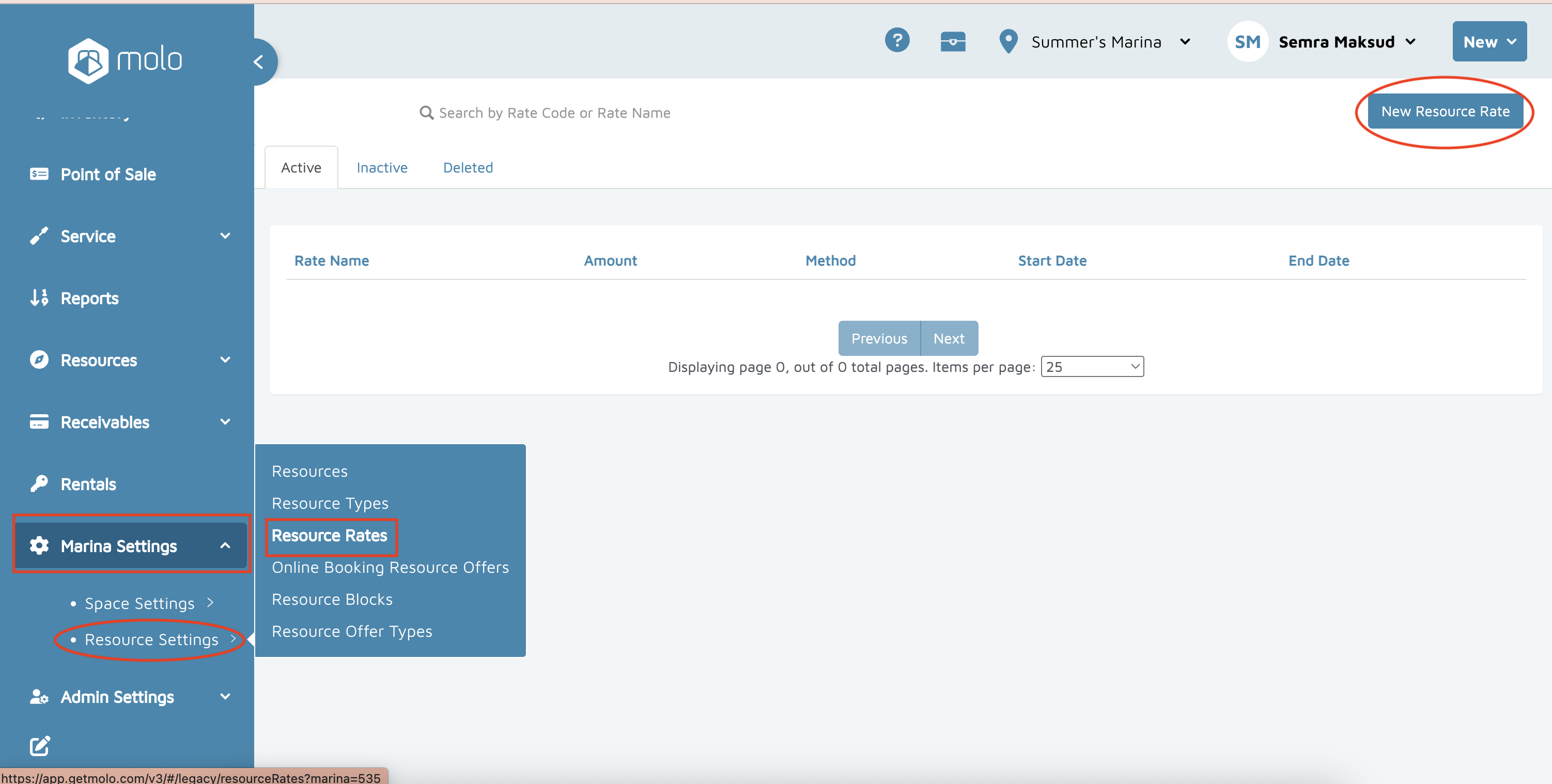
Enter Rate Code, Rate Name, Rate Amount, Taxable, Rate Charge Method, and Invoicing Method,(e.g., “Cabin Nightly”).
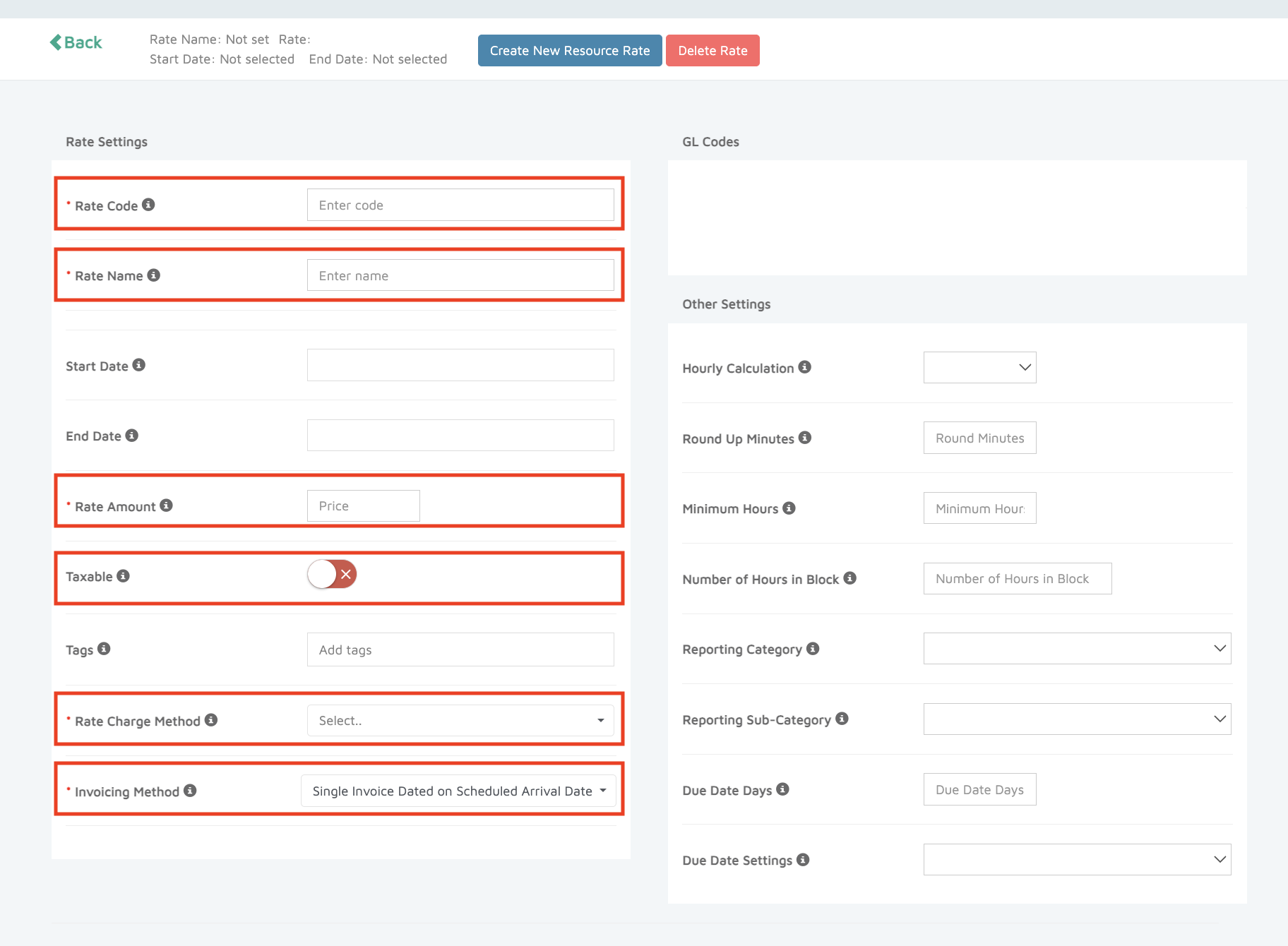
Click Create New Resource Rate.
Create Resource Offer Types
Go to Marine Settings → Resource Offer Types → New.
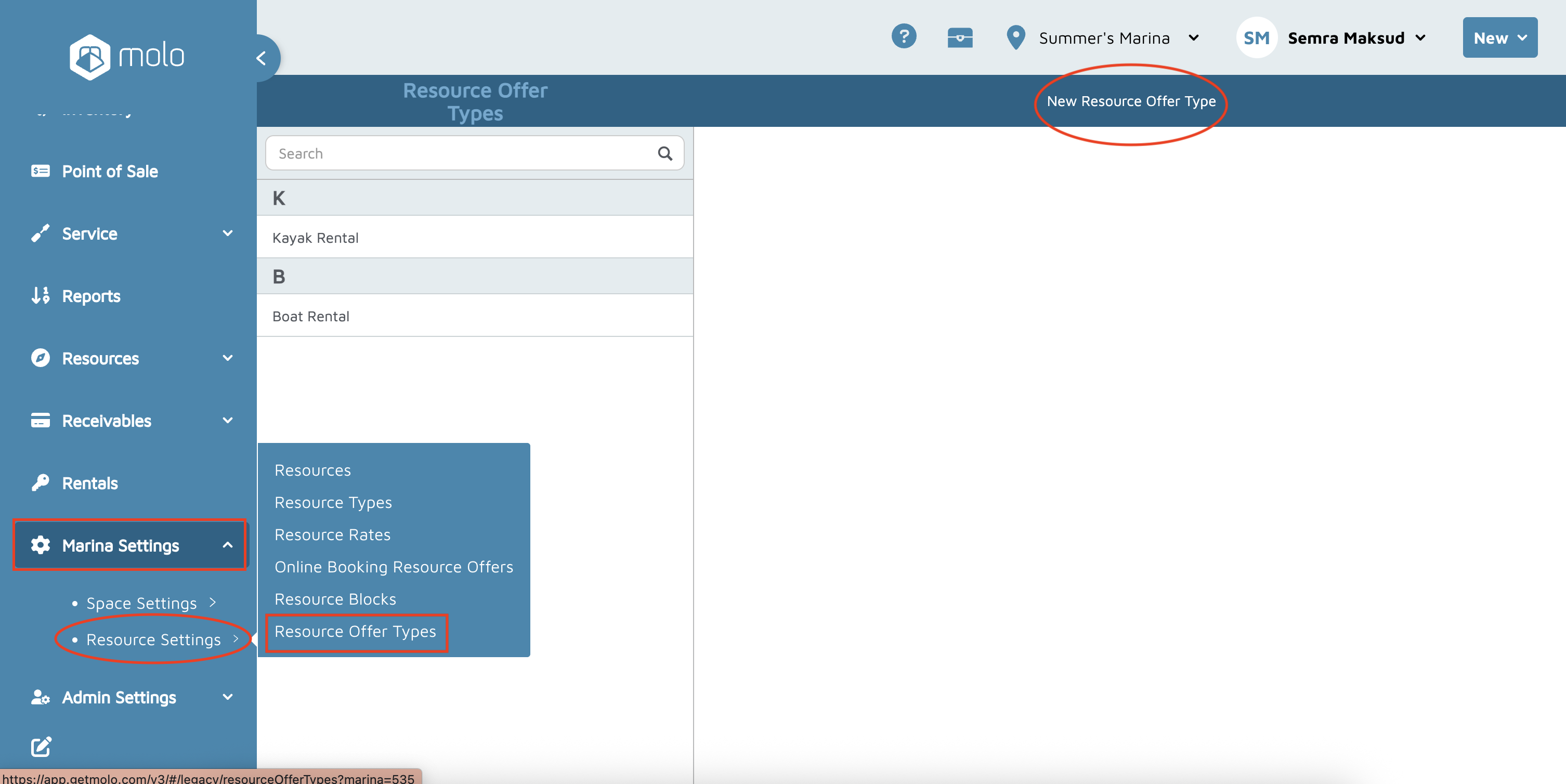
Add an offer type (e.g., Nightly).
Set any required Status Type and click Done.
Configure Online Booking – Resource Offer (this should be created even if you’re not using online booking)
Go to Marine Settings → Online Booking → Resource Offer (or Online Booking Resource).
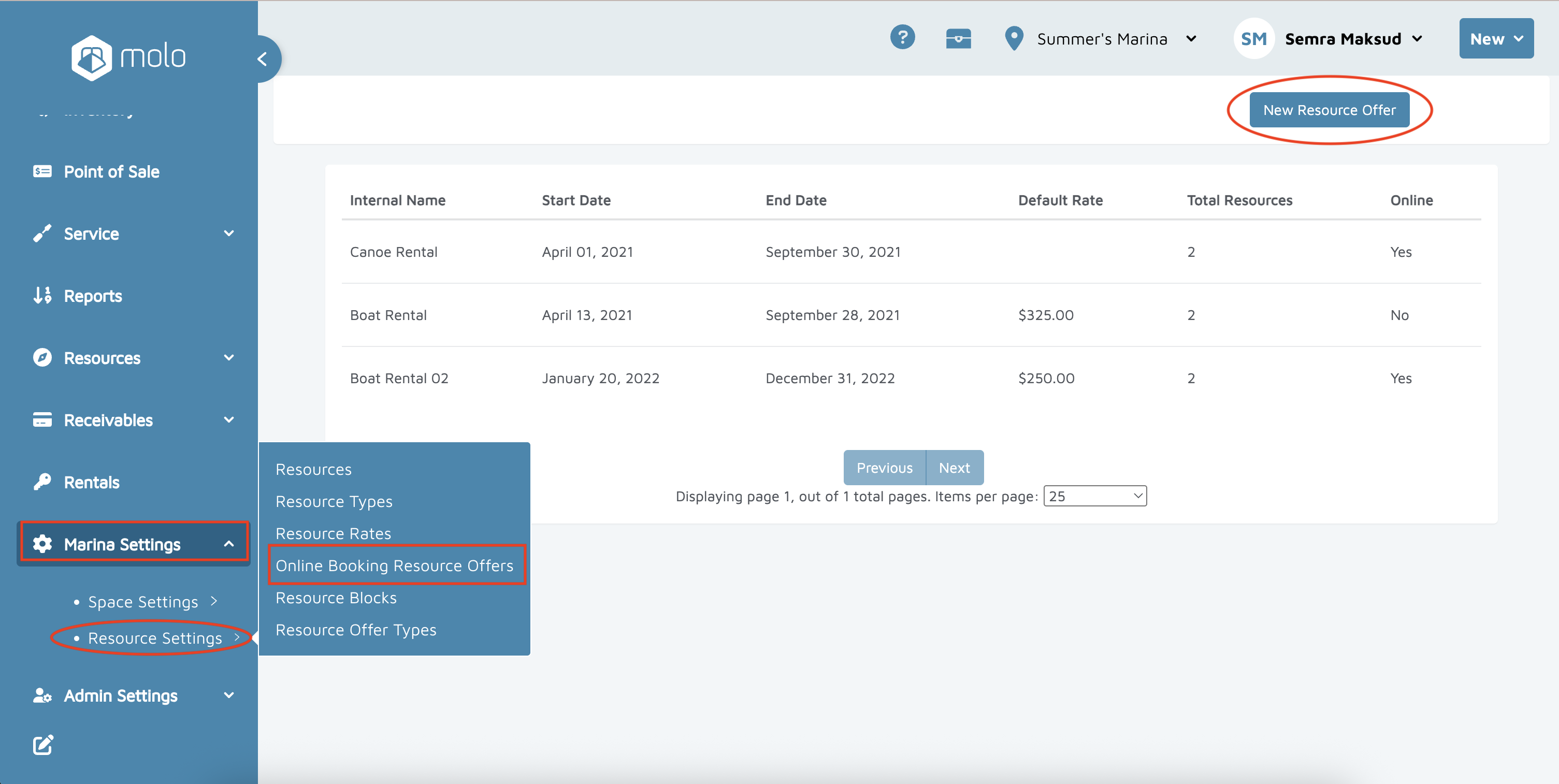
Enter an Internal Name and Customer-Facing Name for the offer.
Select the Resource Offer Type from the dropdown (e.g., Cabin).
Set Offer Start Date, Offer End Date, Earliest Booking Start, and Latest Booking End.
Minimum Nights, Maximum Nights (complete all red-asterisk fields).
Optional: enable Show remaining resource count.
Optional deposit rules (defaults to $1). If using online booking, adjust to %, amount, or number of nights.
Click Create Offer.
Verification: To verify this was set up correctly, create a Booking.
- Go to New → Booking.
- Select the Contact.
- Select the Offer.
- Complete and save the booking.