'Do not post GL entries for this inventory adjustment.' setting
Print
Modified on: Mon, 22 Dec, 2025 at 10:32 AM
- "When making inventory adjustments, what does the option ‘Do not post GL entries for this inventory adjustment.’ mean, and how should it be used?"
Resolution Steps
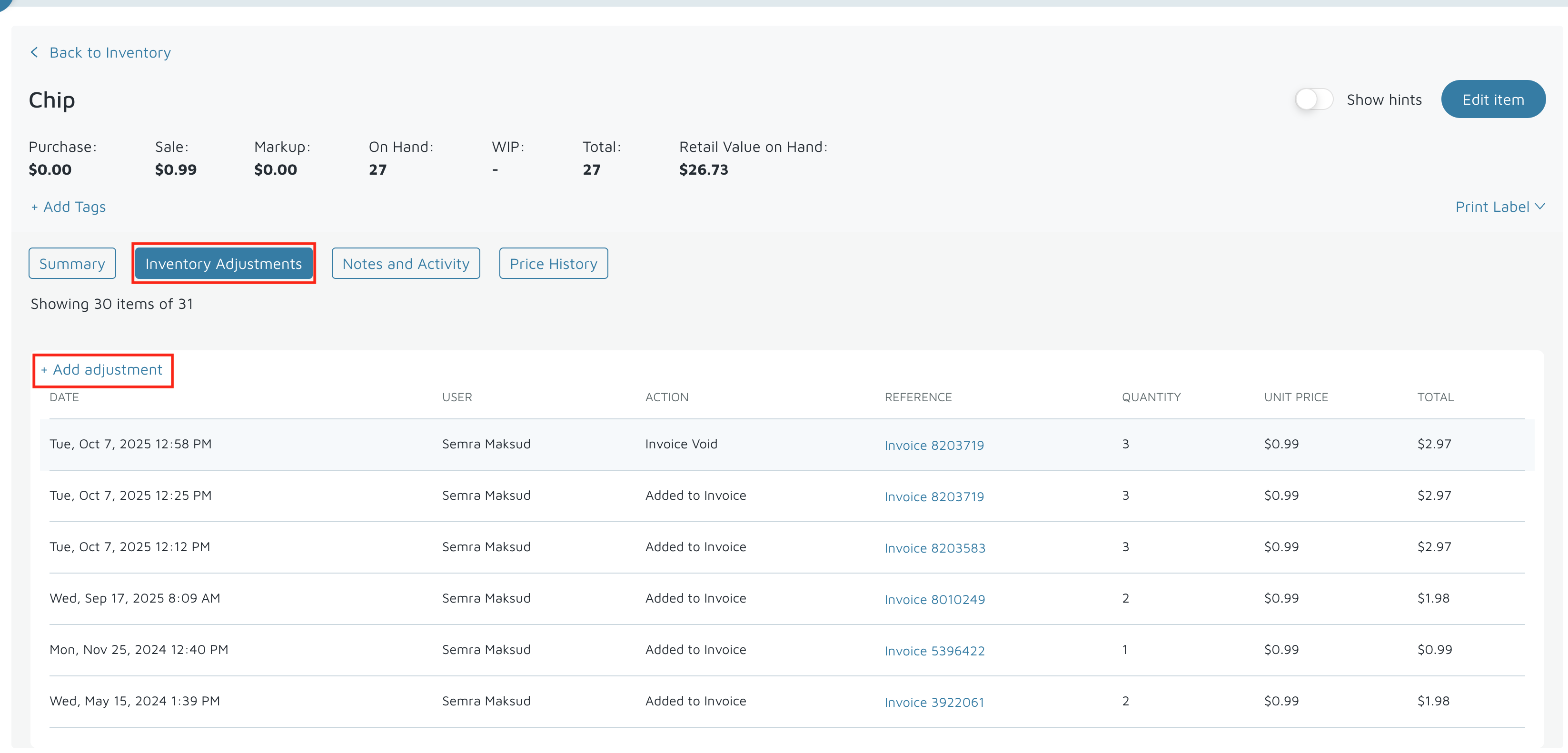
- Navigate to the Inventory section in Molo.
- Locate and select the item for which you need to make an adjustment.
- Click on the Inventory Adjustments tab to open the adjustment screen.
- Then click +Add Adjustment.
- Enter the adjustment details, including the quantity and any notes explaining the reason for the adjustment.
- If you want the adjustment to affect your General Ledger (GL) accounts, select the appropriate Adjustment GL Code from the dropdown list.
- If you do not want this adjustment to post GL entries, check the box labeled “Do not post GL entries for this inventory adjustment.”.
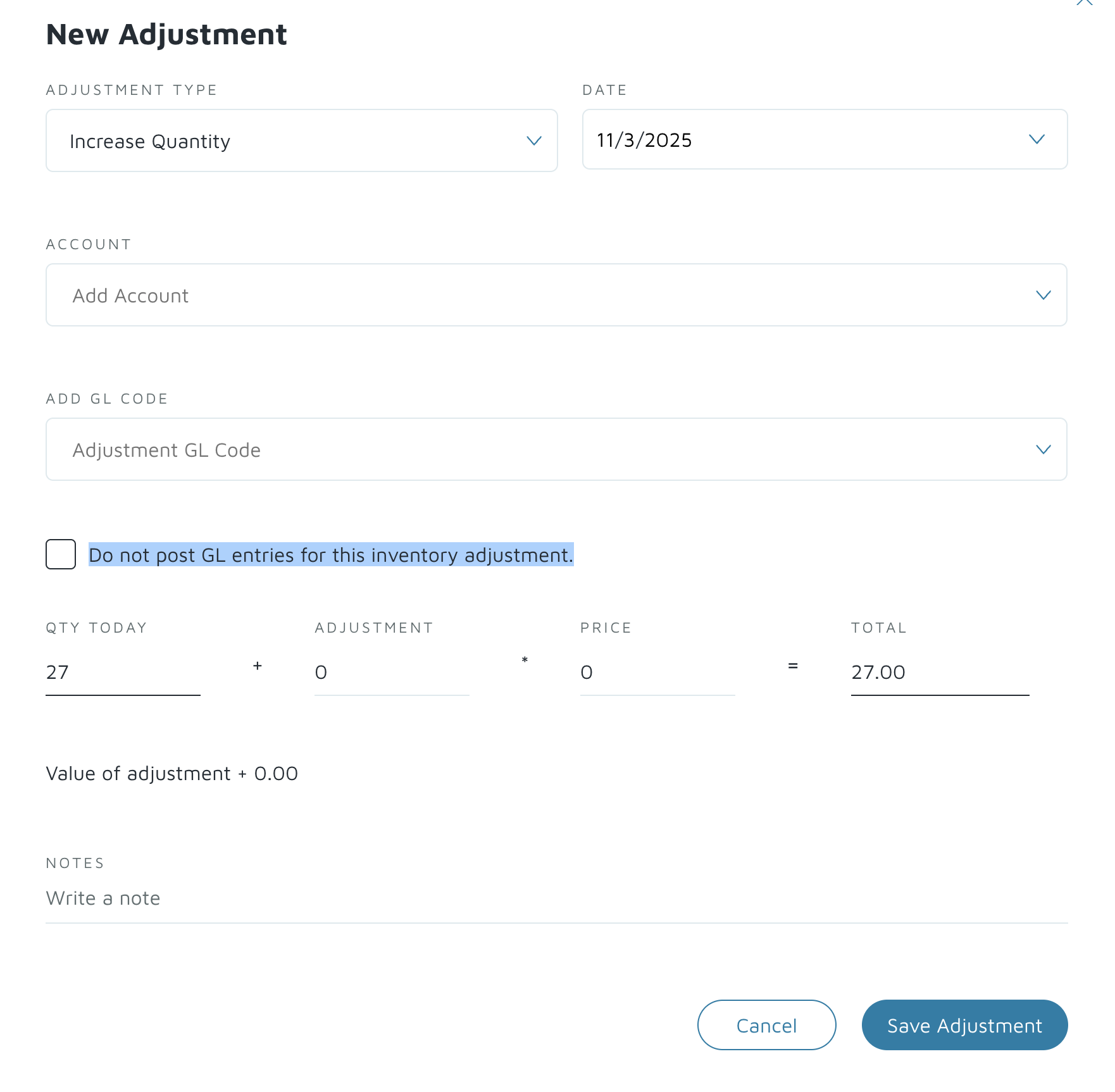

- Click Save to finalize your inventory adjustment.
- Remember that if you disable GL posting for an adjustment, you may still need to manually update your accounting records to ensure that your financials match your inventory count.
Did you find it helpful?
Yes
No
Send feedback Sorry we couldn't be helpful. Help us improve this article with your feedback.
