
- "How do I run a FuelCloud Transactions report, and what information does it provide?"
Resolution Steps
- Go to Reports in the Stellar navigation menu.
- Click on Point of Sale.
- Select FuelCloud Transactions.
- Choose the Start Date and End Date for the report.
- (Optional) Apply the filter to show only transactions awaiting invoicing.
- This displays only transactions that have not yet been invoiced.
- Click Run Report.
- This report shows:
- Transaction date and time (from FuelCloud)
- Tank name (from FuelCloud)
- Product name (mapped to the item in Molo)
- Quantity
- Invoice ID
- Invoice date (when created in Molo)
- Contact that was billed
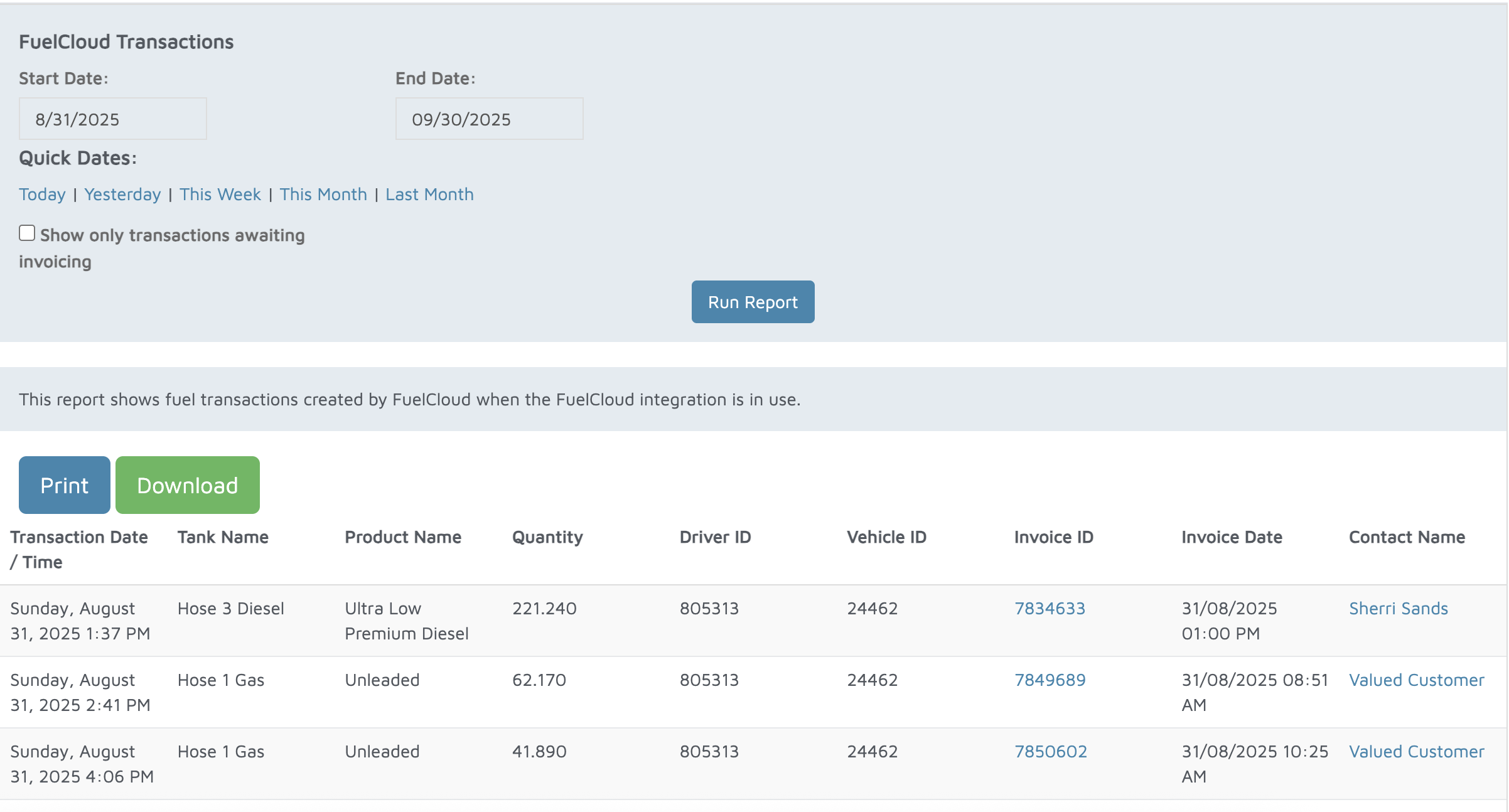
Verification: This report is used to track all FuelCloud sales.