
- "How do I raise my prices?"
- "How do I update my prices for the upcoming price increase?"
Resolution Steps
Note: For the new rate to take effect, it must be entered before the 26th of the month. If it is entered after that date, the change will not apply to invoices that have already been created — it will only take effect on the next invoice generated.
- Click on Marina Settings on the left blue menu bar.
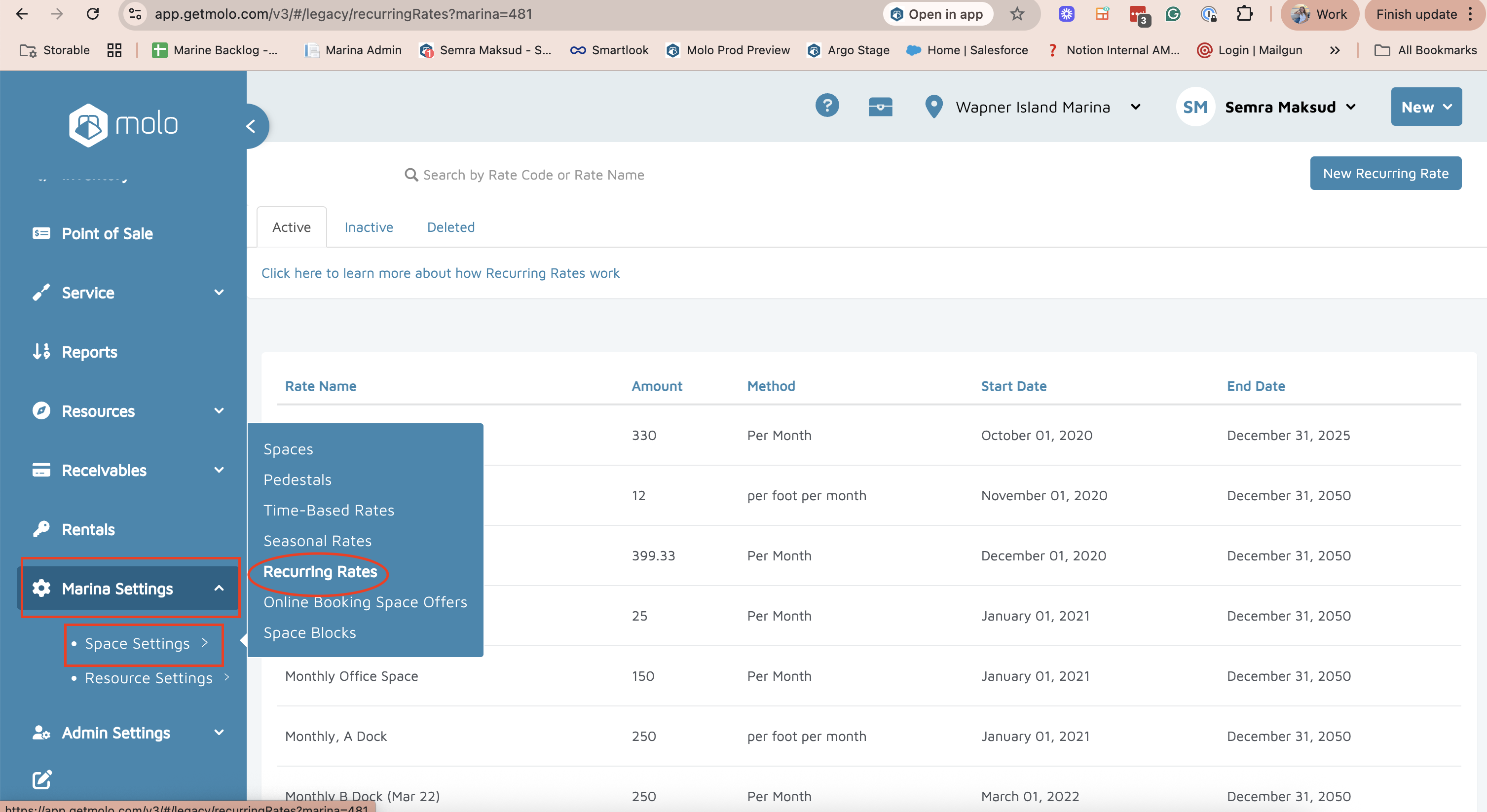
- Hover over Space Settings and then click on Recurring Rates.
- Select the rate you are looking to update.
- Then find Rate Amount on the new page and enter the new amount.
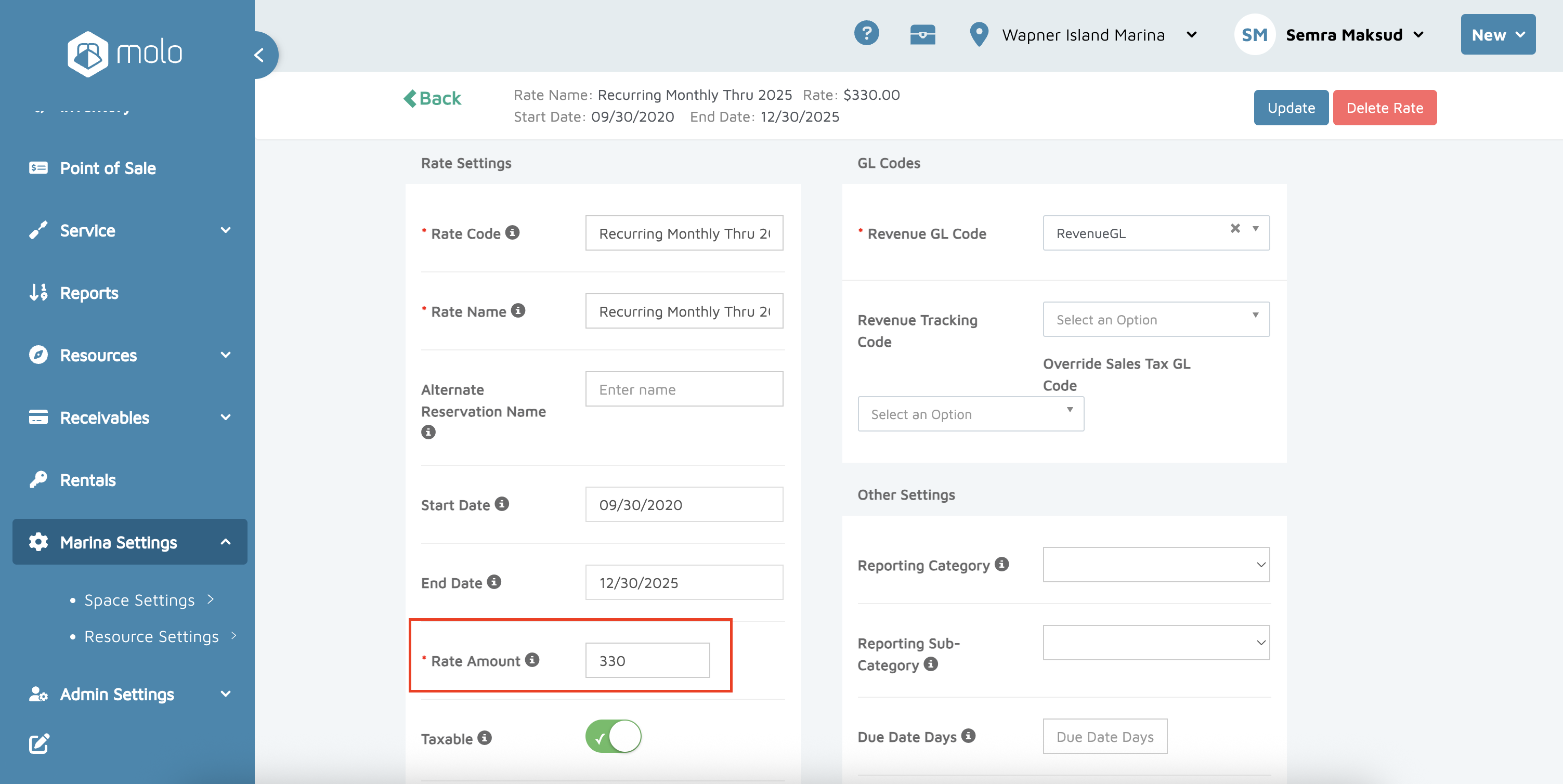
- Select Update in the top right corner.
Verification: When you click back into the rate, it should have the new Rate Amount already on there.