
- “How do I record a balance owed from a previous system into Molo?”
- “A customer has a prior credit or outstanding balance — how can I reflect that in their account?”
Resolution Steps
Step 1: Create an Inventory Item - How to Create an Inventory Item
- Go to Inventory → Items.
- Click New Item and name it “Previous System Balance”.
- Set the Sales Price to $1.00.
- Assign a relevant Category (for example, “Adjustments” or “Balances”).
- Ensure Quantity Can Be Decimal is turned ON.
- Set the Flat Rate option (so the price does not change per quantity).
- Save the item.
Step 2: Add a Previous Balance Owed
- Go to Contacts → Select the Customer Account → Actions.
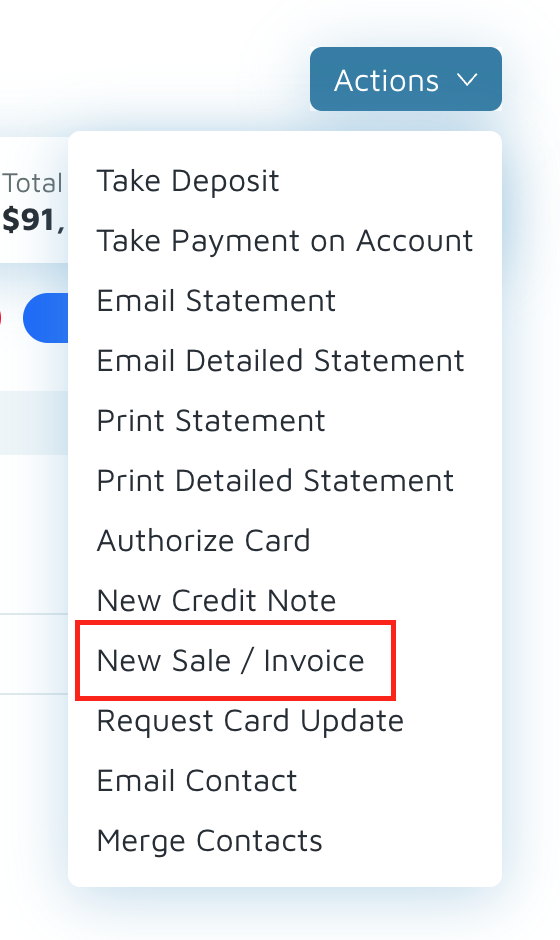
- Click New Sale/Invoice.
- Add the item Previous System Balance.
- Choose one of the two options below:
- Option 1: Set Quantity = 500 and keep price at $1.00.
- Option 2: Set Quantity = 1 and override the price to $500.
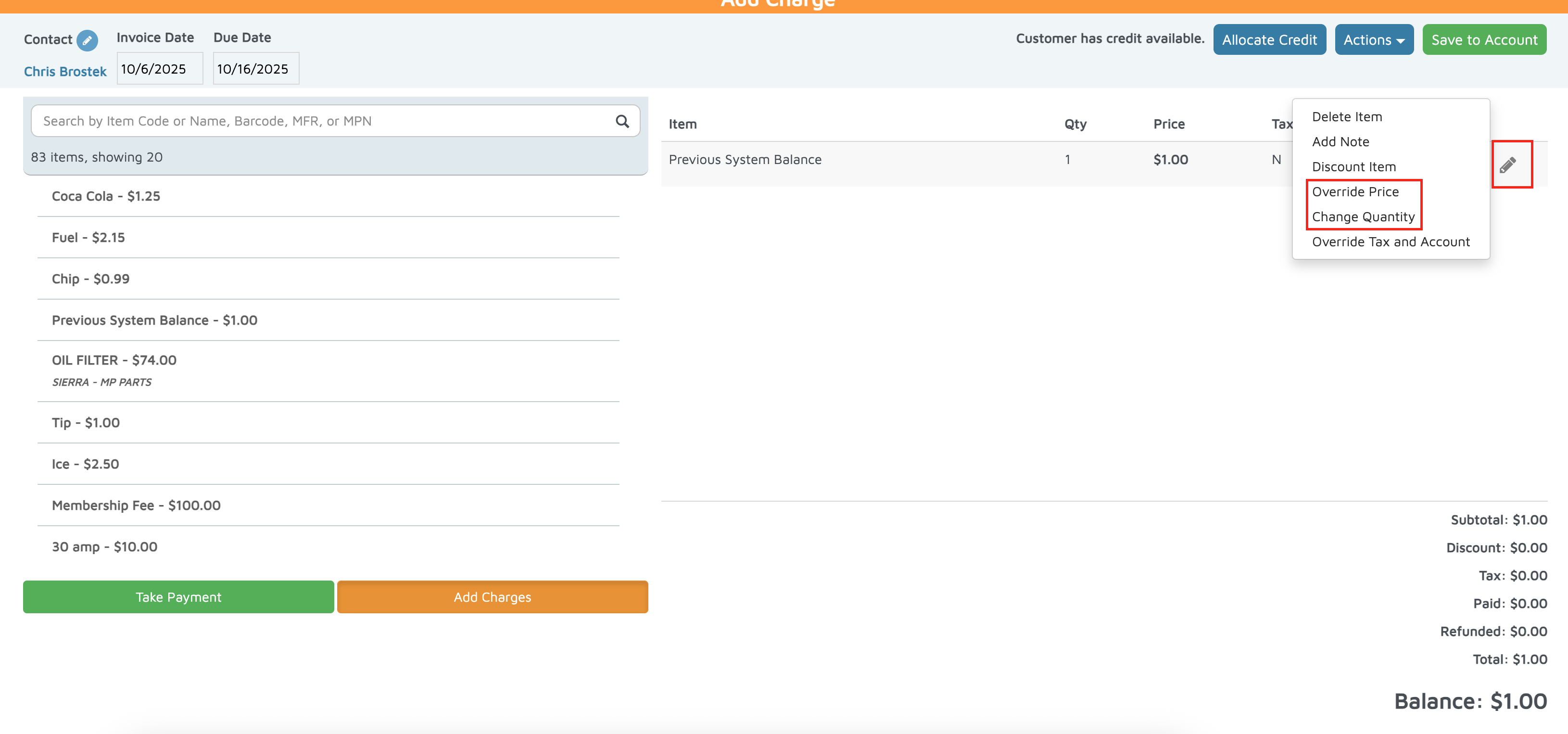
- Save the invoice. The balance will now appear on the customer’s account as owed.
Step 3: Add a Previous Credit Balance (if applicable)
- Open the same Customer Account.
- Click Actions → New Credit Note.
- Add the Previous System Balance item.
- Set the credit amount (for example, $100).
- Click Save → Credit Return → Save again to finalize.
- The customer’s account will now display a $100 credit.
Verification: This process allows you to accurately record previous balances or credits from an external system in Molo.