
- "What is the invoice report used for?"
Resolution Steps
- Go to Reports → Invoicing & Payments.
- Click Invoice.
- Enter the start date and end date for the period you want to review.
- Apply Filters (Optional)
- Exclude Walk-in Customers – remove one-time or casual customers from the report.
- Show Only Open Standalone Invoices – limit results to unpaid invoices not tied to a reservation.
- Click Run Report to generate results.
- The report will display:
- Customer Name – first and last name of the customer.
- Invoice Type – reservation invoice, payment invoice, or stand-alone invoice.
- Invoice Date – when the invoice was created.
- Invoice Number – unique identifier.
- Memo – What the invoice is for.
- Invoice Amount – total value of the invoice.
- Paid Status – whether the invoice has been paid.
- Balance – remaining amount due.
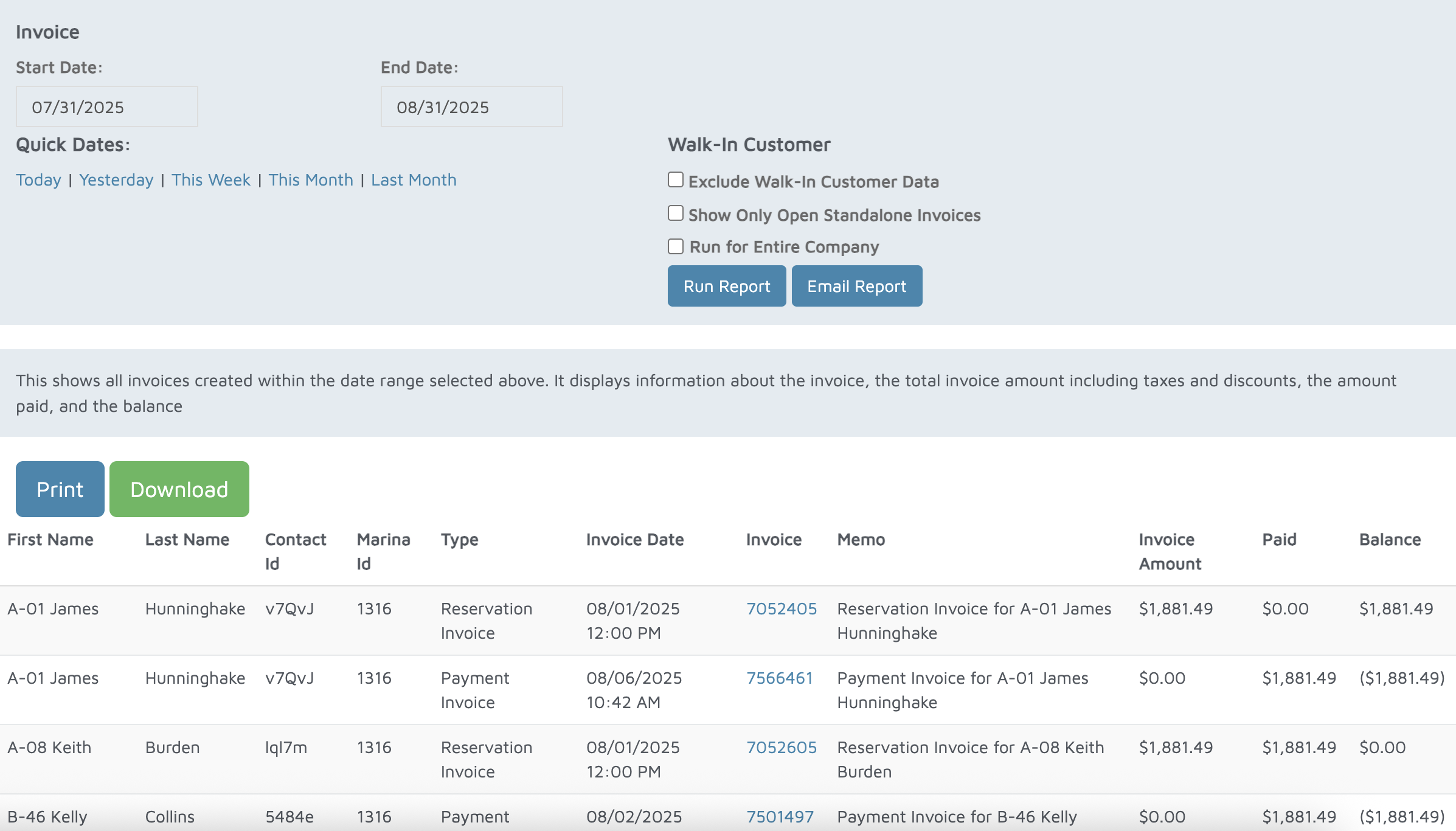
Verification: Use this report to track invoices created.