
- "How do my customers reset their passwords for the portal?"
- "Can my customers sign contracts on the customer portal?"
- "Can my customers add payment methods to their accounts?"
- "Can my customer add files to their accounts?"
Resolution Steps
- Customer Portal Activation:
Customers cannot “register” for the portal. Marinas must use the Message Template and Bulk Email to send their customer the unique client portal URL login. The customer then follows the Password Reset process. However, it is an optional Molo feature and must be enabled by support.
- Reset Password:
On the first login attempt to the Customer Portal, the Contact will use the ‘Forgot Password?’ option to set the password at the specific marina URL that they are trying to log in to.
Process
Open the Portal URL for the marina. (http://1234.portal.getmolo.com/)
Hit Forgot Password?
In the next screen, they would place the email address that would be associated with the customer and select Send Link
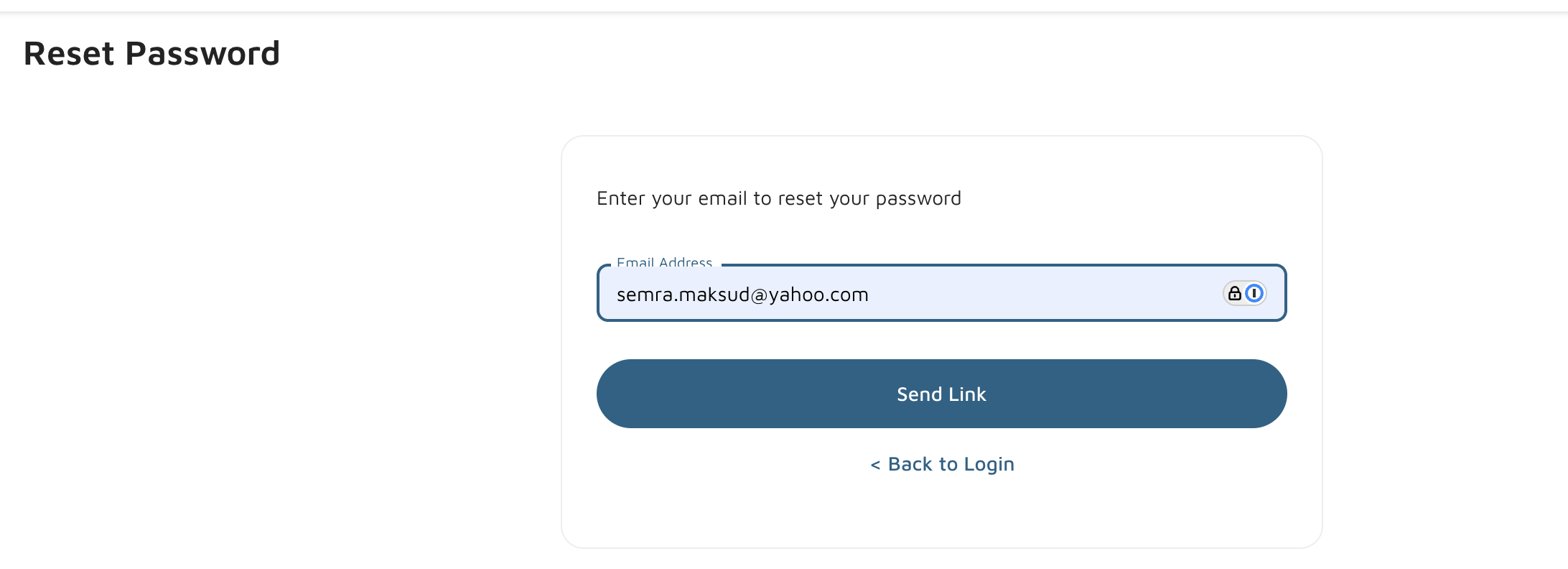
Molo will now display a ‘We sent a link to xyz email to reset your password’ message and if that email matches the first email value for Contact at the marina, a Password Reset link will be set.
Note: Molo will display the ‘We sent a link to xyz email to reset your password’ message even if the email address does not match a contact’s primary email address at the marina, but no email would be sent
- Login Process:
Once the password has been set/reset, they will be able to log in to the portal.
Process
Open the Portal URL for the marina
Enter the Email Address and Password. Hit Log In
From there, it will redirect to the Files (Document Management)
- Files (Document Management):
The Files section gives the ability to upload new documents and view documents that were previously uploaded in the portal. Files that were uploaded directly in Molo will not show in the Customer Portal.
How will files be displayed?
Order: Files will show in the order in which they were added, with the newest items up top and older items at the bottom
File Name and Type will display
Date and Time of the upload into the portal will show
How to upload a new file
Select the + File button
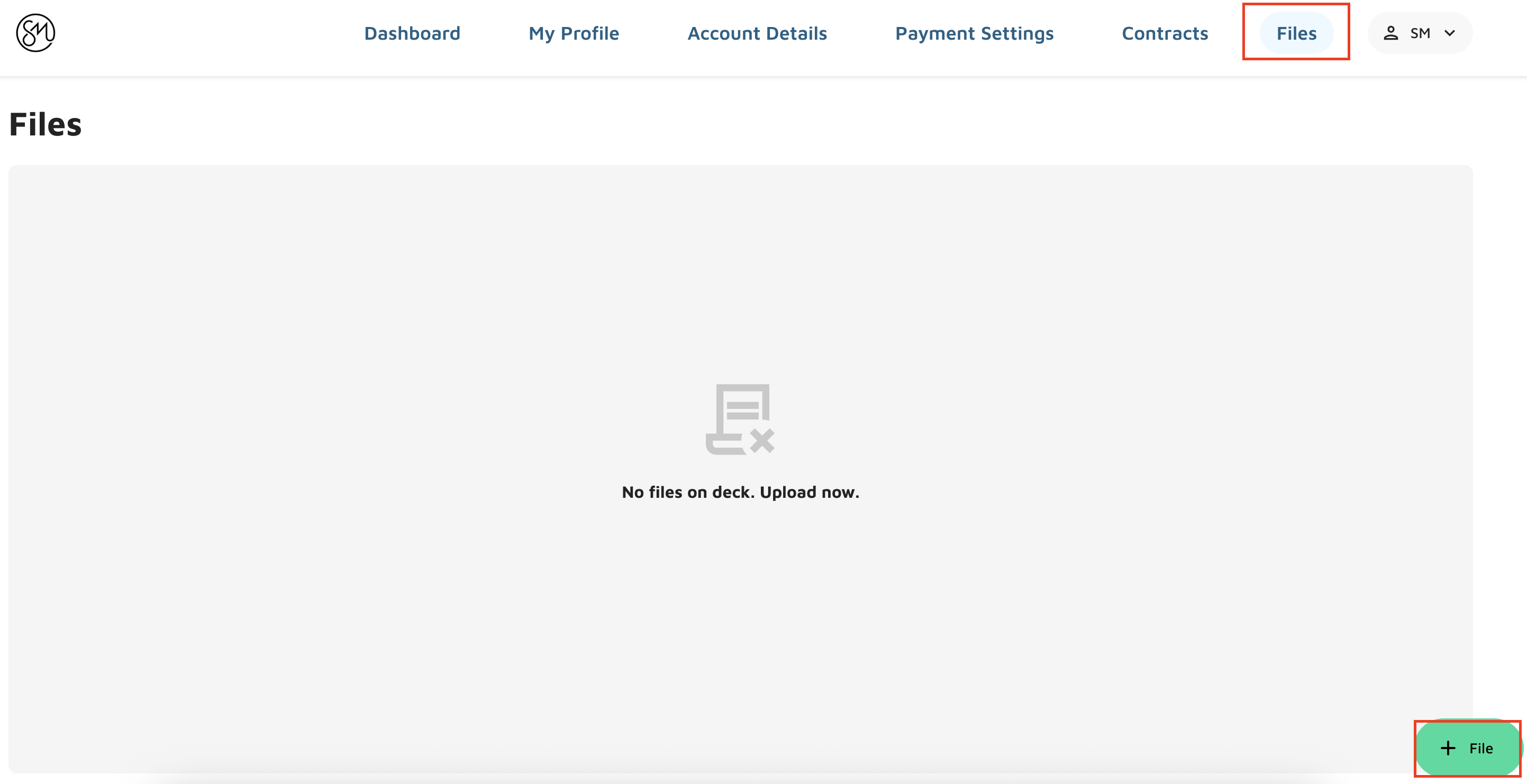
In the pop-up screen, they will be able to select the file(s) to upload
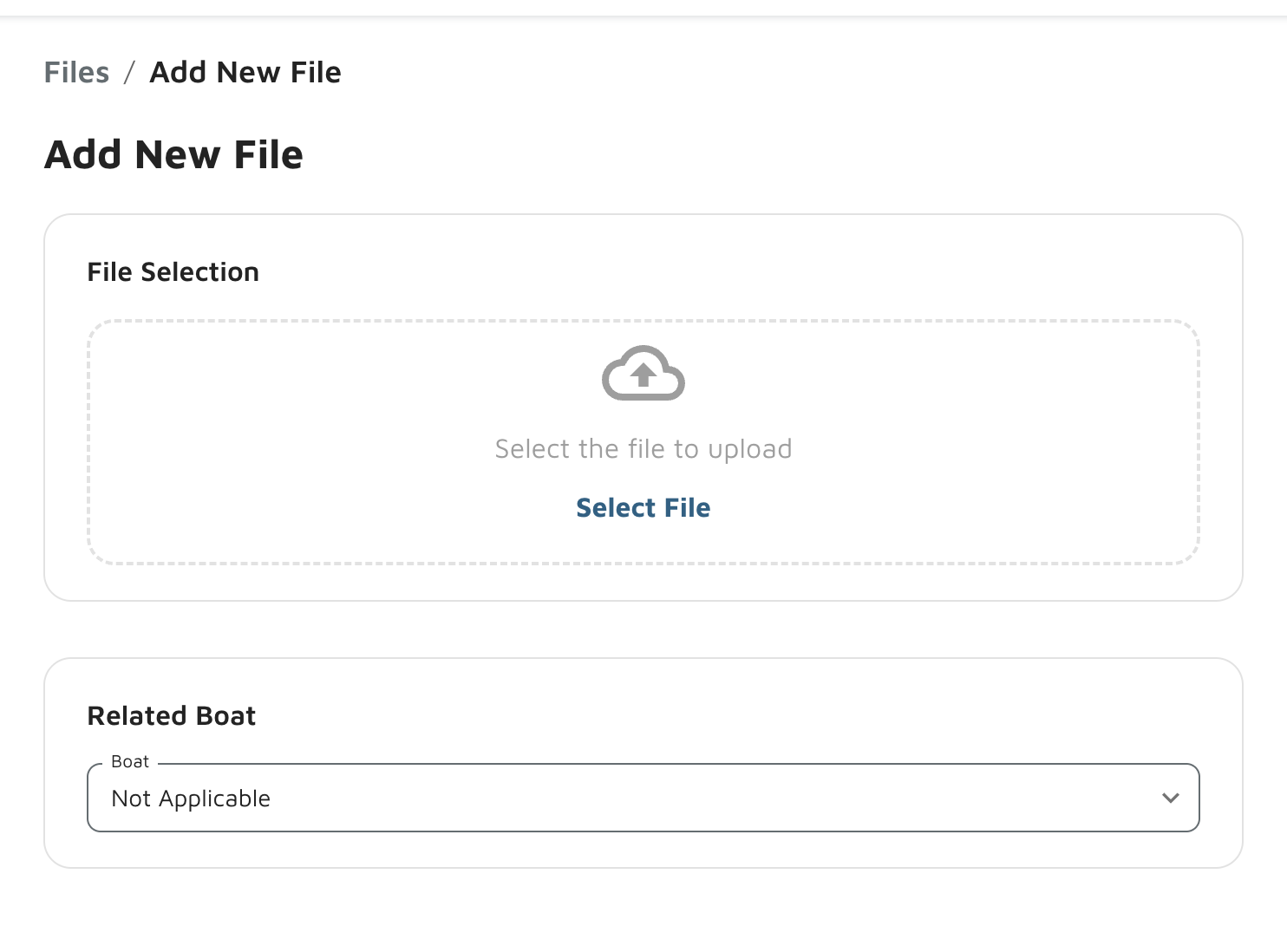
How to download files previously uploaded
To the right of each file that was uploaded to the portal, there would be a download button that can be selected
- View Contact Information
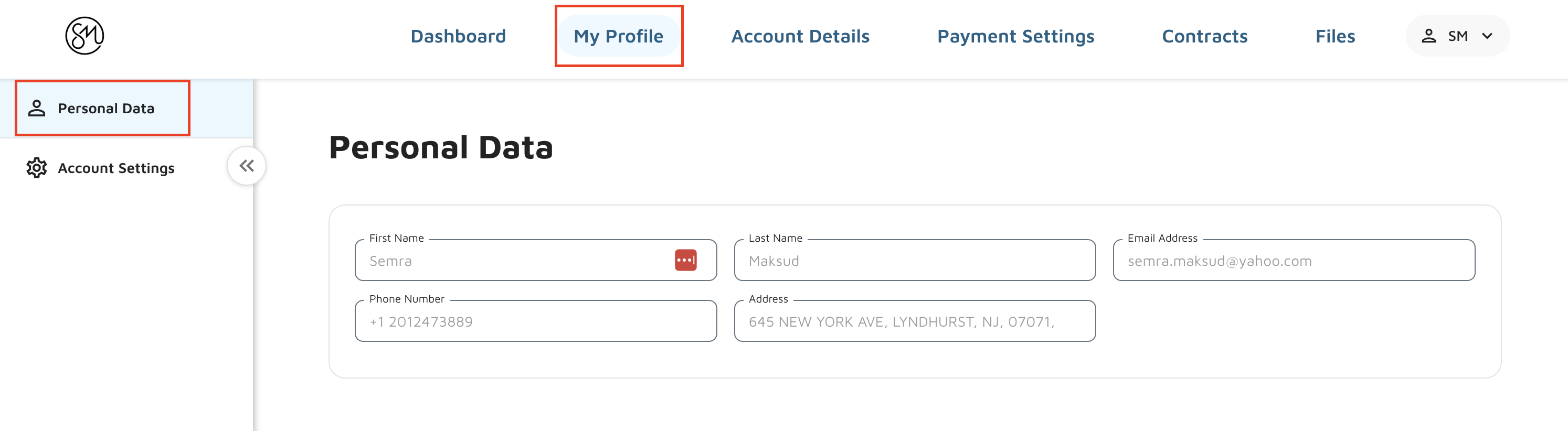
The My Profile section will display data that is set for the contact and is not able to be edited, Data will show in two sections:
Personal Data
First Name
Last Name
Email Address
Phone Number
Address
Account Settings
Reset Password option
- Contract Signing:
Reservations that are pending and have terms that are not accepted and/or marked as accepted offline will appear to be signed in the Customer Portal. Note: ‘Contract’ in the Customer Portal refers to a ‘Reservation’ in Molo.
If a Reservation has been agreed to, it will appear and be able to be downloaded.
How will it look
The Contracts section will have two sections:
Signature Pending will display if there are any Reservations that are Pending and have not been agreed to and/or marked as agreed to offline. There will be a red Unsigned button that the Customer would be able to click and sign.
Signed Contracts will display Reservations that have been agreed to and/or marked as agreed to offline
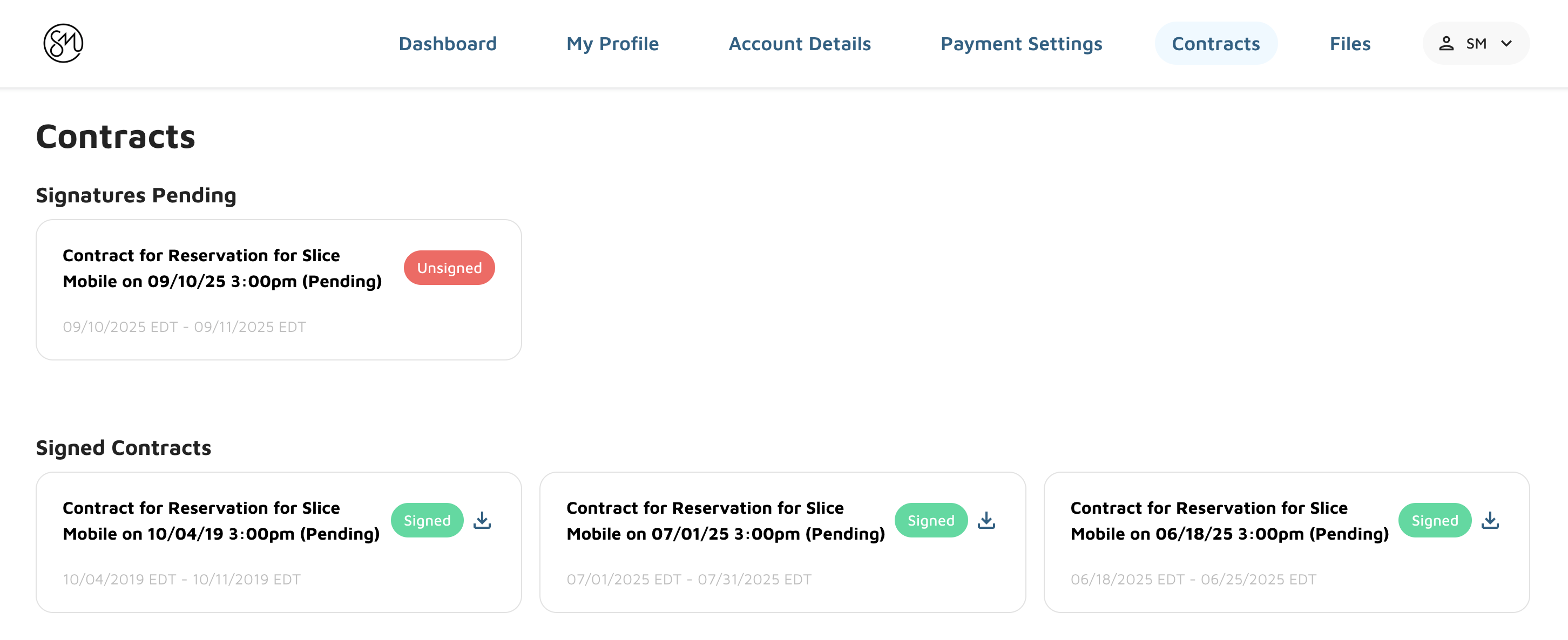
How will the Customer be able to agree to a Contract
Contracts that have the Reservation Status are Pending and not agreed to will display in the Signature Pending section with a red Unsigned button. User would click on the Unsigned button
From there it would display an E-Signature Disclosure that the user would select I agree to
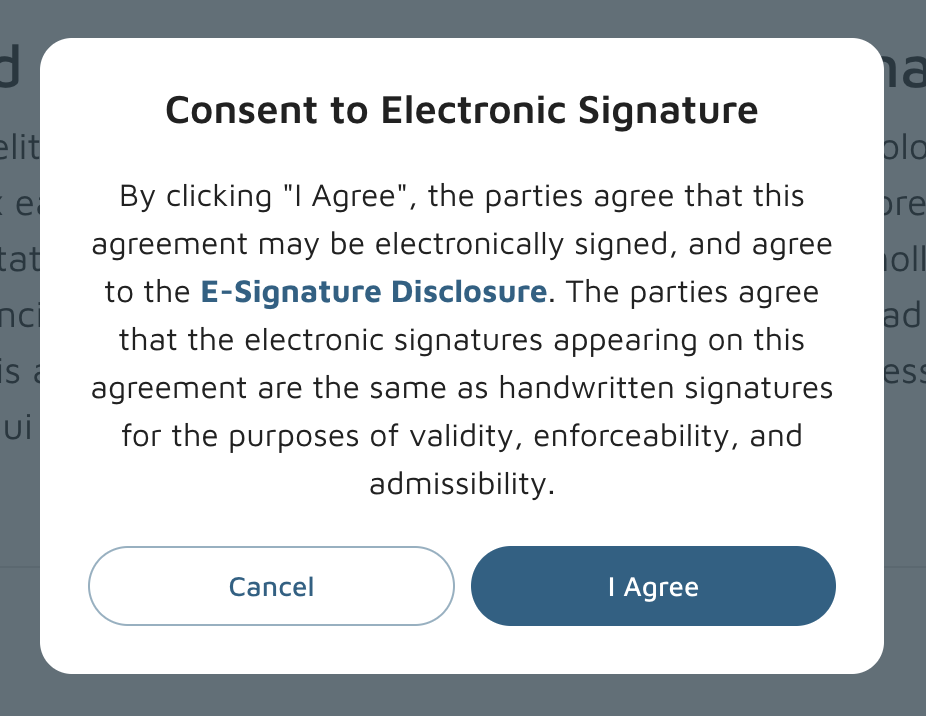
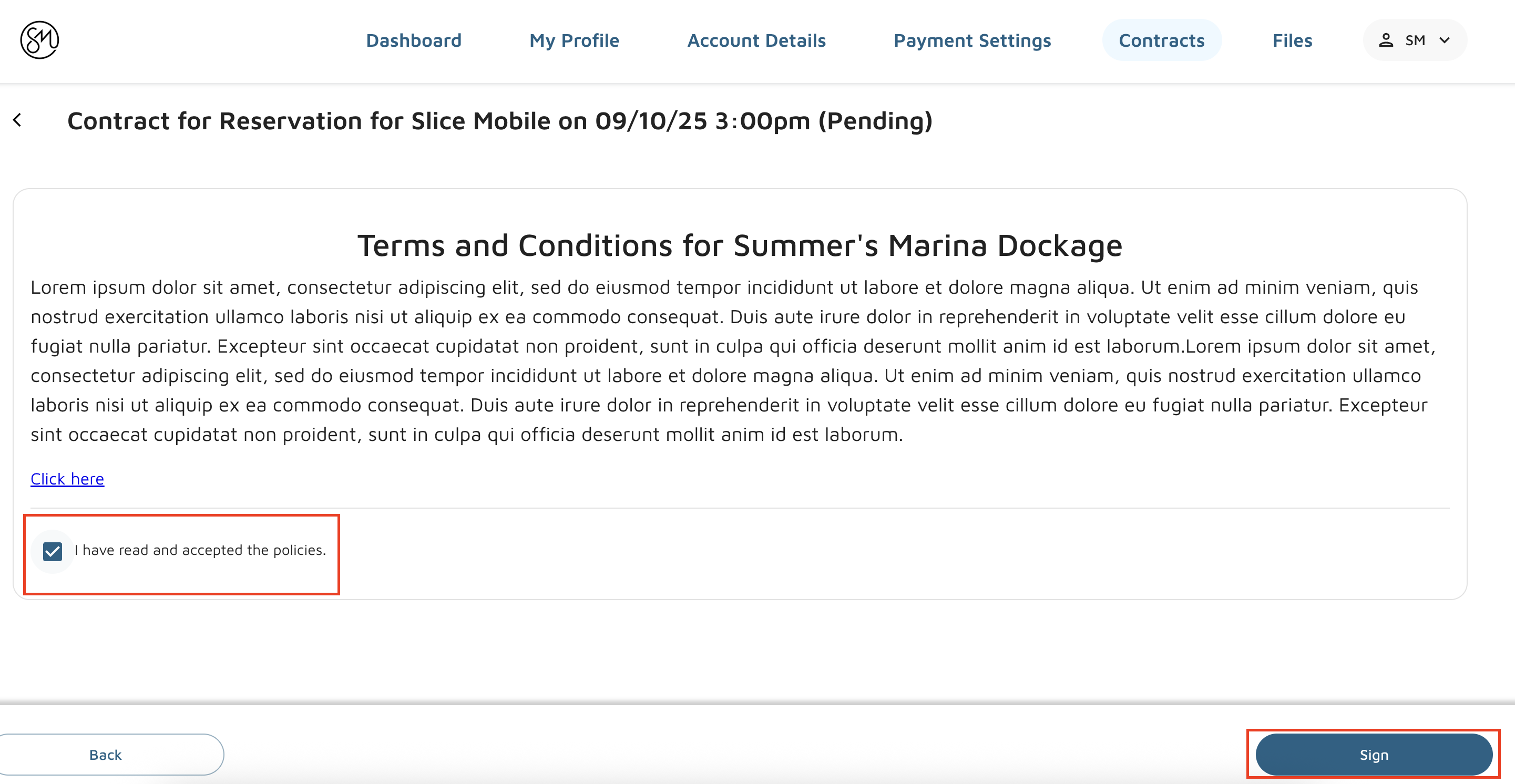
Based on the configuration of the Contract in Molo, the customer would select a checkbox next to required sections to add their initials and then would be able to fully sign the contract by manually signing their name with their screen or mouse.
Then they would hit Sign to finish signing the contract.
- View and Pay Invoices:
The Customer Portal would display an additional header for Account Details that will display all invoices for the customer.
Paid Invoice: Clicking on a paid invoice will show the items on the invoice and a $0 Balance
Unpaid/Partially Paid: Clicking on an unpaid or partially paid invoice will display a button to Pay Balance. Once the user will click there, they will be forwarded to the payment page and complete the payment with one of their stored payment methods or add a new payment method.
- Add Payment Methods:
The Customer Portal would display an additional header for Payment Settings that will show all payment methods associated with this contact
Adding a New Payment Method: To add a new payment method, the customer would open up the Payment Settings and select + Add Payment Method > New Card. From there, they would enter the Credit Card Number, Expiration Date & CVC and then select Save Payment Method.
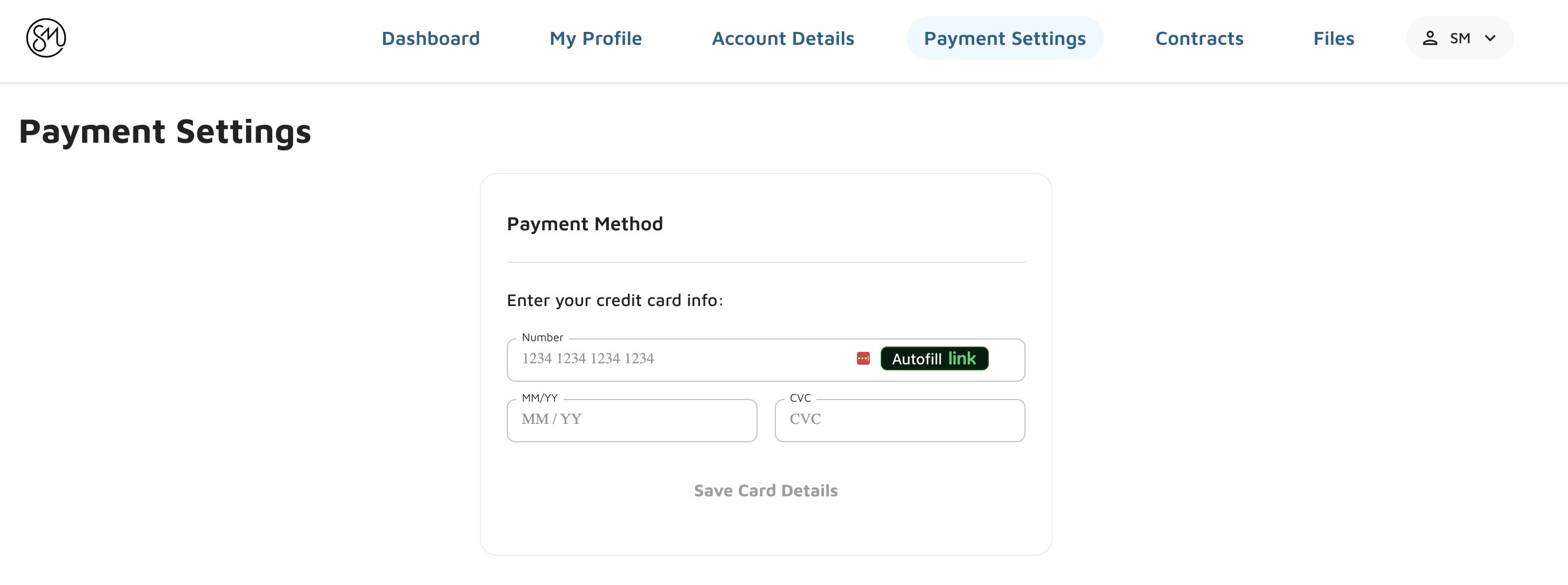
Payment Methods can only be added in the Portal and cannot be removed.
Once the payment method is added, the Customer would be able to make a payment for their open invoice with the payment methods on file. ****
- Surcharge Fees:
Creates a surcharge option for credit card payments (not bank account or debit card payments) for reservation, standalone, and service invoices.
Would look at the values that are set for the Surcharges in Molo and apply the surcharge for Online Payment.
For more information about how to set up surcharge fees, see How to set up a Surcharge.