- “How can I record a payment for a previous date?”
- "Is there a way I can mark a payment for an earlier date?"
- There is no way to edit the date of an already-entered payment. To resolve for an improperly entered date on the initial transaction:
- Remove the allocation
- Void the invoice
- Start over and re-enter the check payment with your desired date
Resolution Steps
- There are two ways to backdate a payment: through the customer account or directly from the invoice.
- Option 1: From the Customer Account
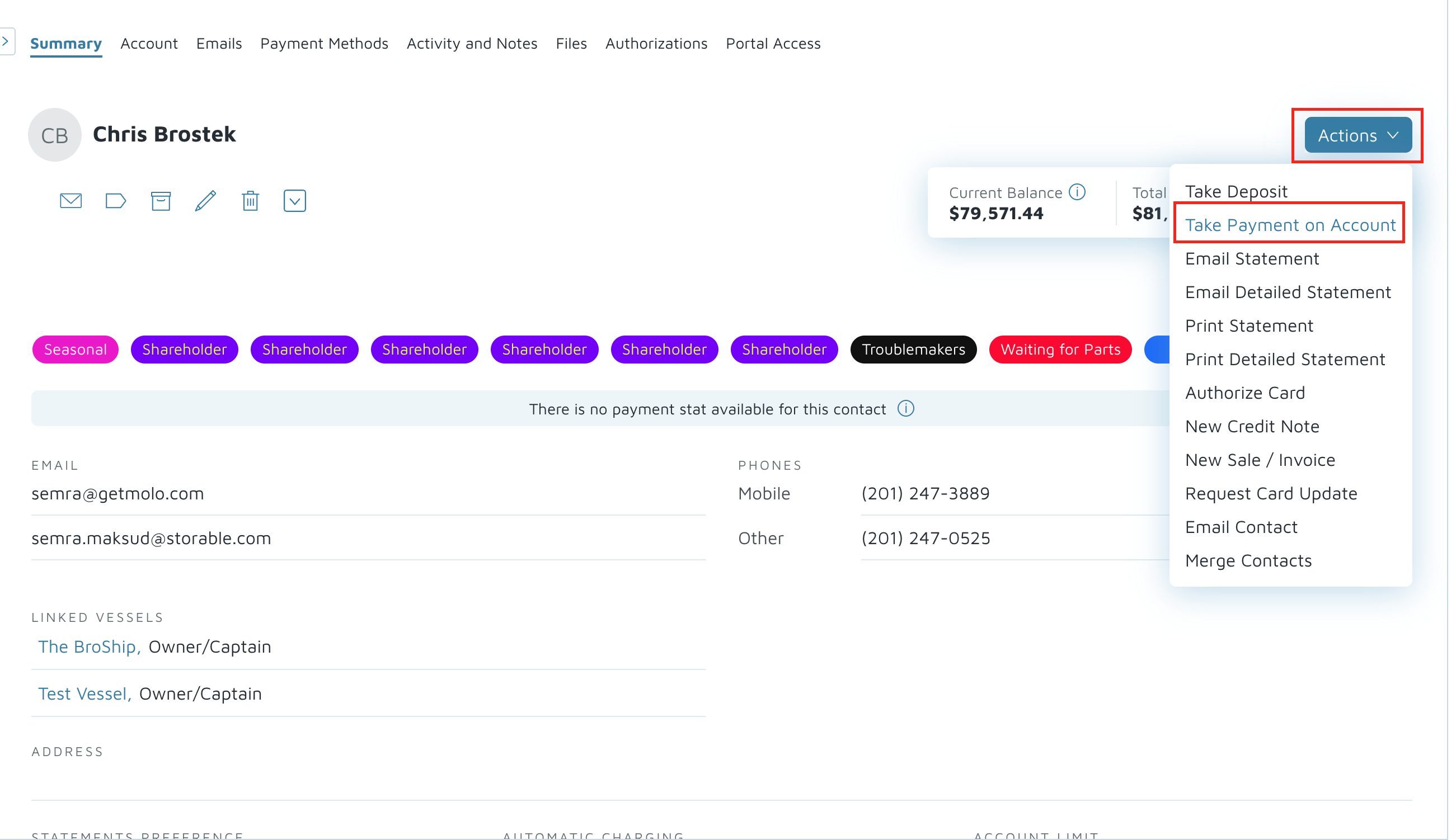
- Navigate to the Customer’s Account.
- Click Actions > Take Payment on Account.
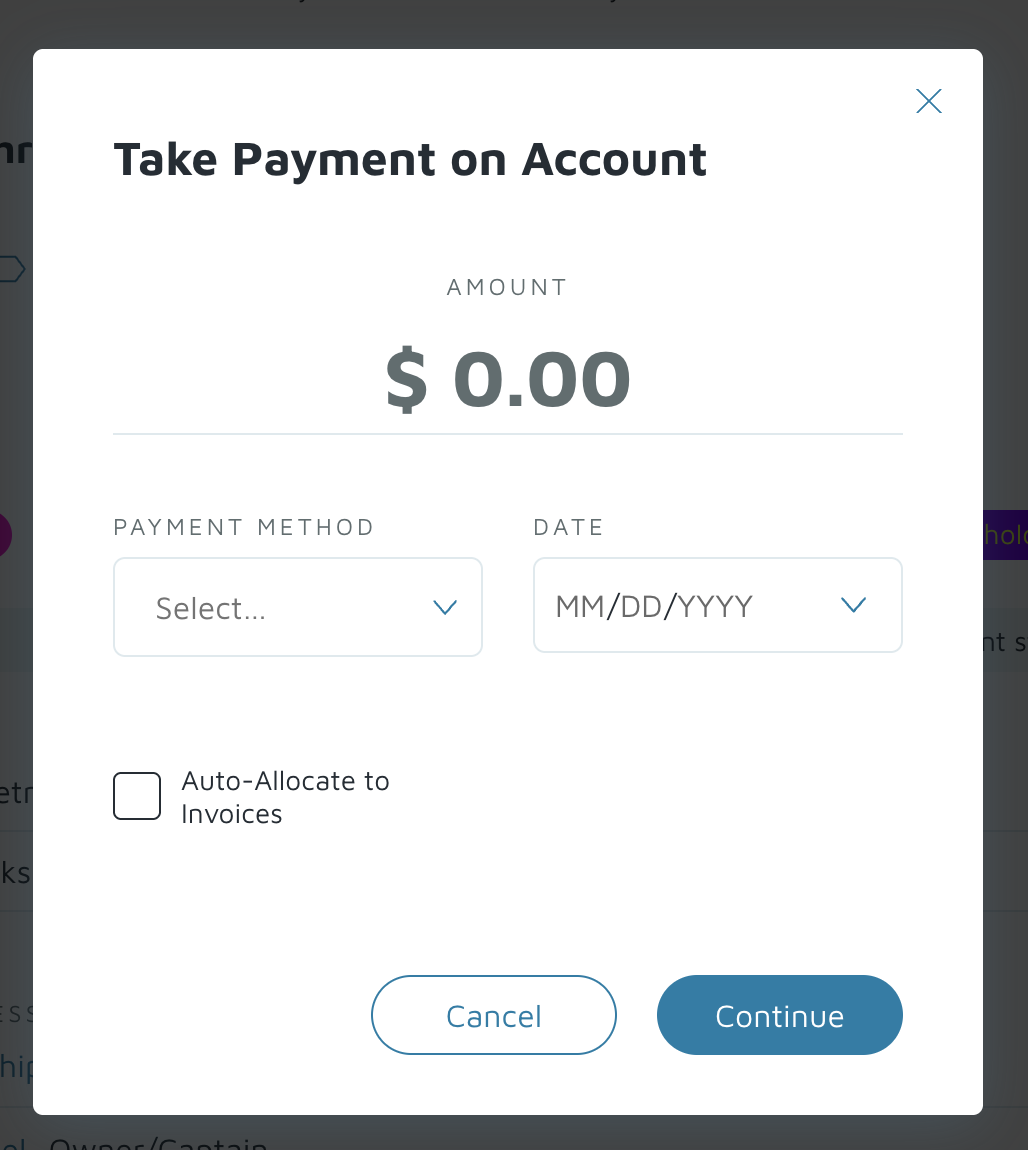
- Enter the Payment Amount.
- Select the Payment Method.
- Choose the Date you want to backdate the payment to.
- Note: You cannot select a date before the lock date. If a lock date is in place, payments cannot be recorded prior to that date.
- If you’d like the payment to automatically apply to outstanding invoices, enable Auto-Allocate.
- If not, you can manually allocate the payment later.
- Click Continue to save the payment. It will now appear on the customer’s account, ready to allocate.
- Option 2: From an Invoice
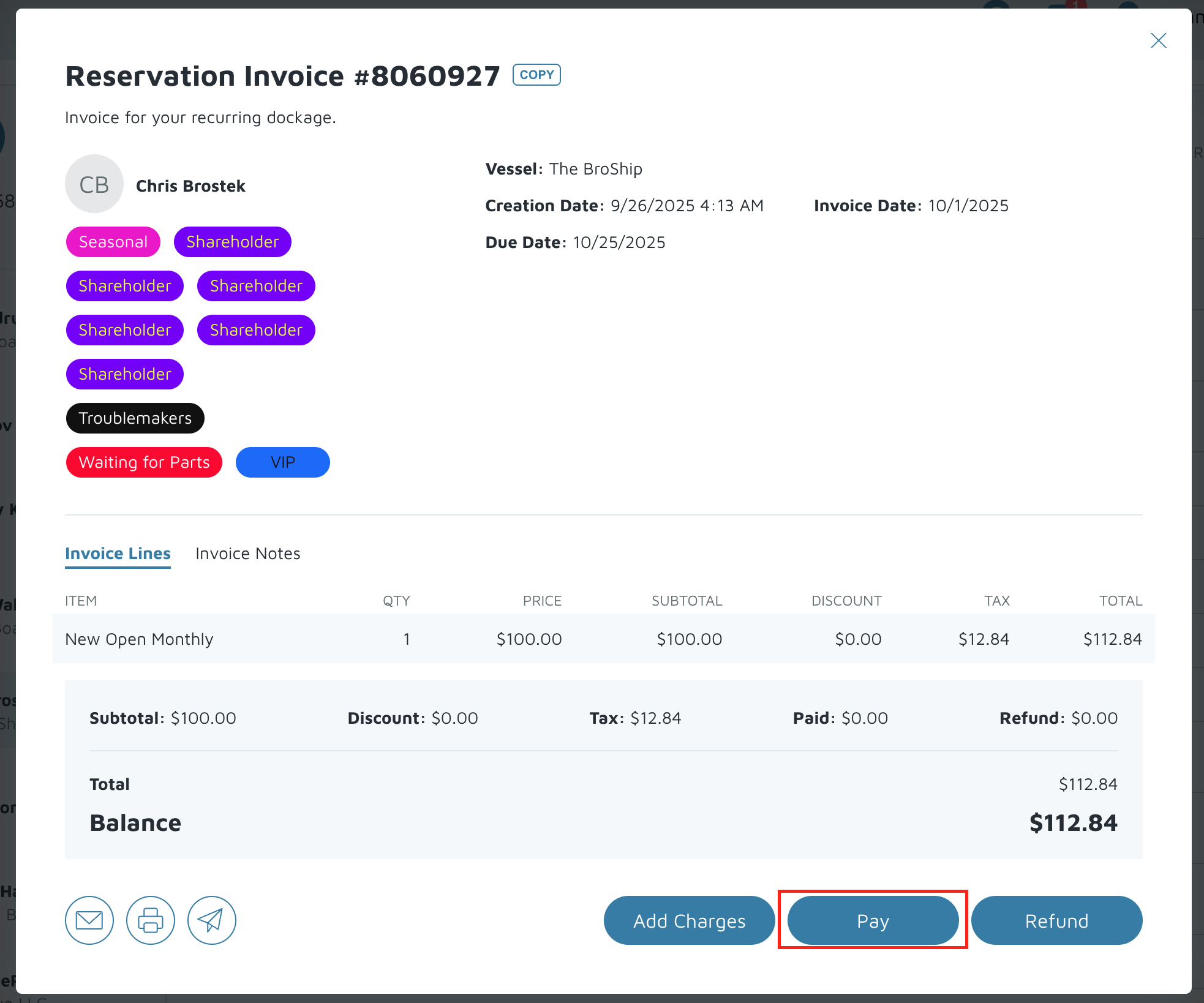
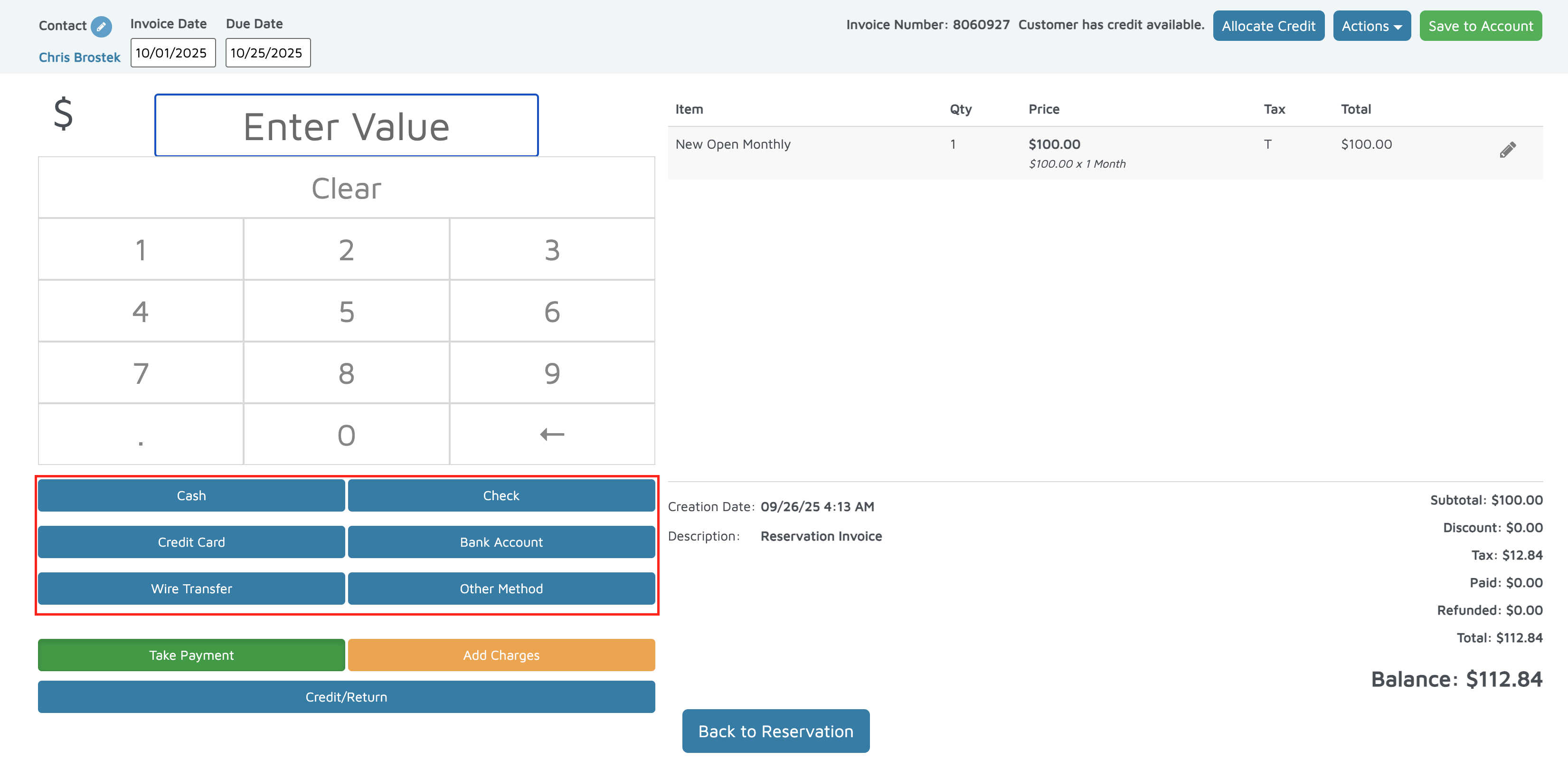
- Open the Invoice you want to apply the payment to.
- Click Pay.
- Select the appropriate Payment Method.
- In the payment window, locate the field labeled Payment Date (Optional).
- Enter the date you wish to backdate the payment to.
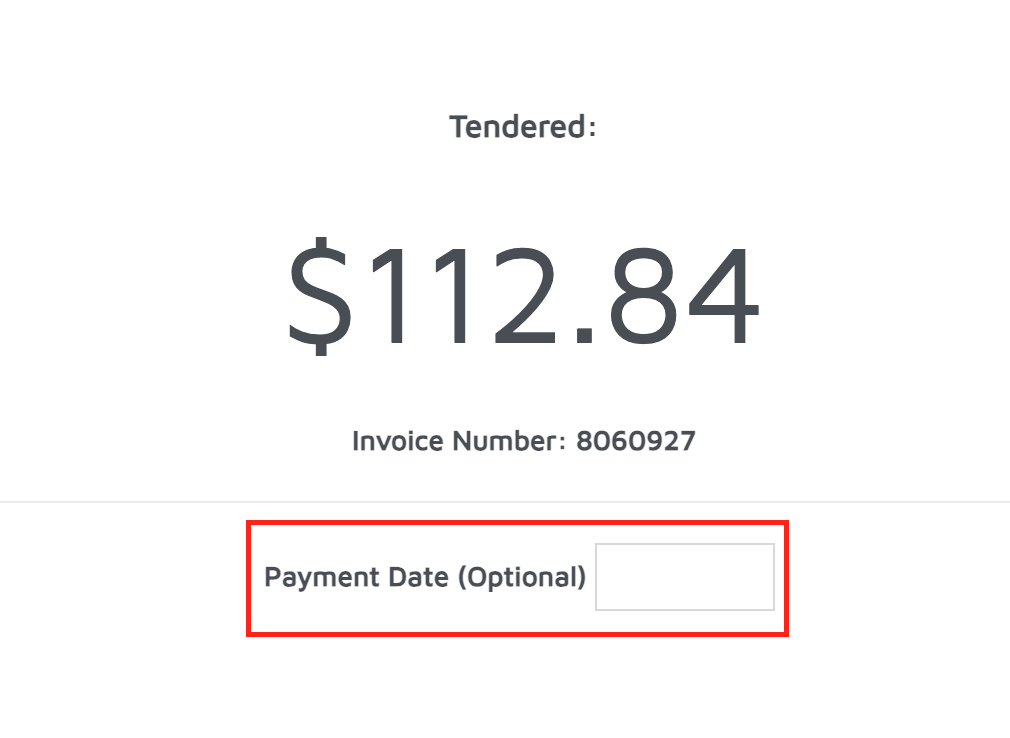
- Click Finish to complete the payment. The payment will now reflect the selected date.
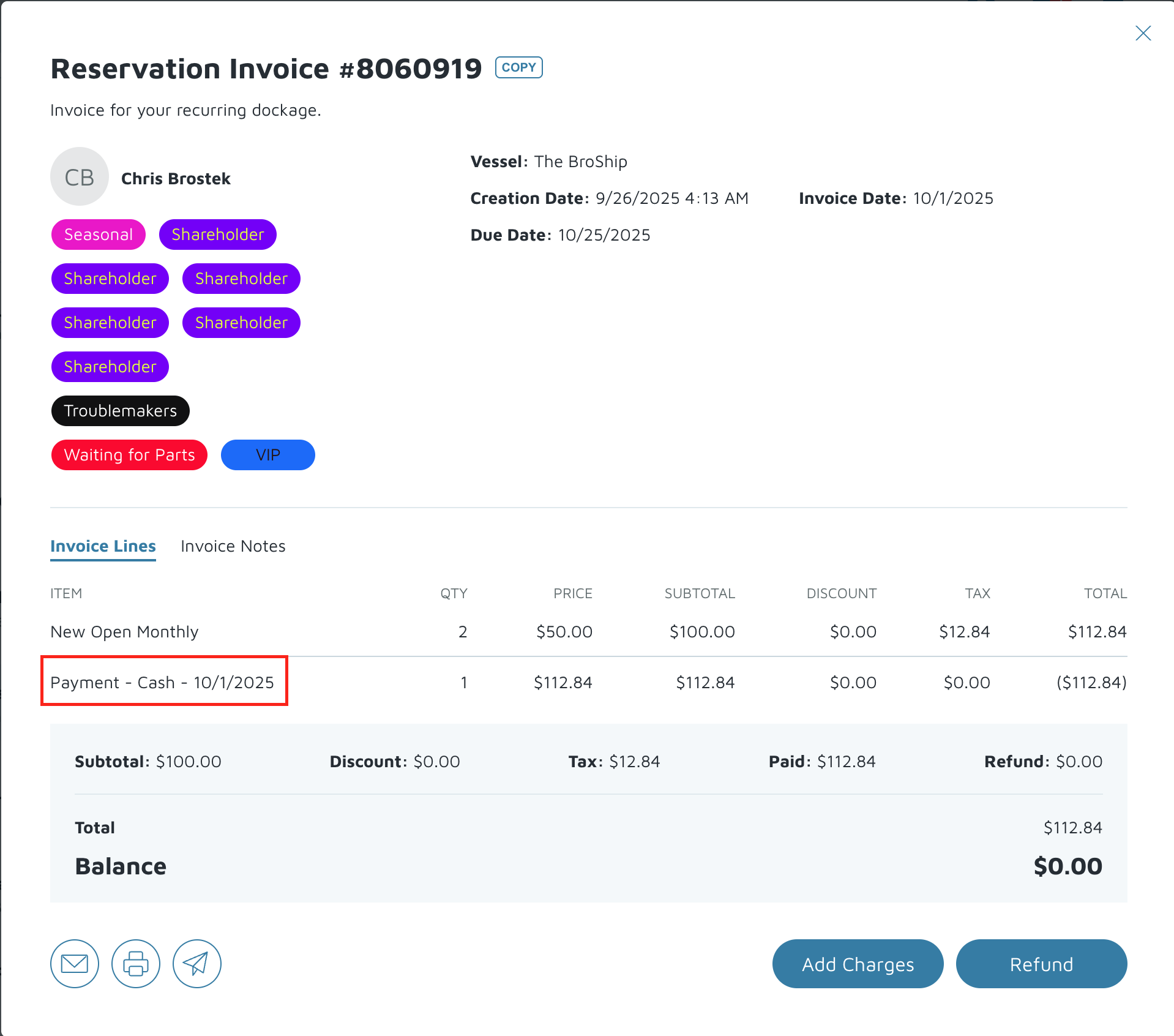
Verification: After the last step, you can double-check the payment line on the invoice to see if it was backdated.