
- “How do I link a part that’s listed in a work order to a new purchase order?”
Resolution Steps
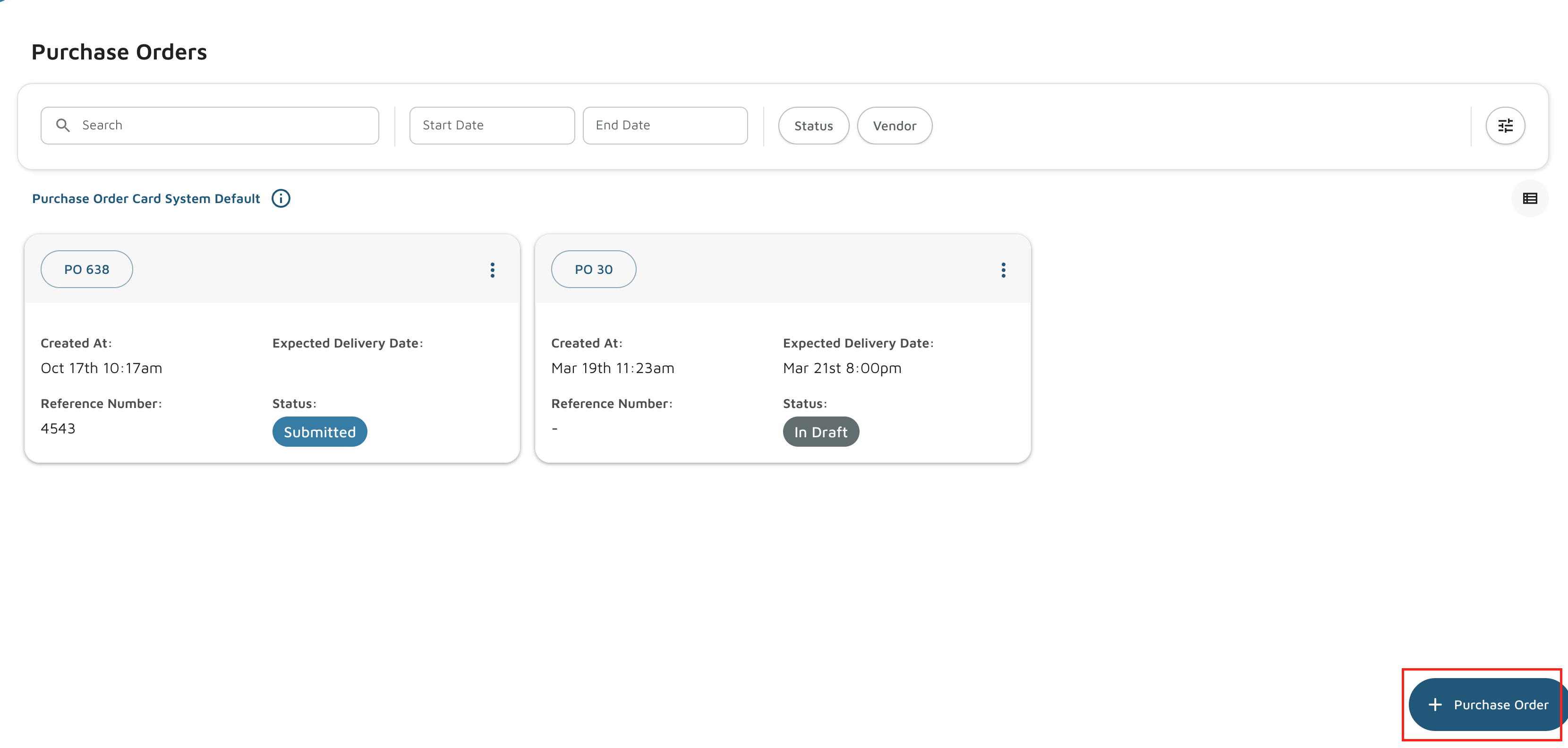
- Navigate to Inventory > Purchase Orders.
- Click + Purchase Order on the bottom right to create a new purchase order.
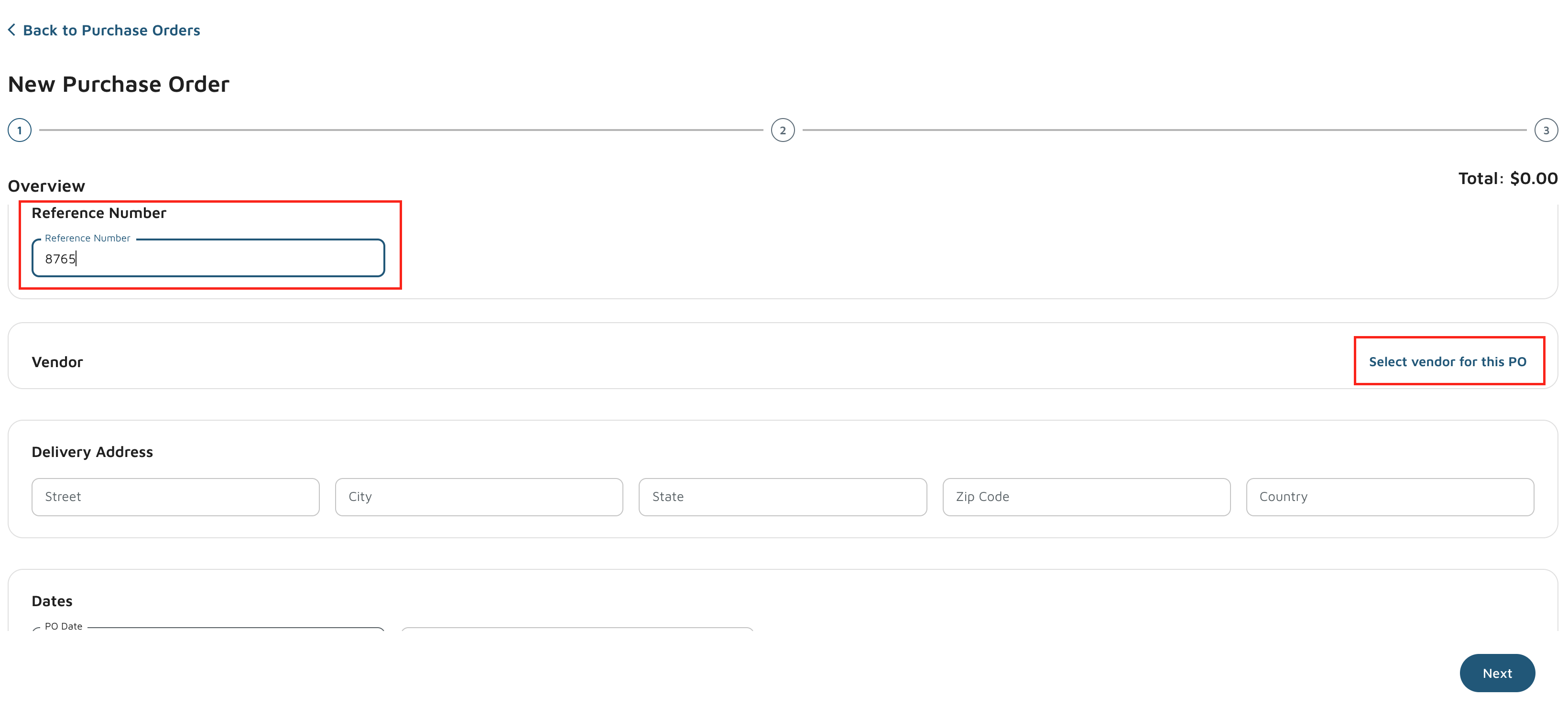
- Enter a Reference Number, select your Delivery Address and Dates (optional), then click Next.
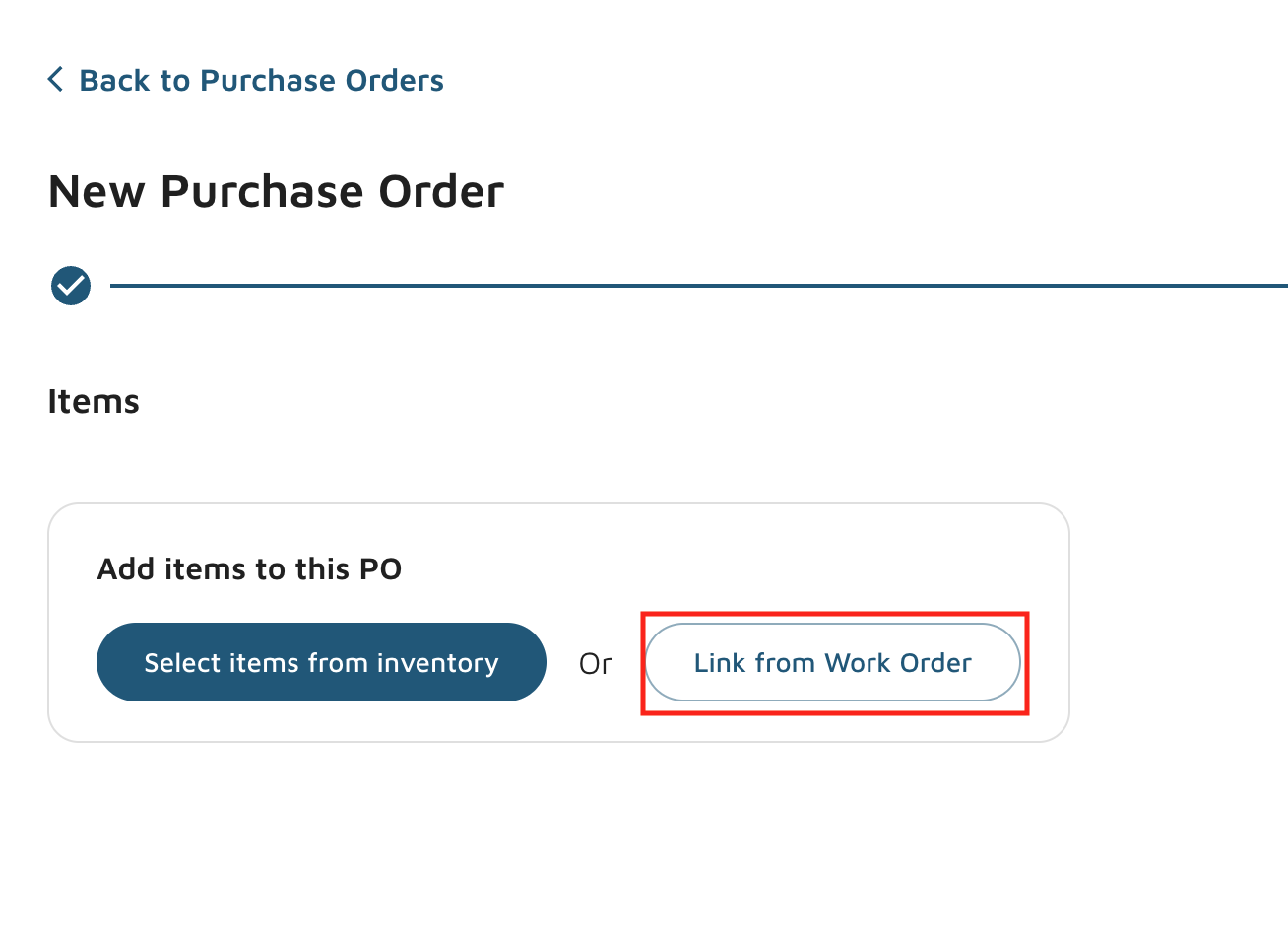
- On the next screen, you will see two options for adding items:
- Select items from inventory
- Link from work order
- Choose Link from work order.
- A list of all open work orders will appear. Select the work order that contains the part you need.
- Click the down arrow beside the work order to expand and view all jobs associated with it.
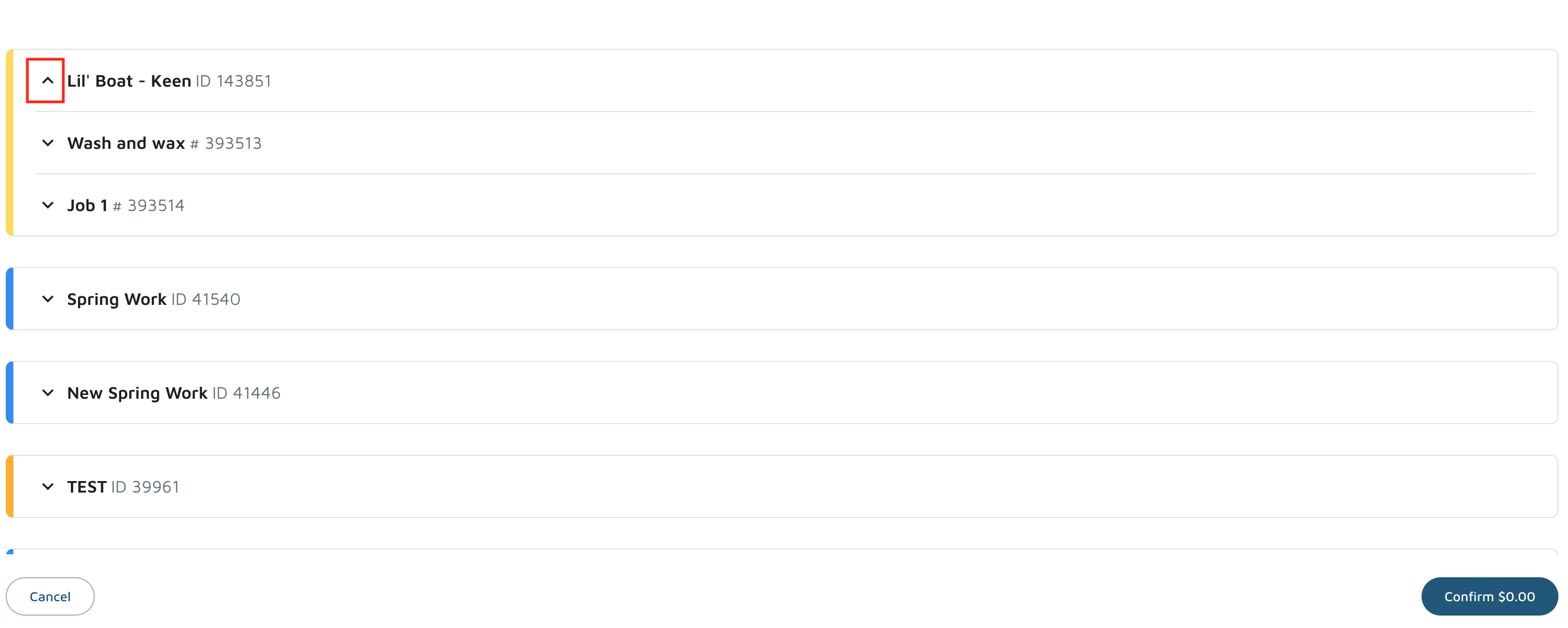
- Select the job that includes the part you wish to link, then click Add.
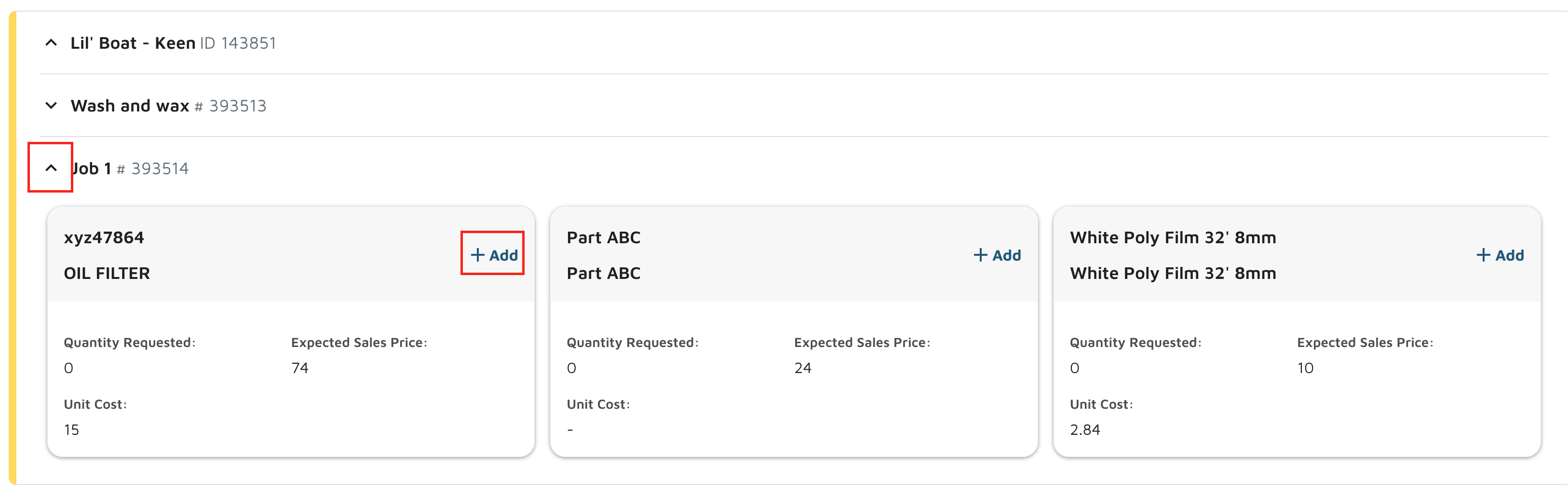
- Enter the quantity of the part you want to add and click Add.
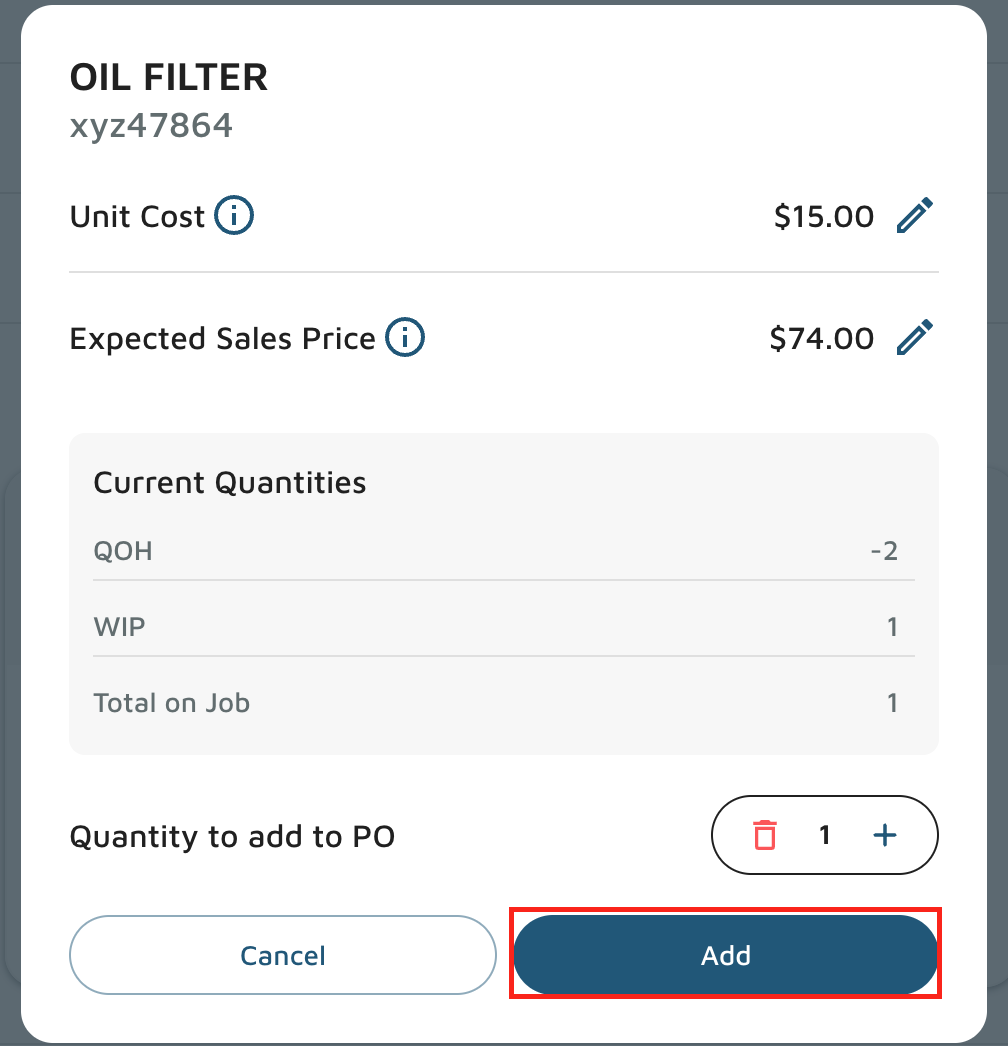
- A pop-up will confirm that the part has been successfully added to the purchase order.
- When finished, click Confirm in the bottom right corner.
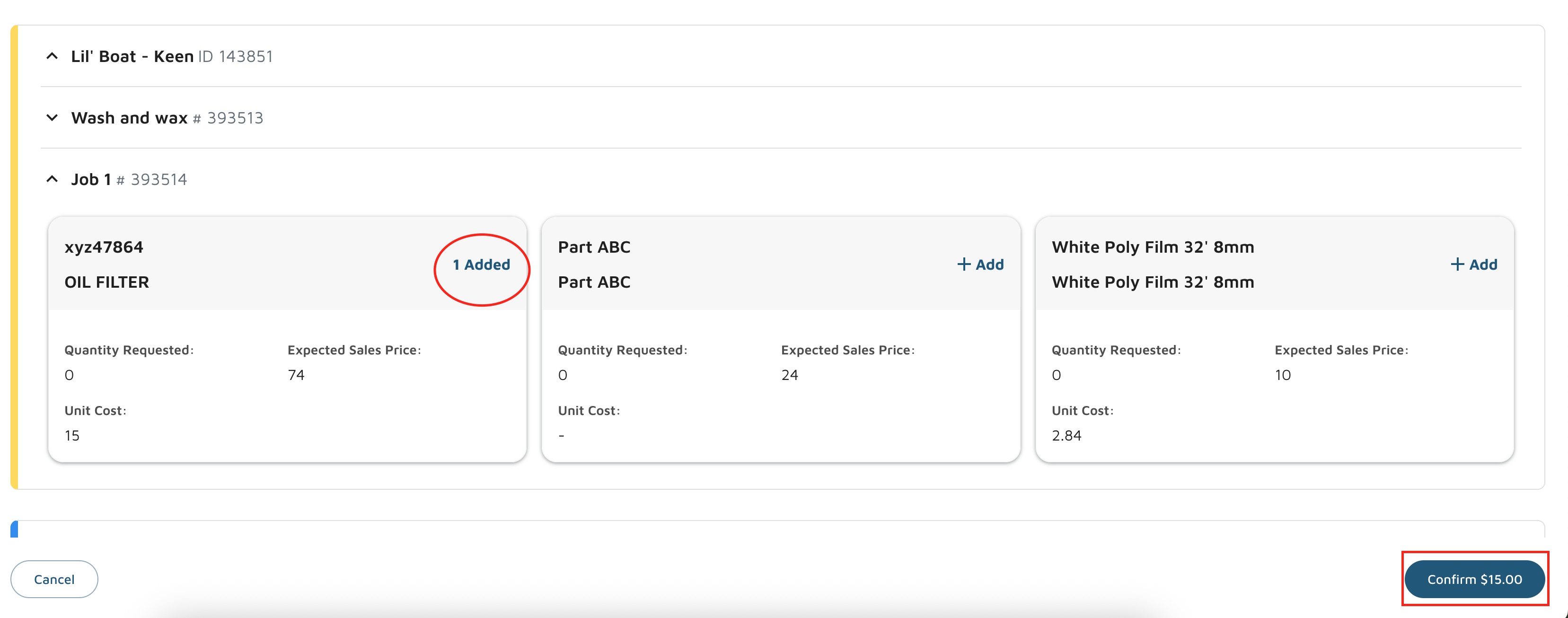
- You will now see the linked work order number displayed on the purchase order.
- Complete the purchase order and either:
- Email it to the vendor, or
- Print it for manual processing.
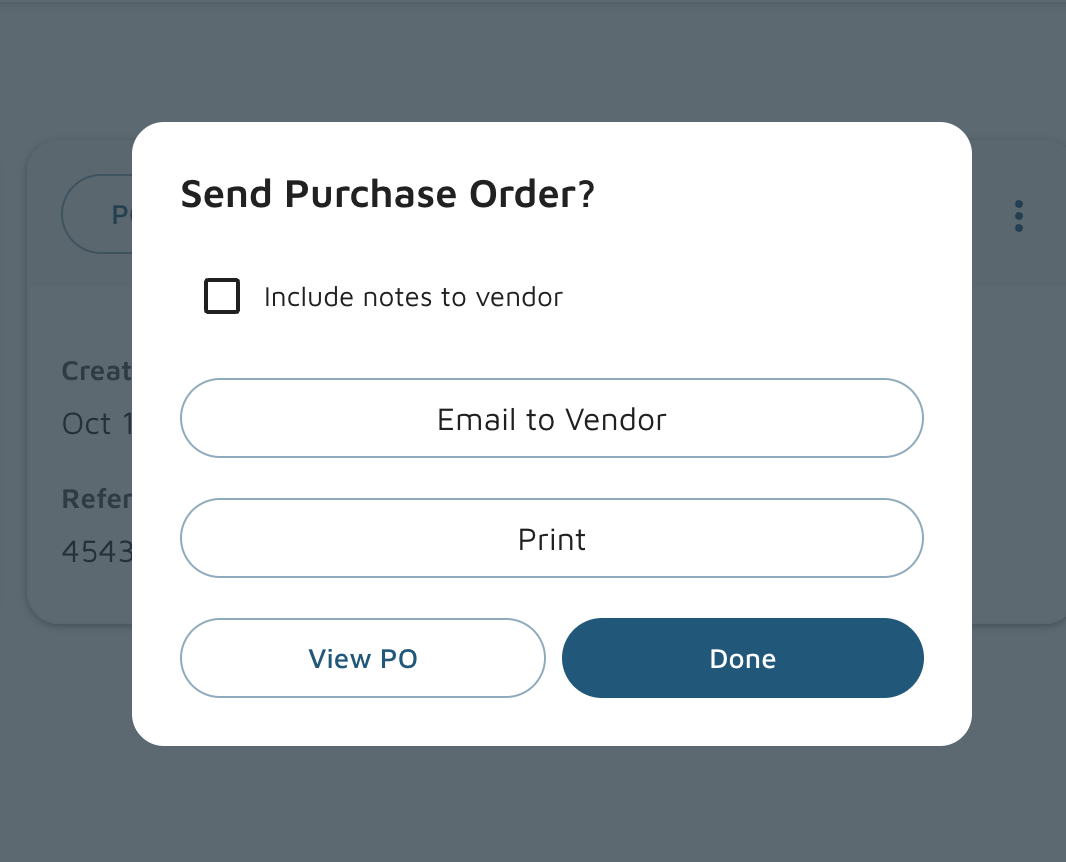
- After submission, verify that the Status on the main purchase order page shows as Submitted.
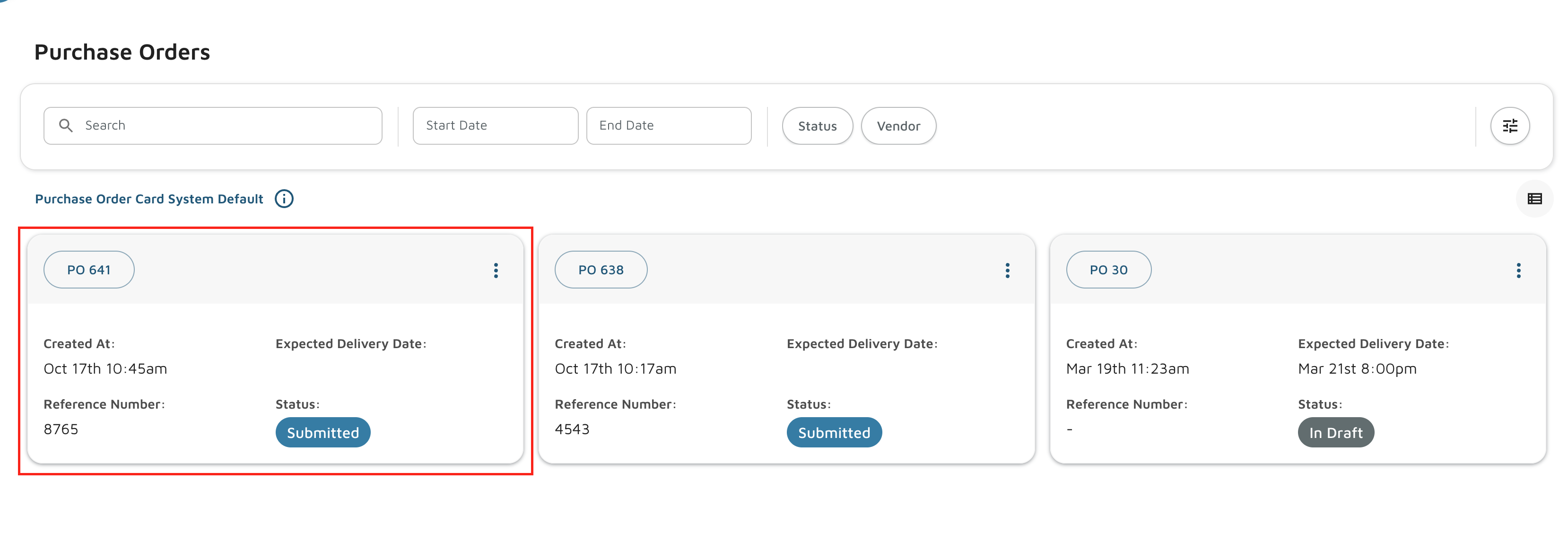
Verification: After the last step, click on the PO to verify that the part is on there.