
- "How do I view and manage work orders in the Service Calendar?"
- "Can I add technicians, resources, or events to the calendar?"
- "How do event types and statuses work in the Service Calendar?"
Resolution Steps
- Navigate to Service > Calendar.
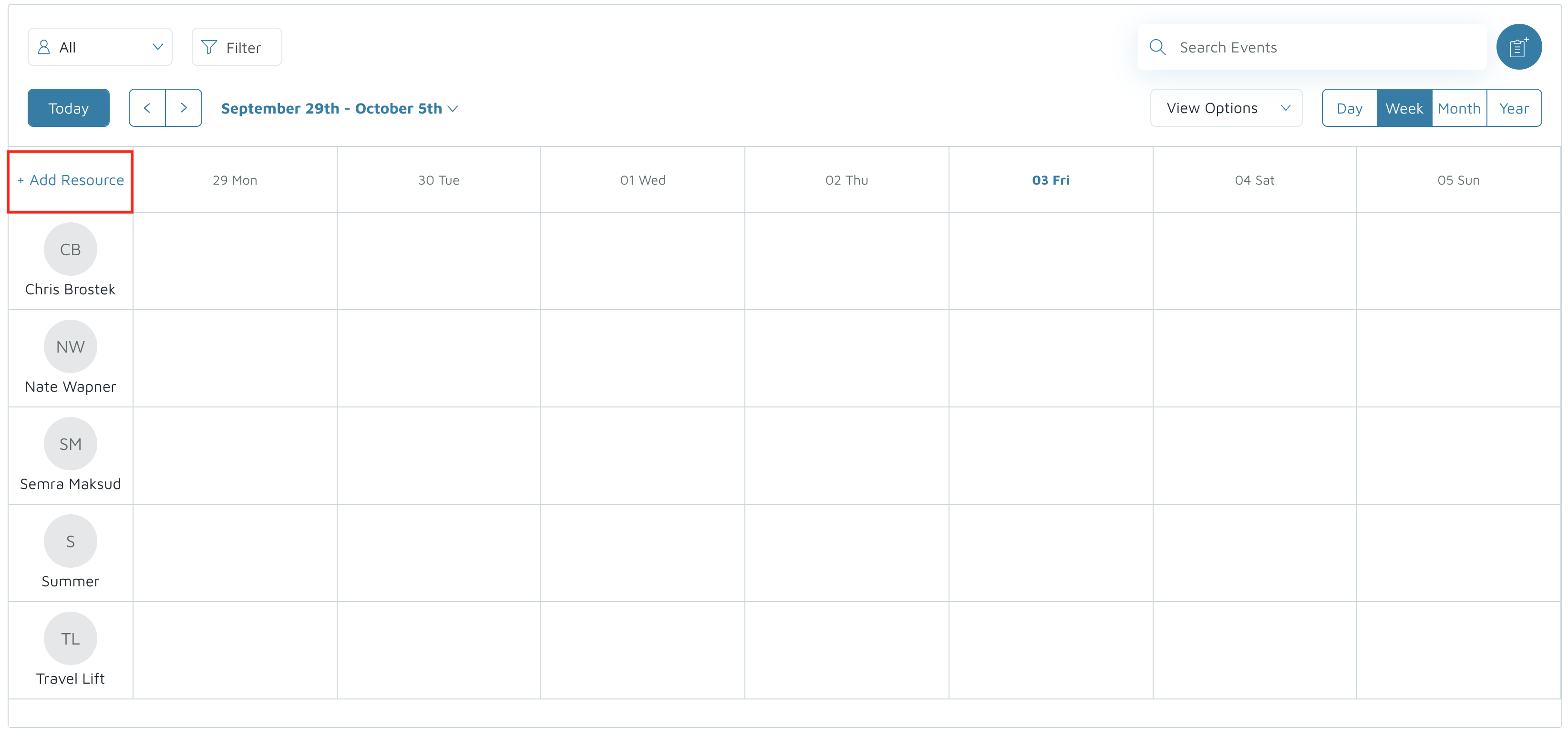
Here, you will see a calendar view of all work orders with technicians and resources listed on the left side. - To add more resources or technicians:
- Click Add Resource.
- Resources can be travel lifts, equipment, or crew members that need to be booked on work orders.
- To create a new event:
- Click on the desired date in the calendar.
- Select Add Event.
- Enter the event name.
- Assign it to a specific technician (if needed).
- Optionally, link it to a specific work order.
- Set start and end times, or check All Day if applicable.
- Choose an Event Type (types can be customized with different colors).
- Select a Status for the event.
- Add any additional notes or descriptions.
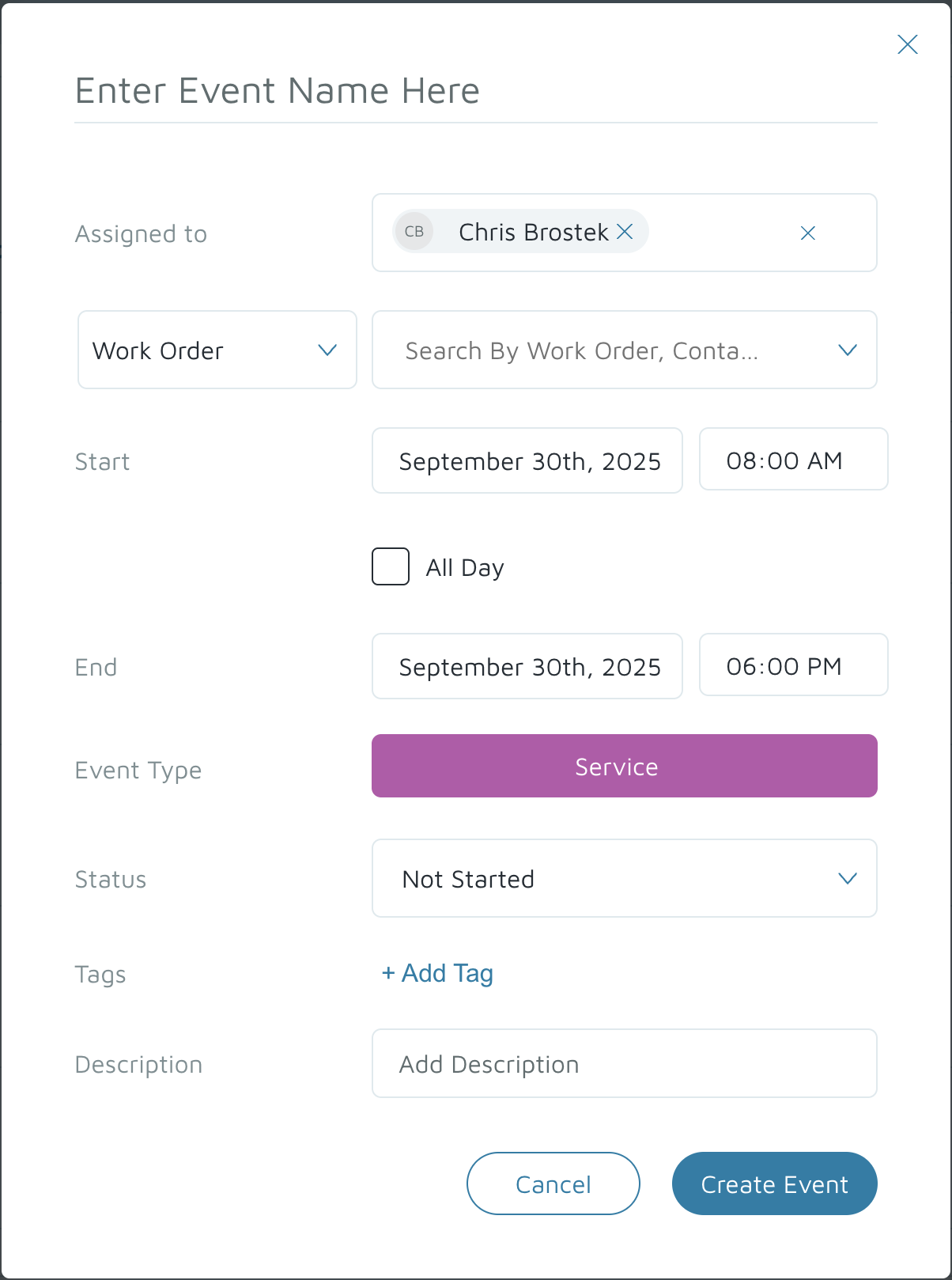
- Click Save to add the event to the calendar.
Verification: Verify the customer understands how to use the service calendar.