
Molo Customer Portal Phase 3 introduces several major improvements that make it easier for boaters to manage their own information and payments, and for marinas to control what they can edit.
Watch the walkthrough video
You can watch a full walkthrough of the new Customer Portal features here:
Video: Molo Customer Portal Phase 3 – New Features (automatic charging, profile & vessel edits, onboarding, username updates).
https://www.loom.com/share/7435d1e10cf94f1fb97b78423d3ac173
1. Automatic Charging in the Customer Portal
Boaters can now turn automatic charging on or off and choose which saved payment method should be used for auto-charge, directly from the Payment Settings tab in the Molo Customer Portal.
What this changes:
Boaters can enable or disable automatic charging for their account (subject to marina configuration).
Boaters can choose which card or bank account will be used for automatic charges.
When saved, these changes update the Automatic Charging Preference and the specific payment method on their Molo contact record.
Where to configure in Molo (employee side):
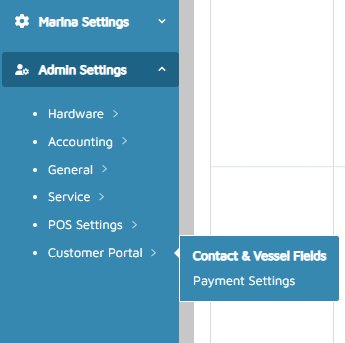
Go to Admin Settings > Customer Portal > Payment Settings.
Turn on Enable Automatic Charging Lock if you want to prevent boaters from turning auto-charge off once it’s enabled.
The Automatic Charging Preference now lives under Contacts > Payment Methods instead of Contacts > Info.
2. Boater Profile & Vessel Info Edits (with Approvals)
Boaters can now edit their own contact and vessel information from the My Profile area in the Customer Portal.
Marinas can control, per field:
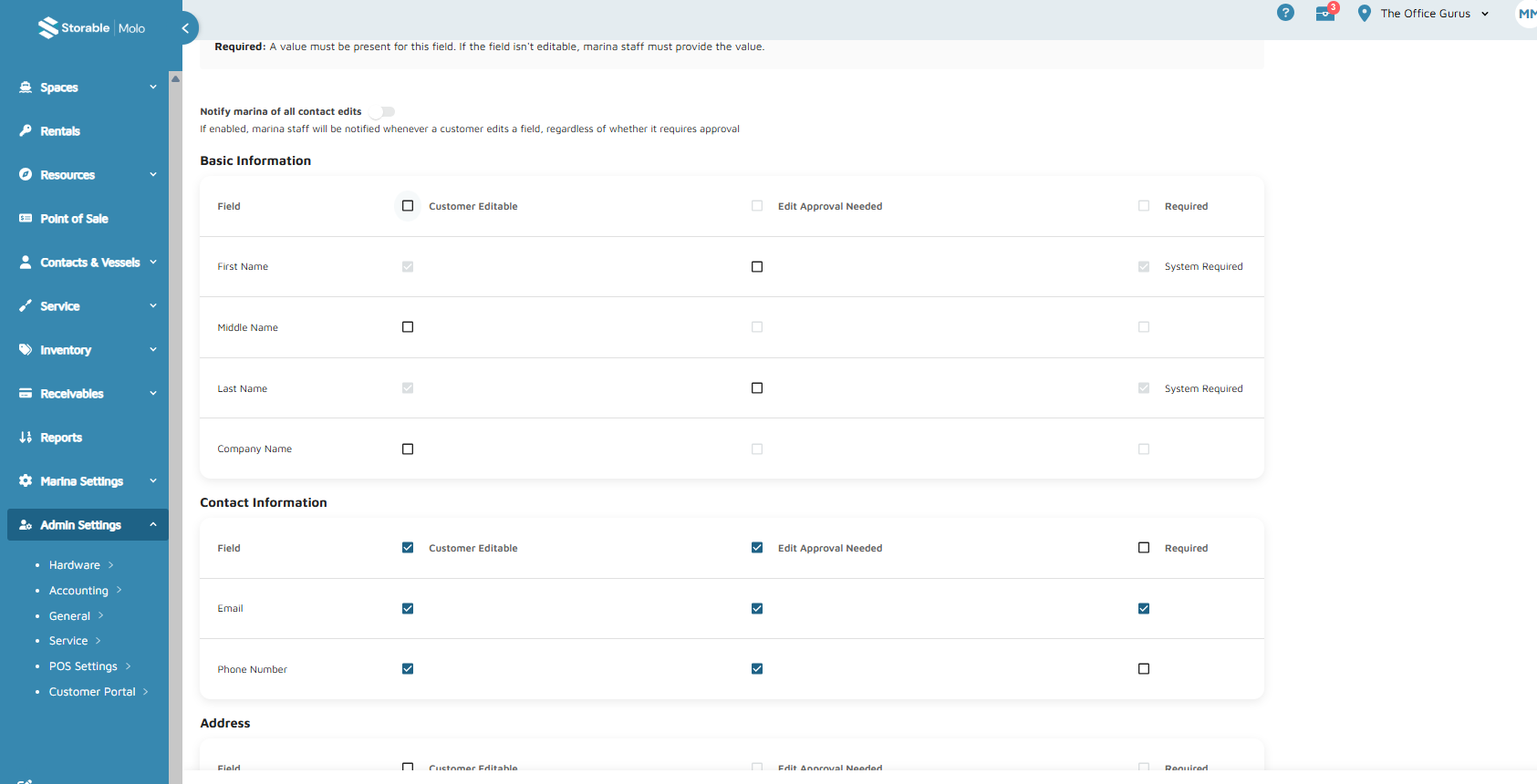
Customer Editable – boater can change this field.
Edit Approval Needed – changes require staff approval before they go live.
Required – field must have a value.
All changes made through the portal are logged in the Activity & Notes section of the contact (with user attribution showing whether the change came from the customer or a staff member approving it).
Where to configure in Molo:
Go to Admin Settings > Customer Portal > Contact & Vessel Fields.
For each contact/vessel field, choose:
Customer Editable (yes/no)
Edit Approval Needed (yes/no)
Required (only available when Customer Editable is enabled).
How staff review and approve changes:
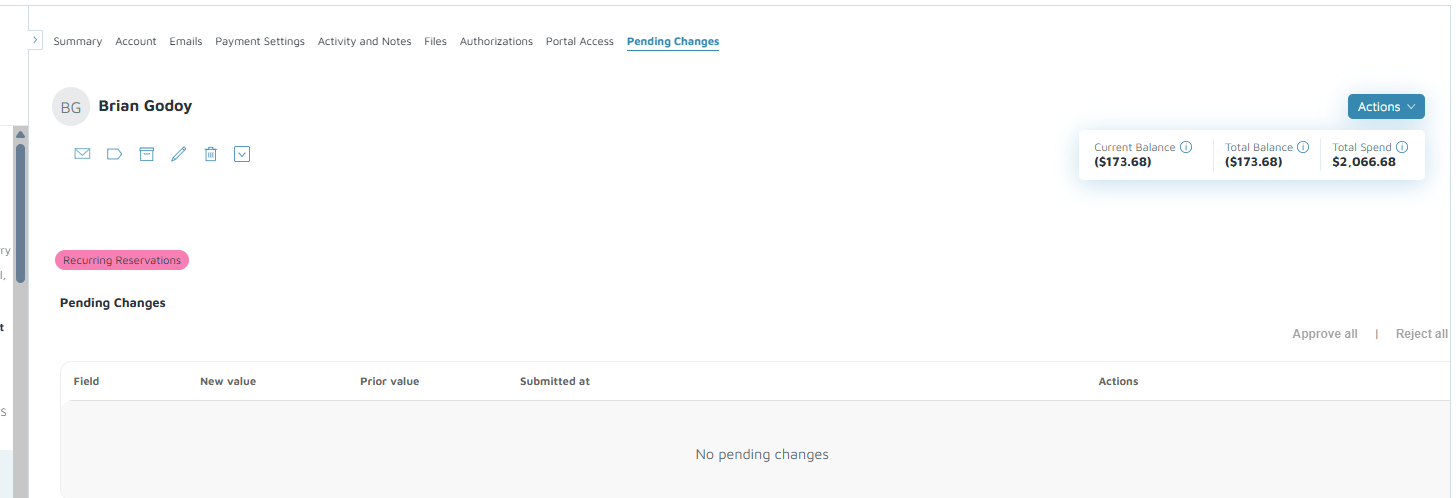
Inside a Contact or Vessel, use the Pending Changes tab to Approve or Reject each individual change that requires approval.
On the Contacts and Vessels list pages, use the Pending Changes view to see only records with pending edits from the portal.
3. Employee-Side Onboarding Flow
To help boaters start using the portal, marinas can send a Portal Welcome Email directly from the contact record.
Steps:
Open the boater’s Contact.
Go to the Portal Access tab.
Click Send Portal Welcome Email.
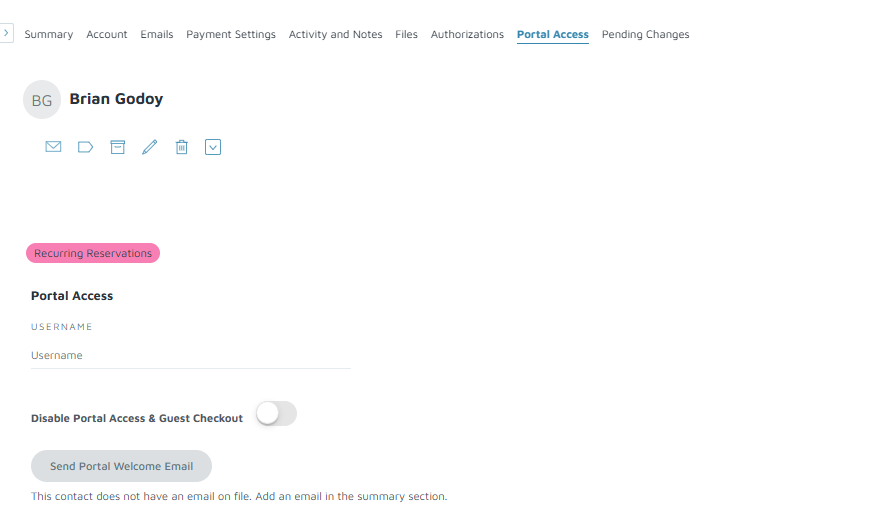
The boater receives an email that walks them through creating or confirming their password and completing their Personal Info and Vessel Info in the portal.
4. Editing Customer Portal Usernames
Staff can now update the username tied to a boater’s portal account.
Steps:
Open the Contact.
Go to the Portal Access tab.
Click the pencil icon next to the username.
Update the username and click Save.
Usernames do not have to be email addresses and can be adjusted later if needed (subject to your internal policies).
5. Notes and Best Practices
Make sure all required feature flags for Customer Portal Phase 3 are enabled (Phase 2, Phase 3, and Phase 3 Extended) along with the main Enable Customer Portal setting in Marina Admin. Support can assist with this!
Consider publishing an internal checklist for staff so they know:
Which fields are customer-editable.
Which changes require approval vs. which are auto-applied.
Who in your team is responsible for monitoring the Pending Changes views regularly.