- "How do we add Terms and Conditions to Work Orders?"
- "How can we add Terms and Conditions to an Estimate?"
- "Where can Terms and Conditions be found in an email sent to the customer?"
Resolution Steps
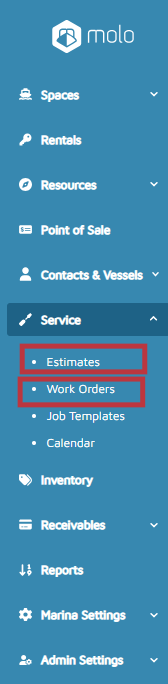
- On the left menu, navigate to Services > Estimate or Work Order.
- Select an Estimate or Work Order.
- Scroll down to the Terms and Conditions section and click Add Terms and Conditions.

- On the pop-up screen, complete the following:
- Title: Name of the Terms and Conditions
- Default for Work Orders / Estimates: When checked, inserts the Terms and Conditions on new Work Orders or Estimates.
- Terms and Conditions: Actual Terms and Conditions text.
- Click Save.

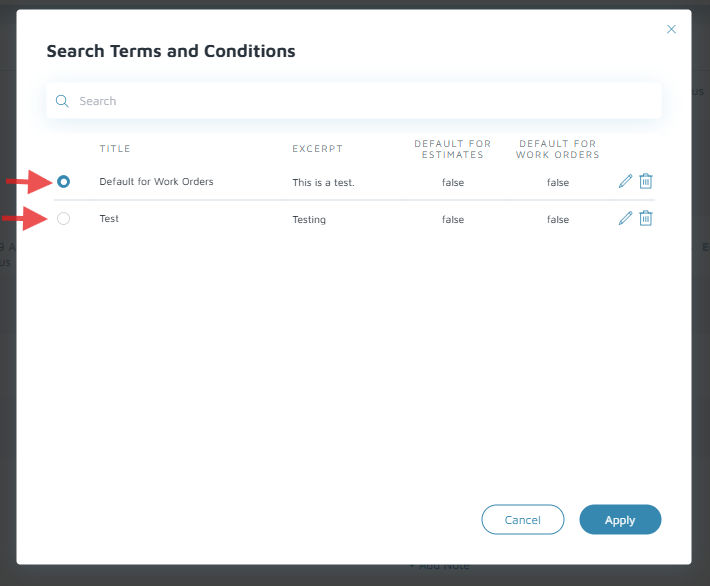
Verification/Confirmation: Terms and Conditions can be found by clicking on an Estimate or Work Order, scrolling down to the Terms and Conditions section, then clicking on Search Terms and Conditions to see the new item.