
- "How do I edit a reservation while keeping accounting records accurate?"
- "When extending or changing a reservation, how do I prevent mismatched invoices and balances?"
Resolution Steps
- Ensure your account has this feature enabled; if not reach out to support.
- Edit an existing reservation:
- Open the reservation, click Full View > Edit, then select Change.
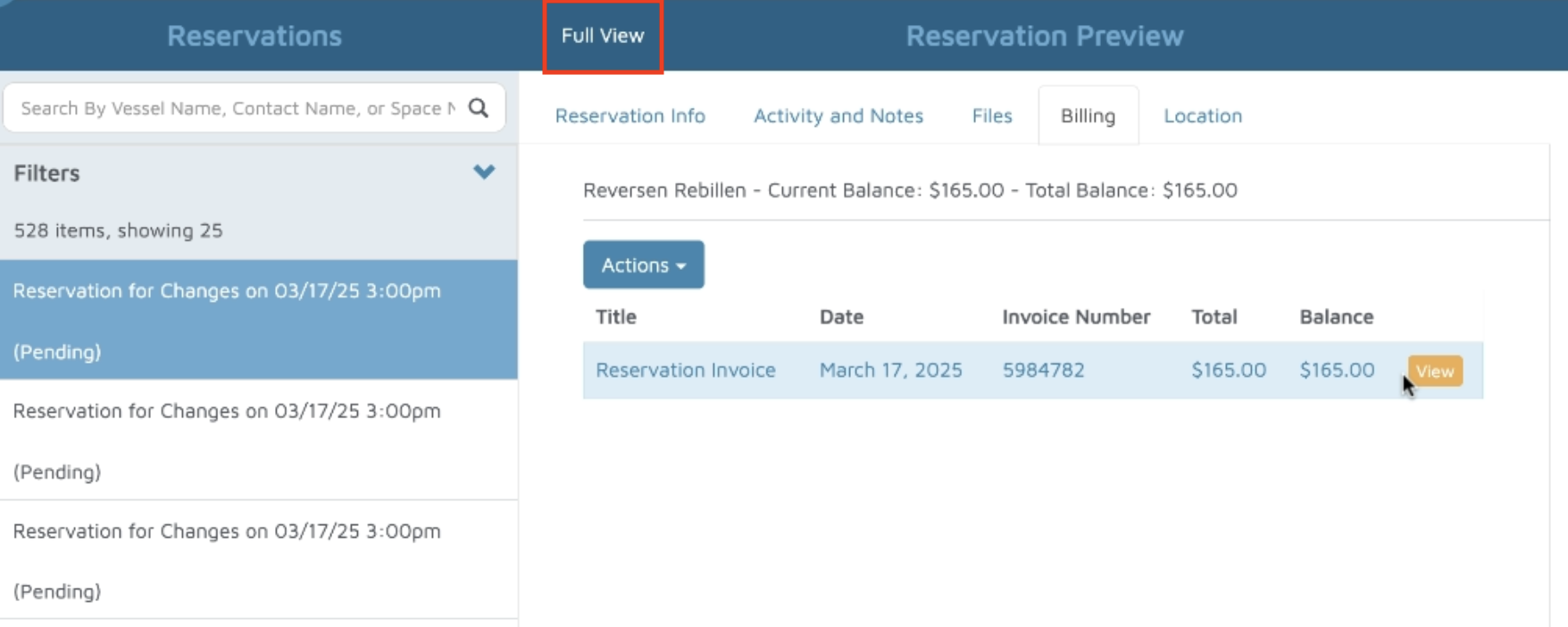
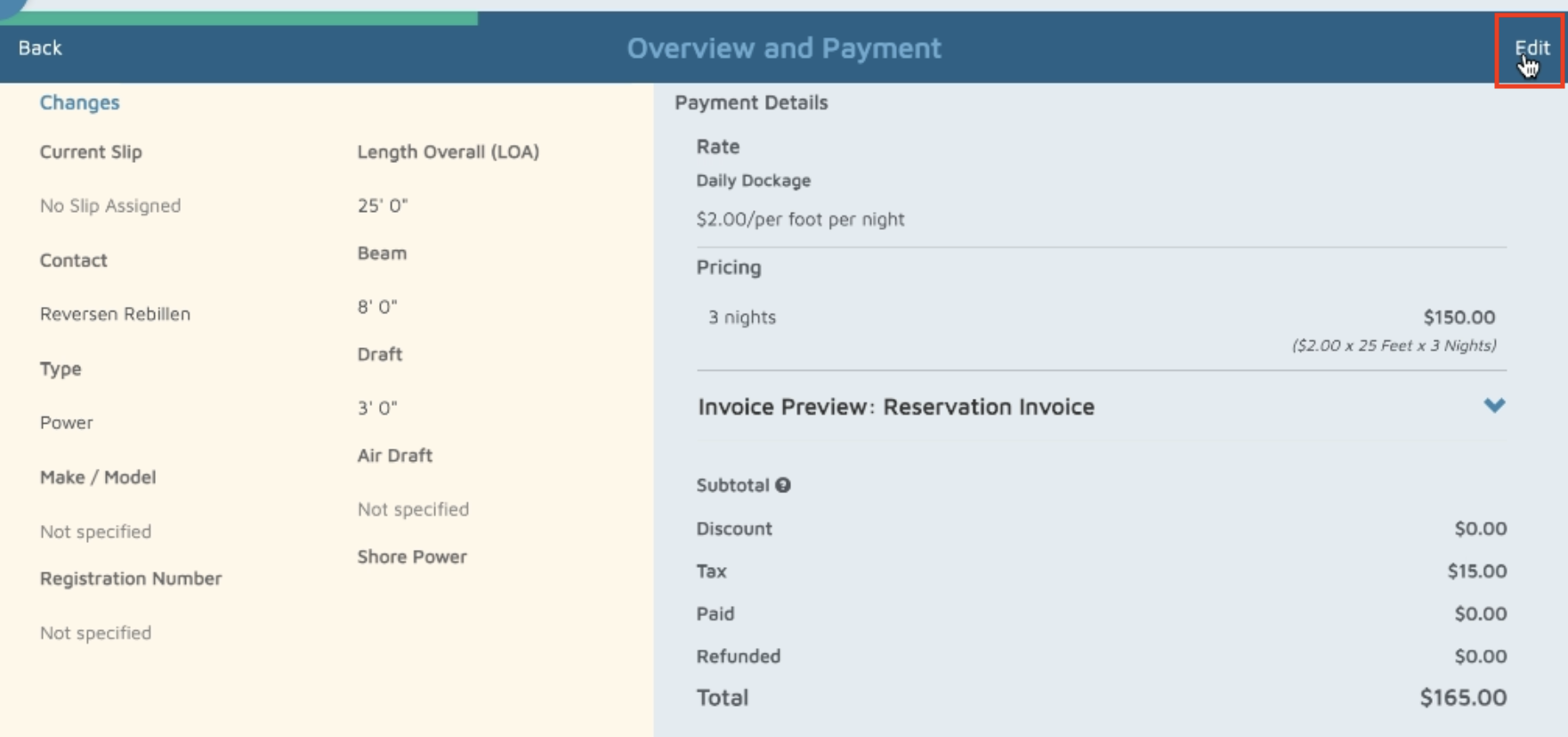
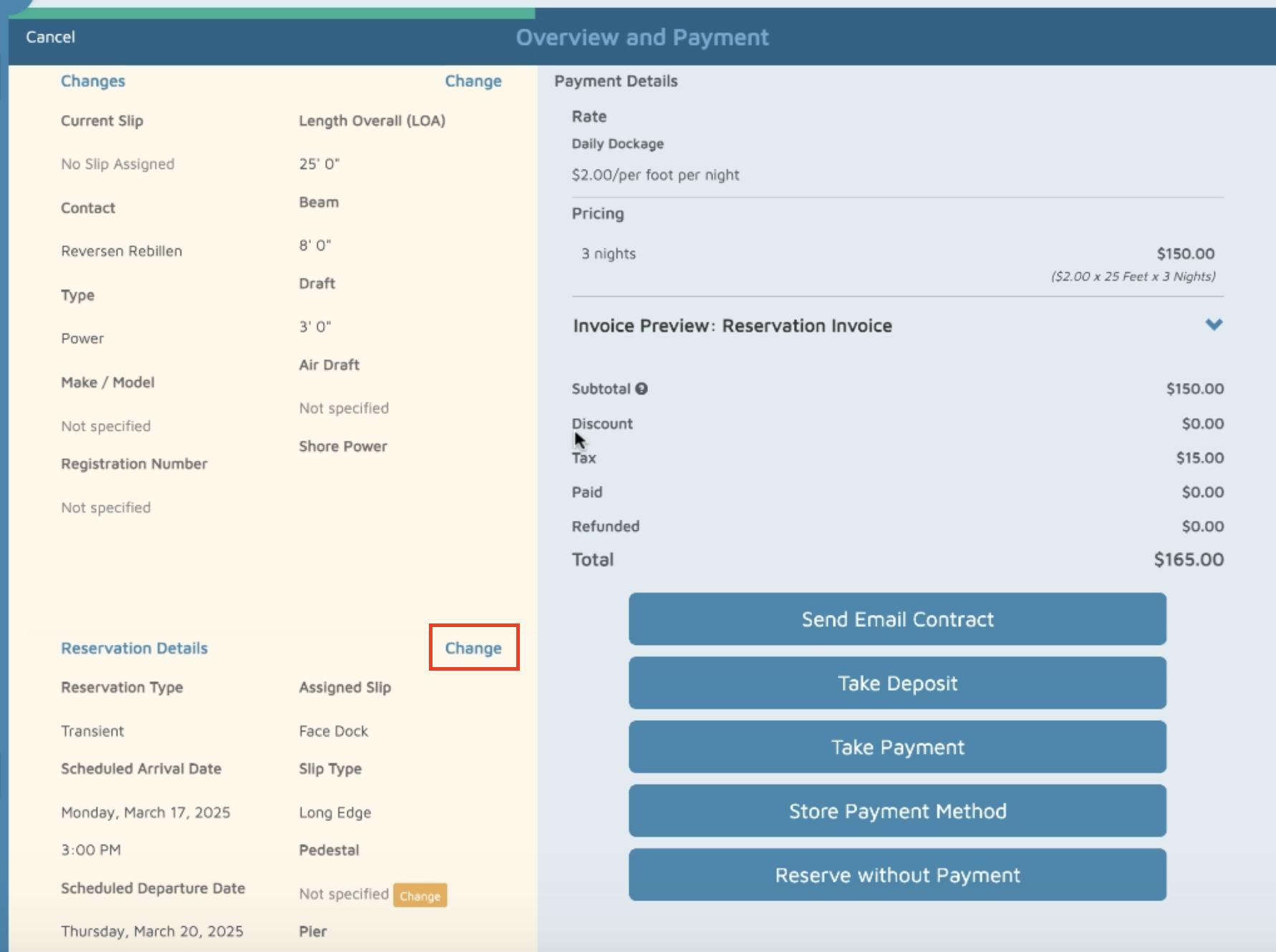
- Adjust details (e.g., extend nights or update space) and click Next.
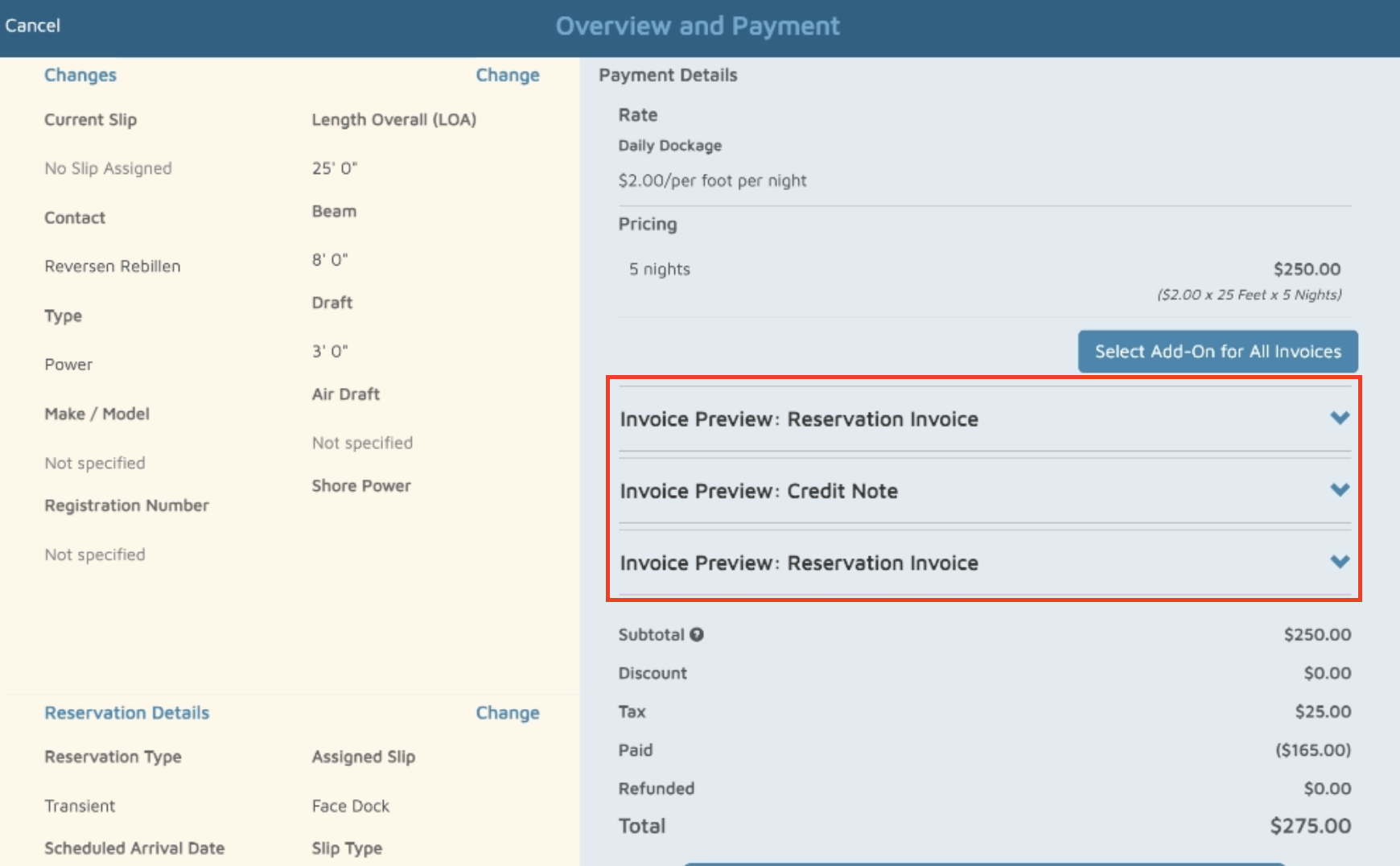
- On the Overview and Payments tab, confirm the new invoice details.
- Open the reservation, click Full View > Edit, then select Change.
- Review the results:
- A Credit Note is created as the reversing entry for the prior invoice.
- A New Reservation Invoice is generated for the updated details (rebill).
- If the allocation setting is enabled, funds from the old invoice will automatically apply to the new one.
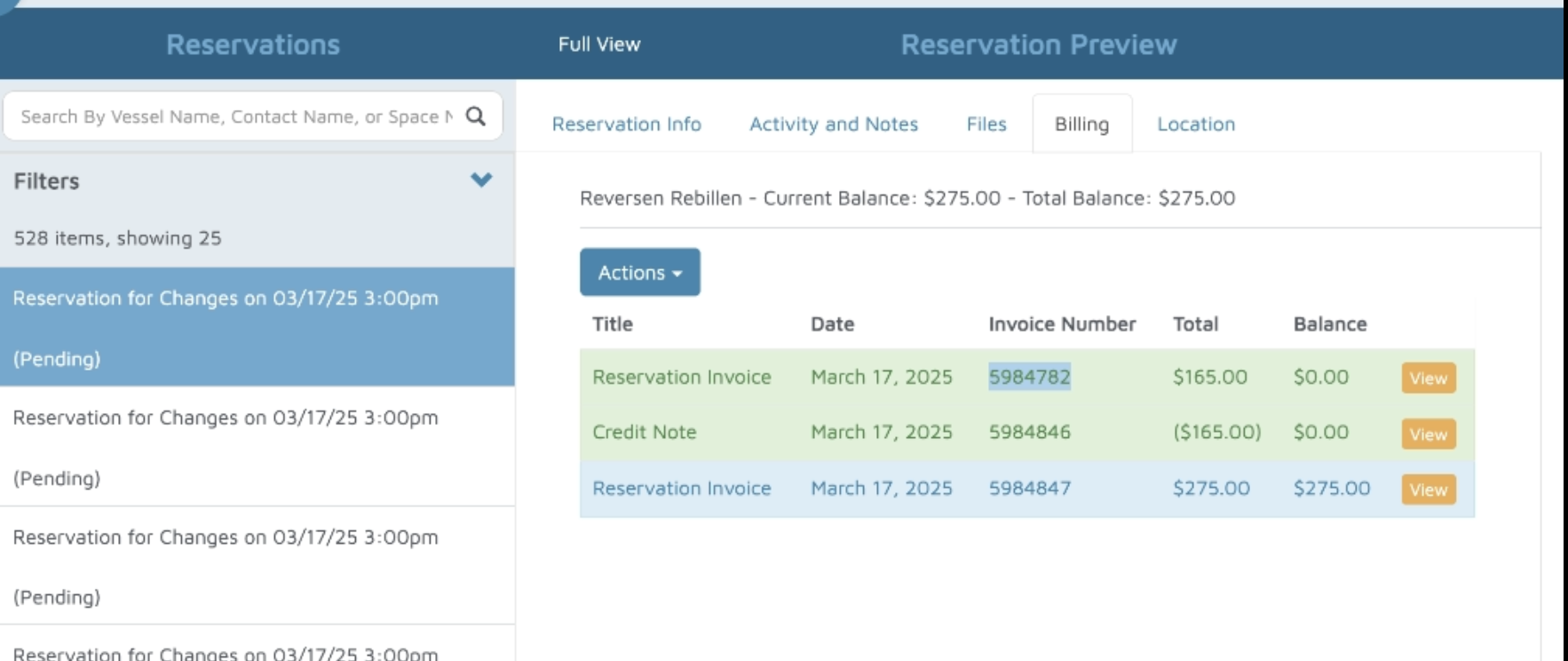
Verification: There should be a credit note under the billing tab of the reservation.