
- "How can I quickly renew multiple seasonal or recurring reservations in Molo without creating them one by one?"
- "Where do I access the Bulk Renewal feature in Molo?"
Resolution Steps
- Ensure the Bulk Renewalfeature is enabled.
- Note: Only Super Users or roles with elevated access can use this feature.
- Navigate to Reservations > Bulk Renewal in the Molo backend.
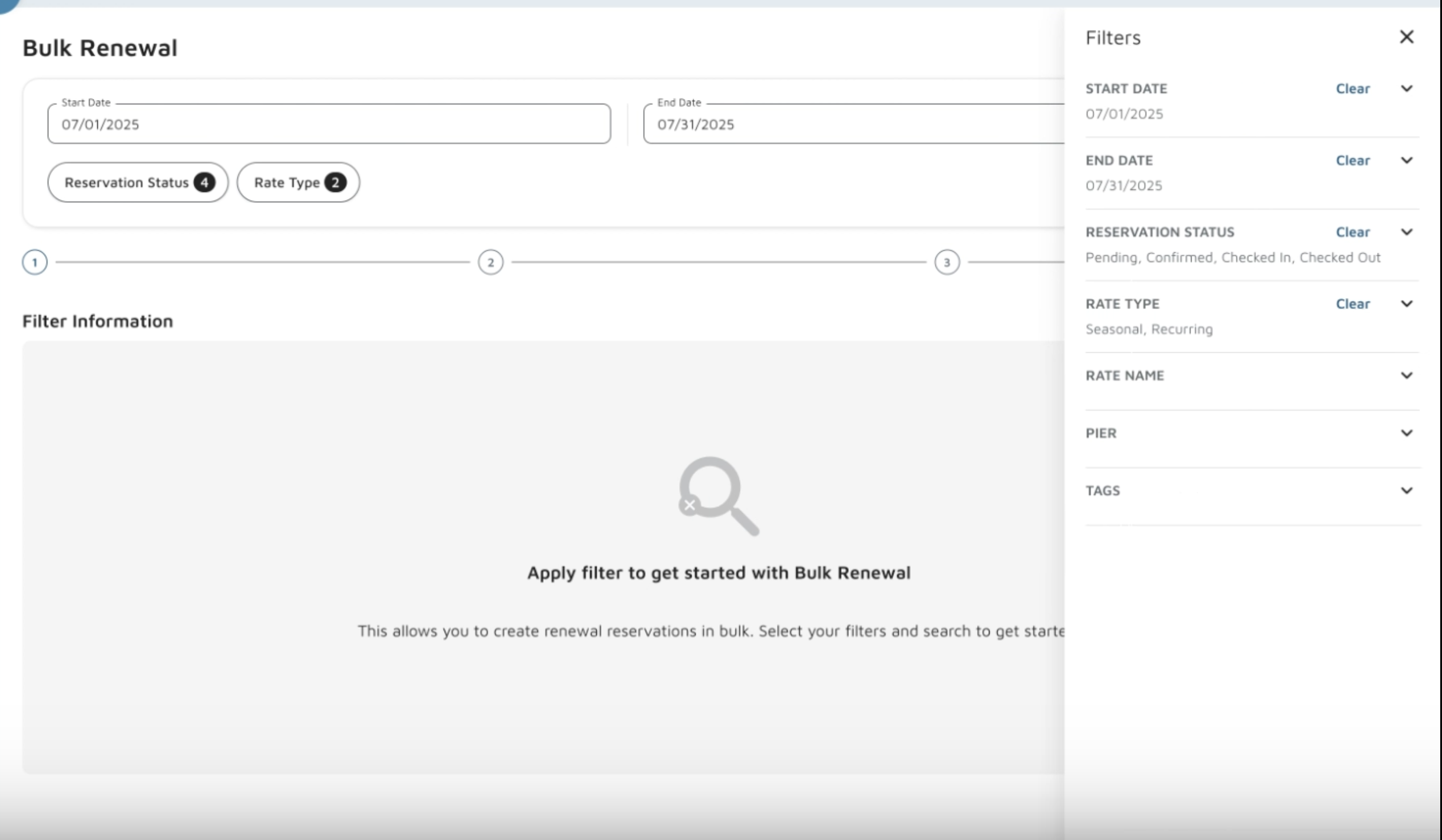
- Step 1 – Apply Filters:
- Filter reservations by status, rate types, rate names, or by dock/pier.
- Click Search to display matching reservations.
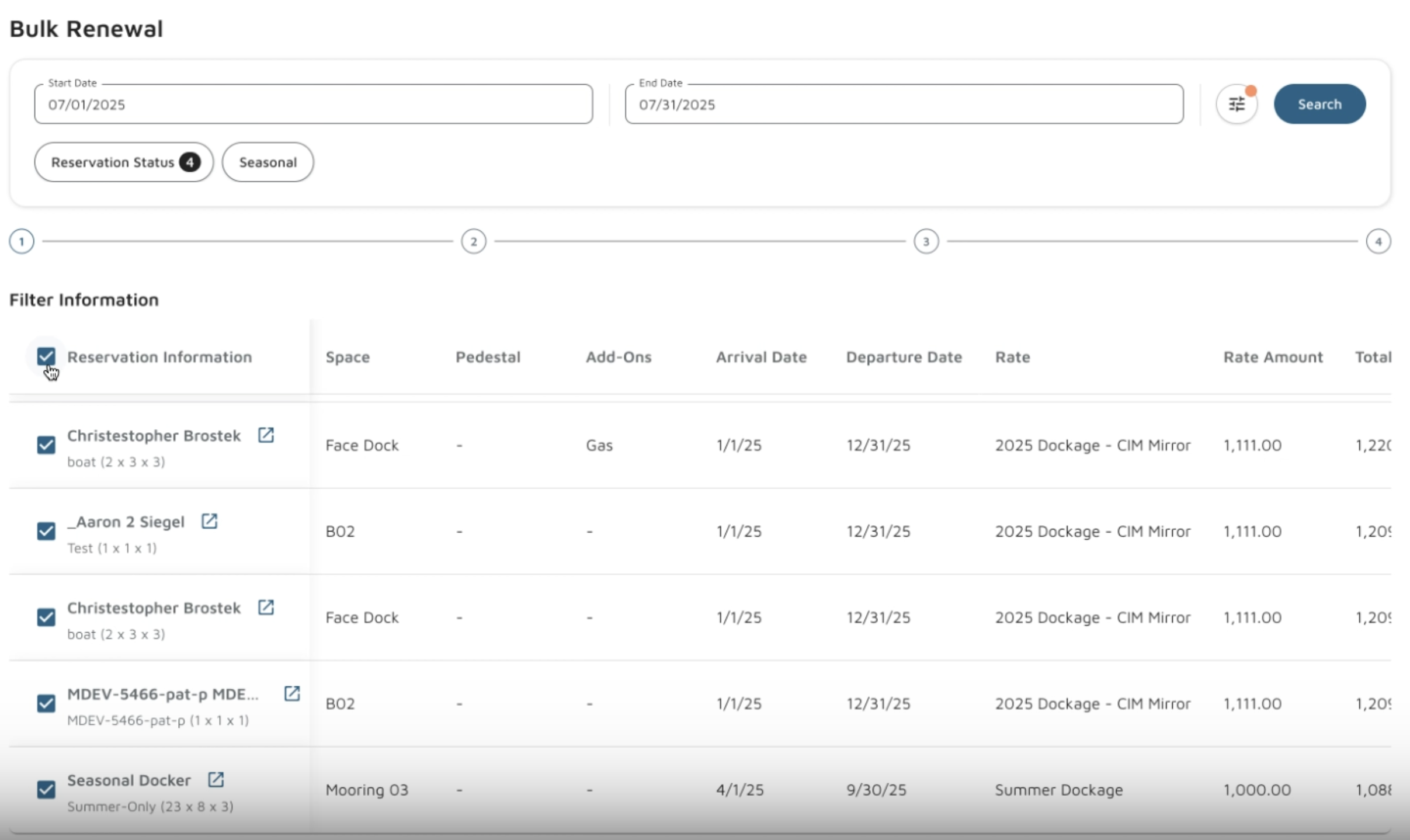
- Step 2 – Select Reservations:
- Check the box next to the reservations you want to renew (or select all).
- Use the pop-up option to view more details if needed.
- Click Next.
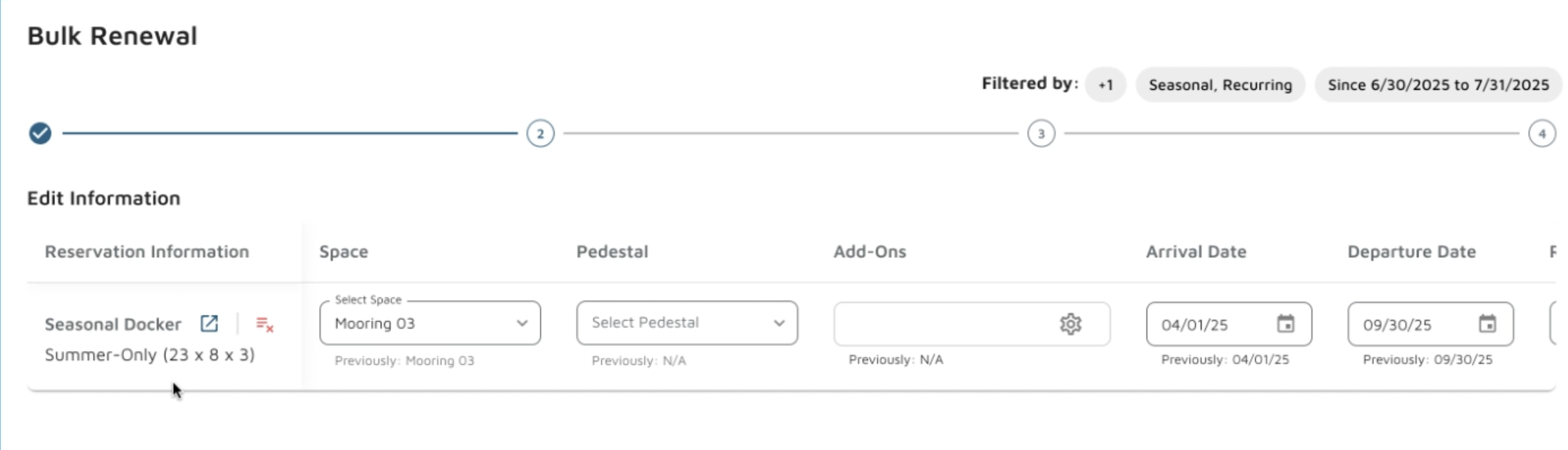
- Step 3 – Edit Renewal Details:
- Confirm or change the assigned slip/space.
- Add pedestals, link add-ons, and update arrival/departure dates.
- Select or update the reservation rate (with optional rate override).
- Click Next.
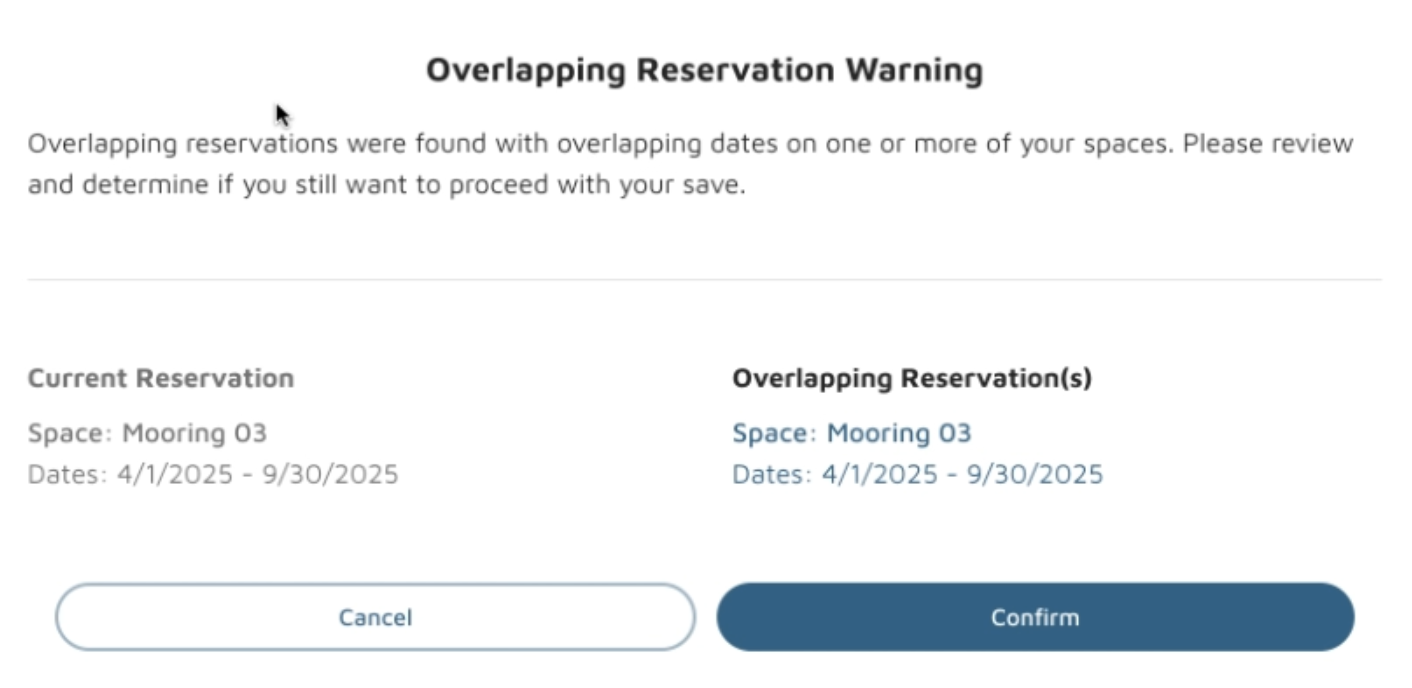
- Molo will validate overlapping reservations or outdated records and show warnings if applicable.
- Molo will validate overlapping reservations or outdated records and show warnings if applicable.
- Step 4 – Renewal Settings:
- Choose a reservation status option:
- Change Status → New reservation = Checked In, prior reservation = Checked Out.
- Don’t Change Status → New reservation = Pending, prior reservation unchanged.
- Optional: Send confirmation emails, add custom text, or mark the renewal as agreed offline.
- Click Next.
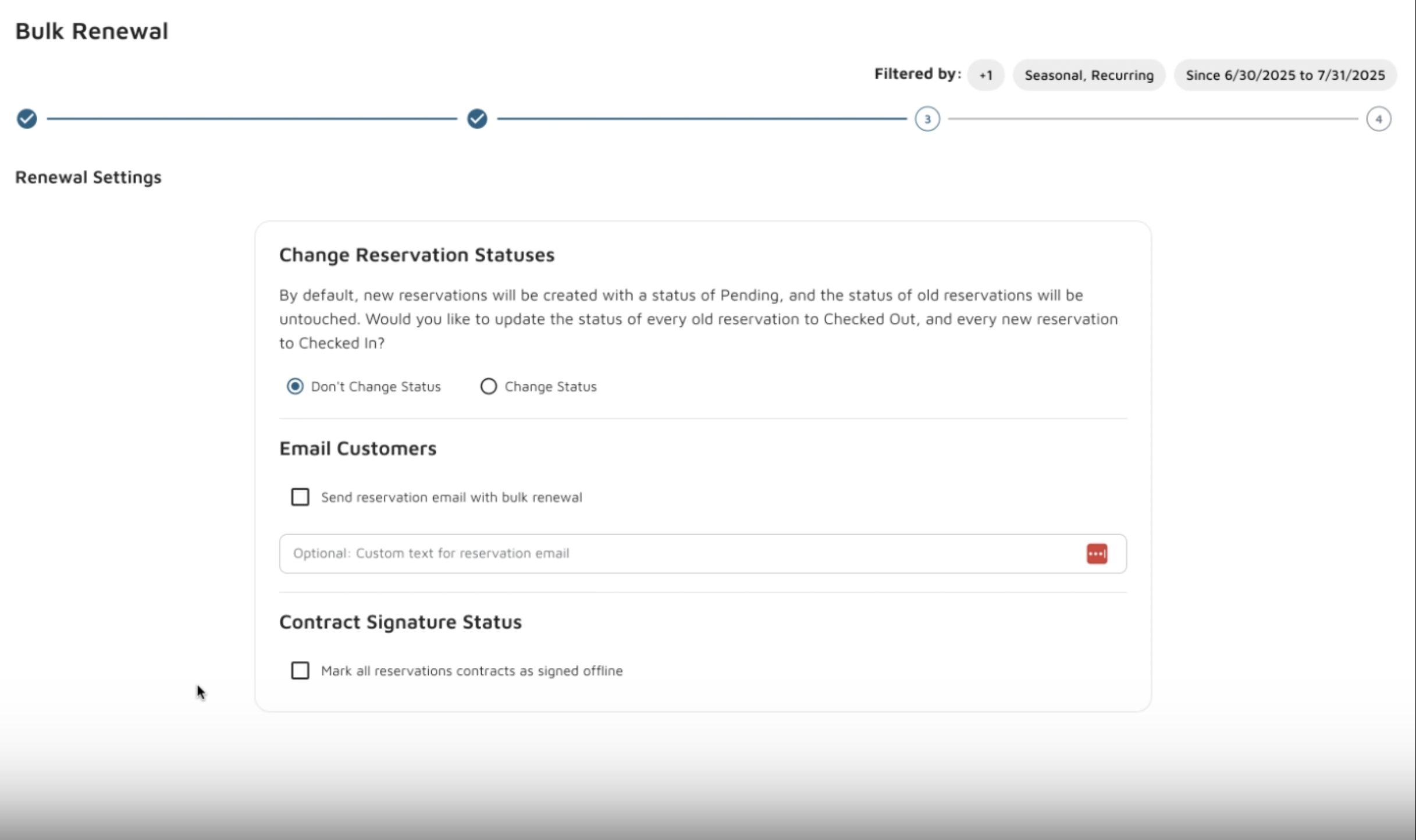
- Choose a reservation status option:
- Step 5 – Confirm Renewal:
- Review the list of reservations to be renewed.
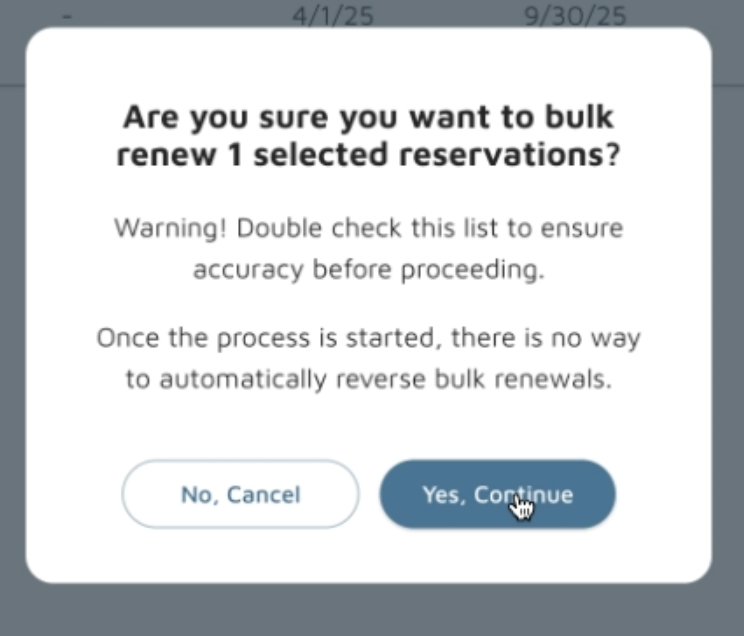
- Click Confirm & Bulk Renewal.
- Click Yes, Continue to finalize.
- Once completed, the bulk renewal will process in the background.
- Optionally, view renewal results by clicking View Bulk Renewal History.
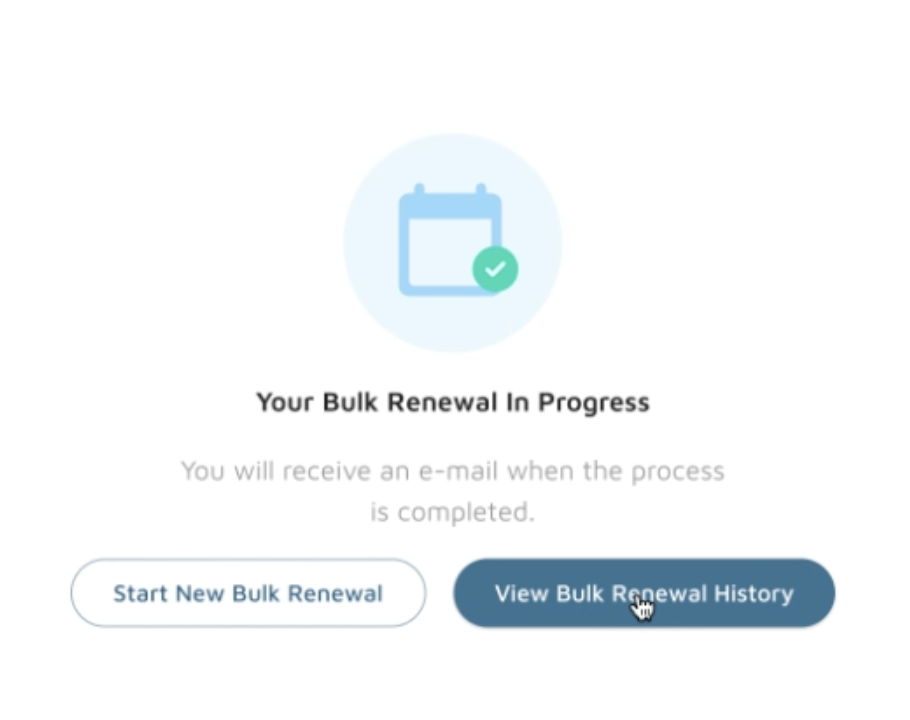
- Optionally, view renewal results by clicking View Bulk Renewal History.
Verification: New reservations should be created. Click on View Bulk Renewal History to see all the newly created reservations.