
- "Can I dynamically insert customer or reservation details into contracts?"
- "How do Merge Tags work inside Stellar contracts?"
- "What is the 'Create For-Loop' logic and how do I use it for multiple addresses or phone numbers?"
Resolution Steps
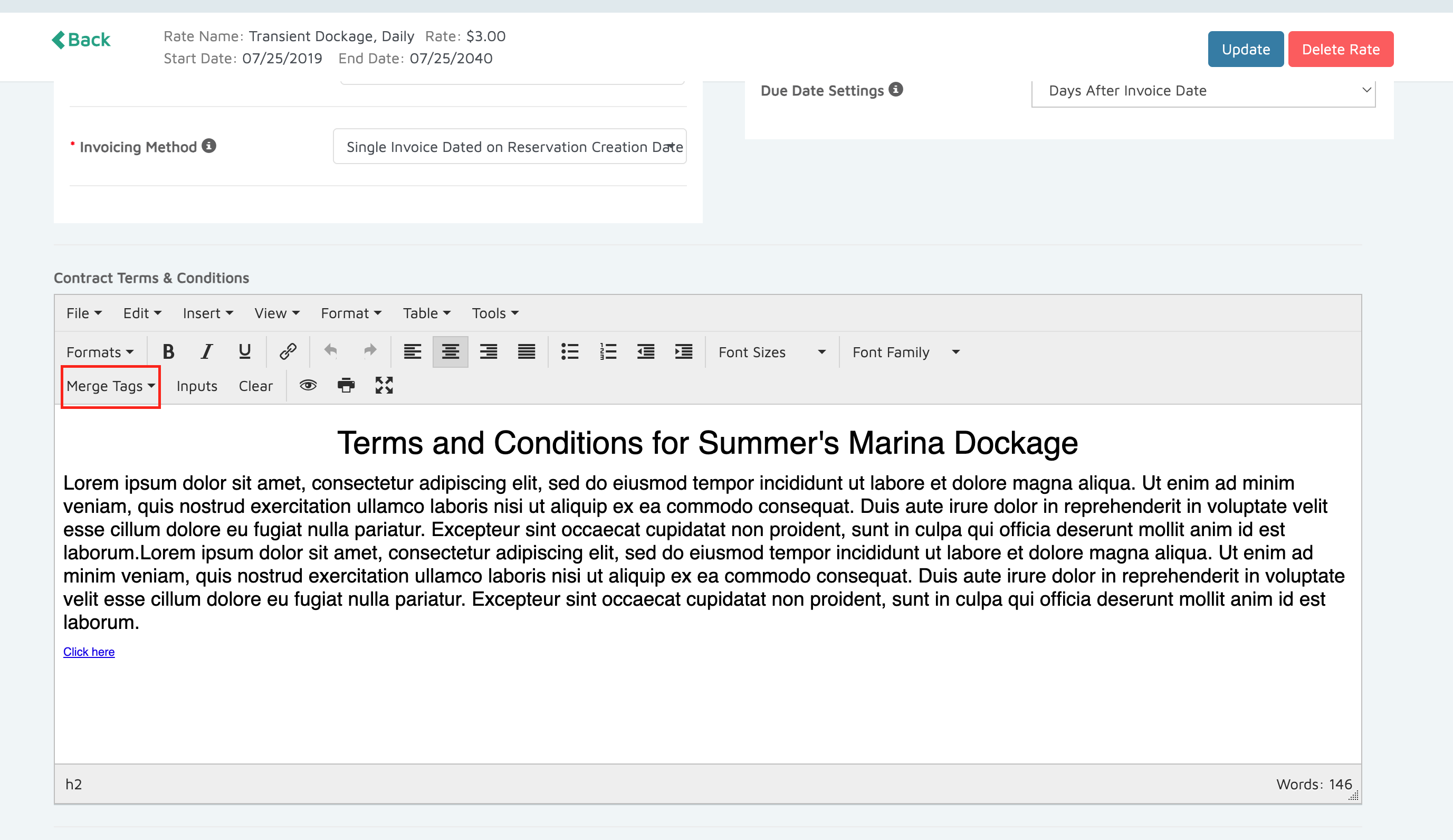
- Navigate to Contract Terms & Conditions under the rates.
- Choose the Merge Tag you want to insert into the contract text.
- Merge Tags automatically pull attributes from Reservations or Contacts.
- When the customer views their contract in the Customer Portal, these fields dynamically populate with their booking details.
- Available Merge Tag fields include:
- Reservations
- ScheduledArrivalTime
- ScheduledDepartureTime
- Rate
- TransientPriceId
- SeasonalPriceId
- Contacts
- FirstName
- LastName
- Emails
- CompanyContactName
- AddressSet
- Create For-Loop
- Street
- Street 2
- City
- State
- Zip Code
- Country
- Phones
- Create For-Loop
- Country Code
- Number
- Slips
- Name
- Boats
- Name
- BoatTypeId
- LOA
- Beam
- Draft
- RegistrationNumber
- Year
- Make
- Model
- Weight
- RegistrationState
- Color
- Insurance Set
- Create For-Loop
- Provider
- ListedIndividual
- AccountNumber
- PolicyNumber
- GroupNumber
- LiabilityMaximum
- EffectiveDate
- ExpirationDate
- Reservations
- For customers with multiple entries (e.g., multiple addresses, phone numbers, or insurance records), use the Create For-LoopMerge Tag:
- This loops through all entries of that type and displays them one after another.
- Everything placed inside the loop section will be repeated for each record.
- Format your contract text around Merge Tags as needed. You may add punctuation, bold, or underline for clarity.
- Preview the Customer Portal to confirm tags are displaying correctly.
Verification: Create a test reservation to preview the terms & conditions in the customer portal.