
- "How do I edit and delete tags? I also want to know how to update tag colors and create new tags."
Resolution Steps
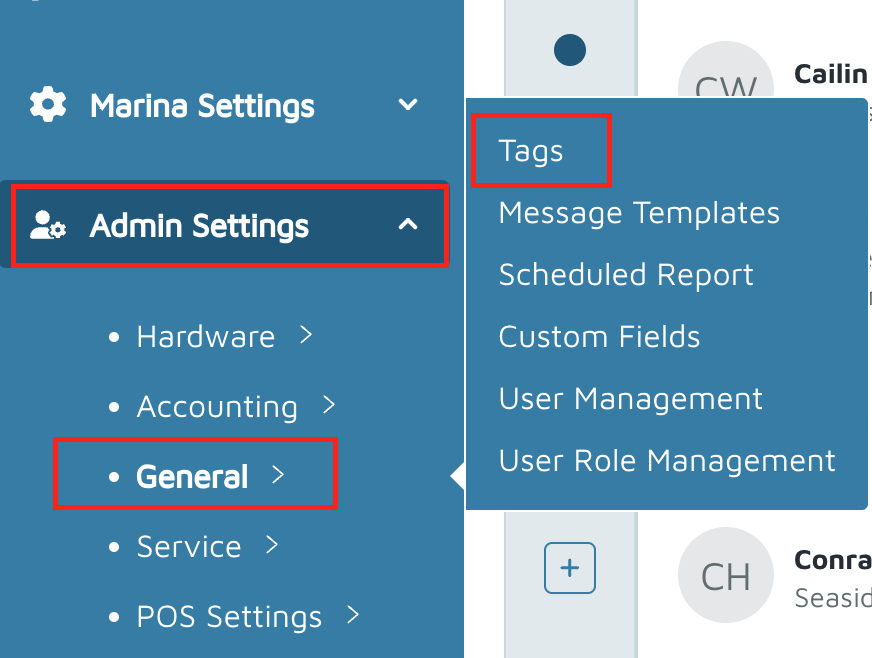
- Go to Admin Settings.
- General and click on Tags.
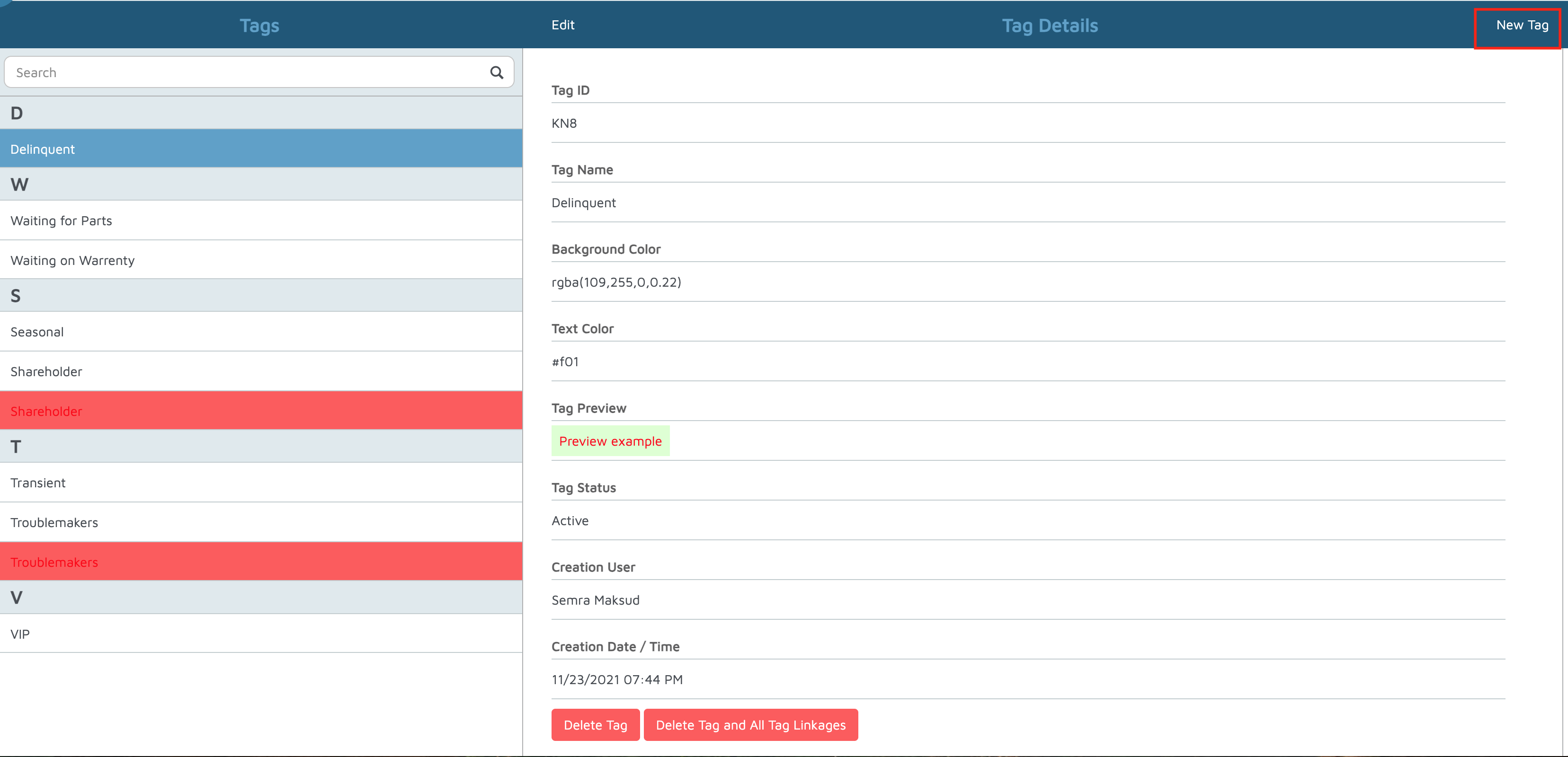
- Review the list of existing tags:
- Tags displayed in red are already deleted.
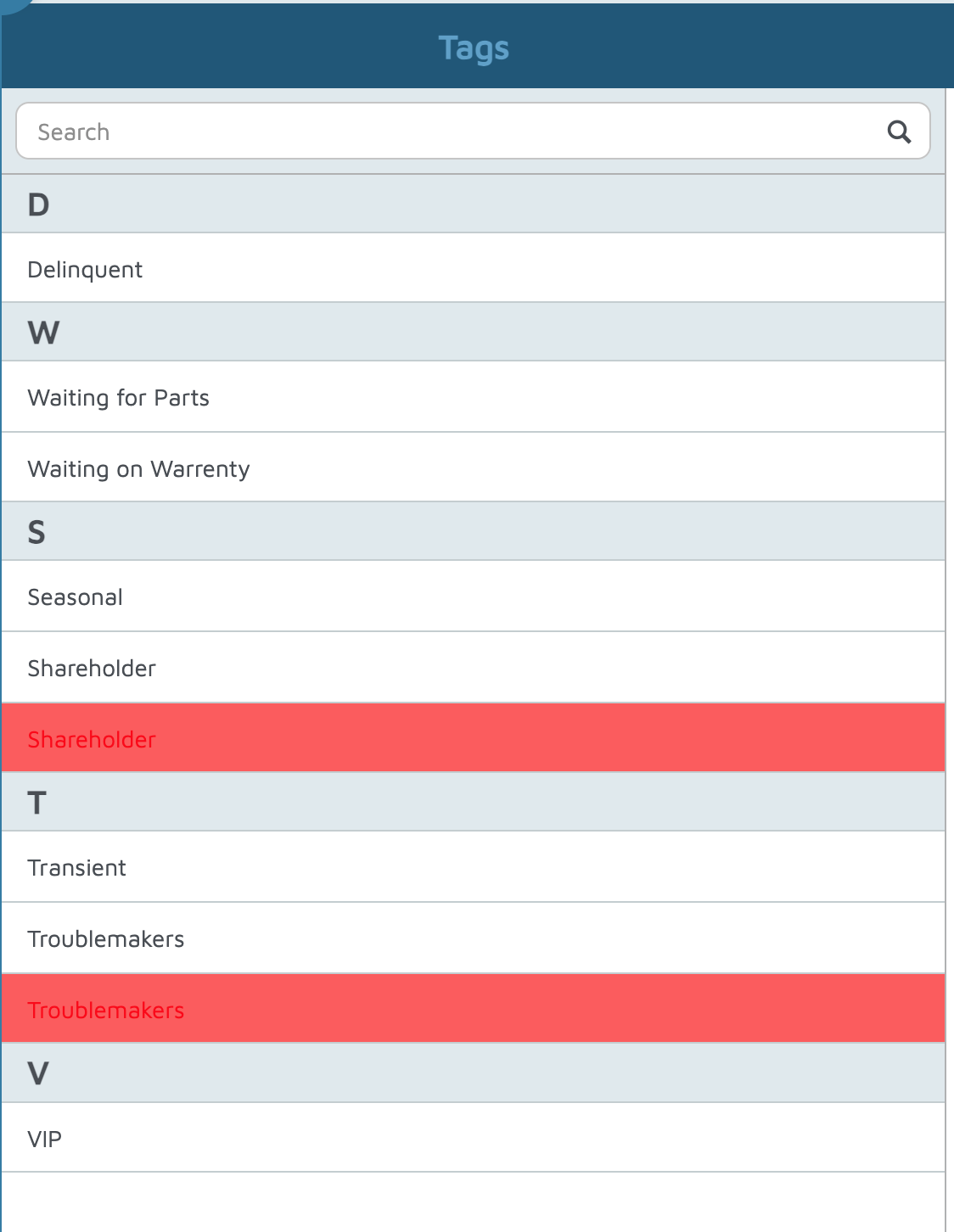
- Tags displayed in red are already deleted.
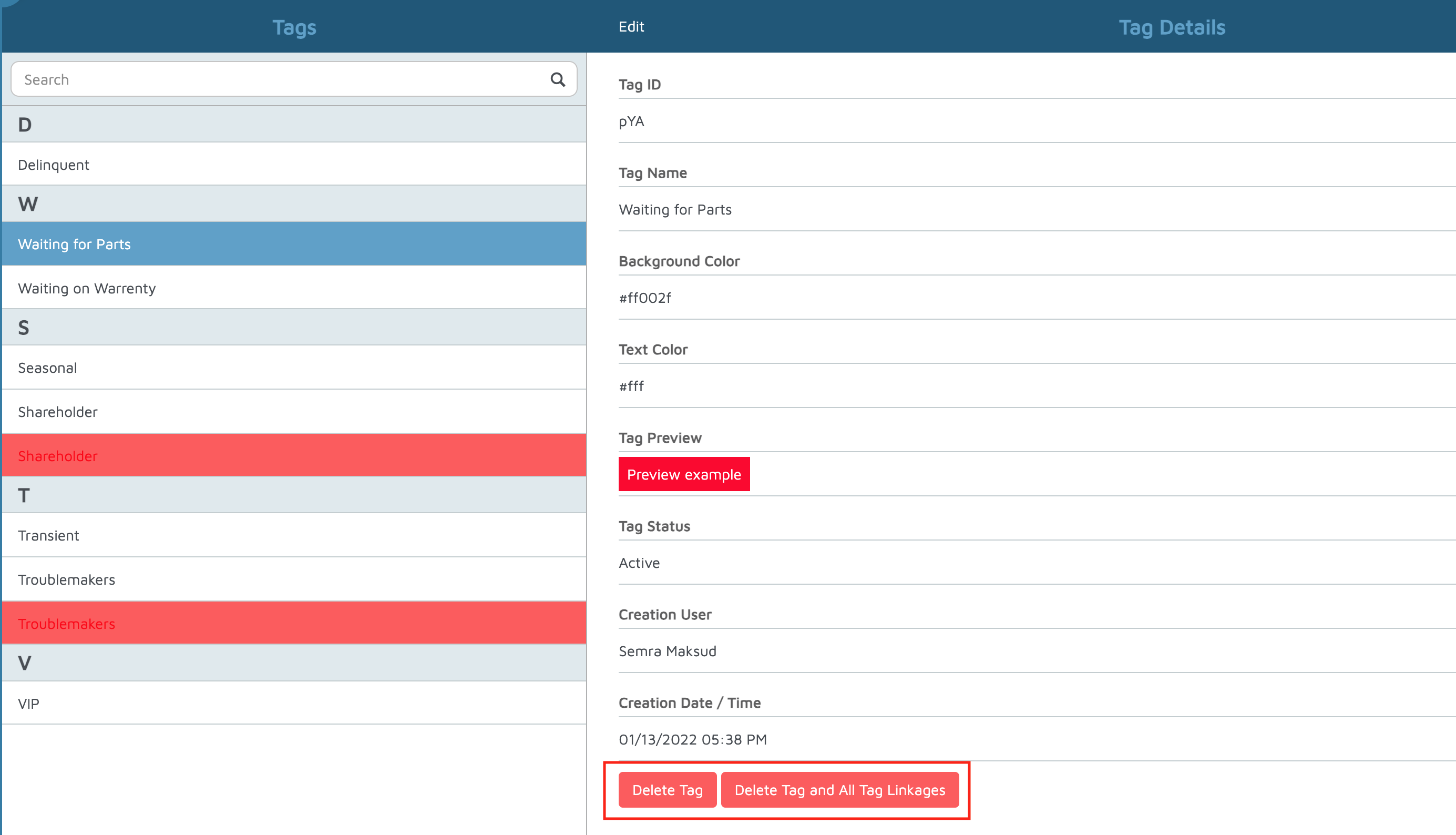
- To delete a tag:
- Click on the tag you want to remove.
- Select Delete Tag to remove it from the list.
- Select Delete Tag in All Tag Linkages to remove it from any customers or records it is currently associated with.
- To edit a tag:
- Click the Edit button at the top.
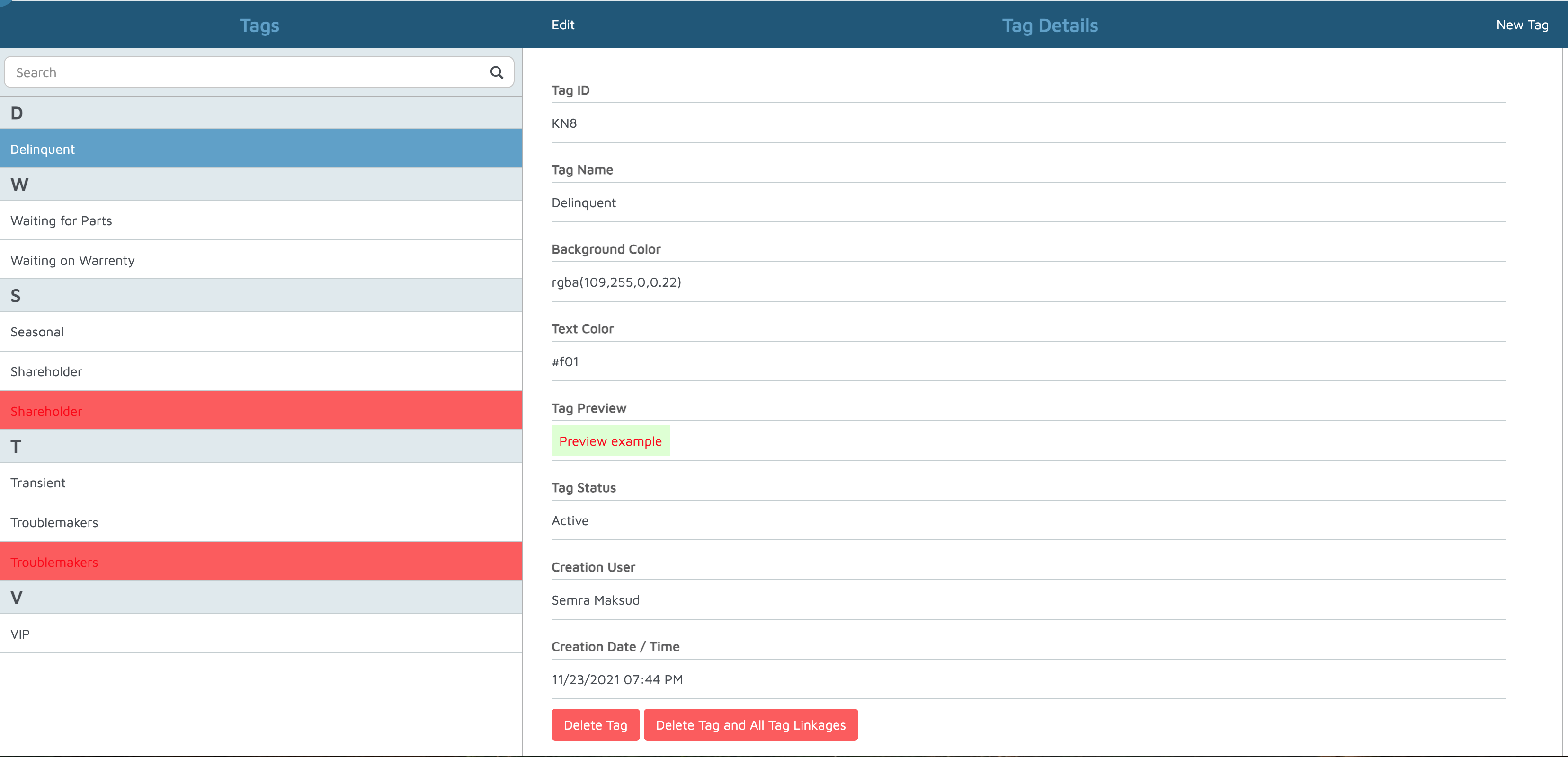
- Change the background color by selecting a new color.
- Change the text color if needed.
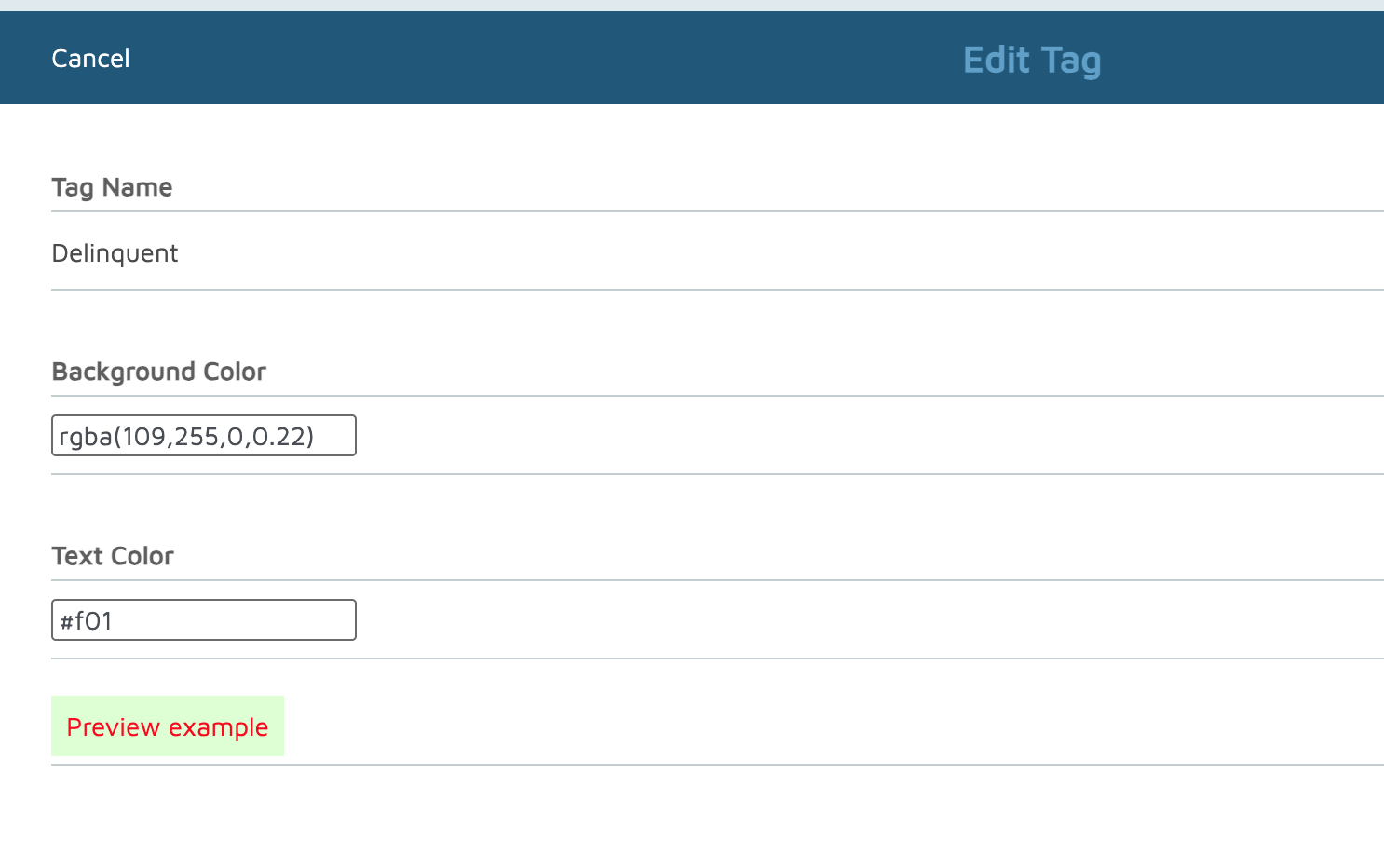
- Click Done to save your updates.
- Click the Edit button at the top.
- To create a new tag:
- Click New Tag at the top right
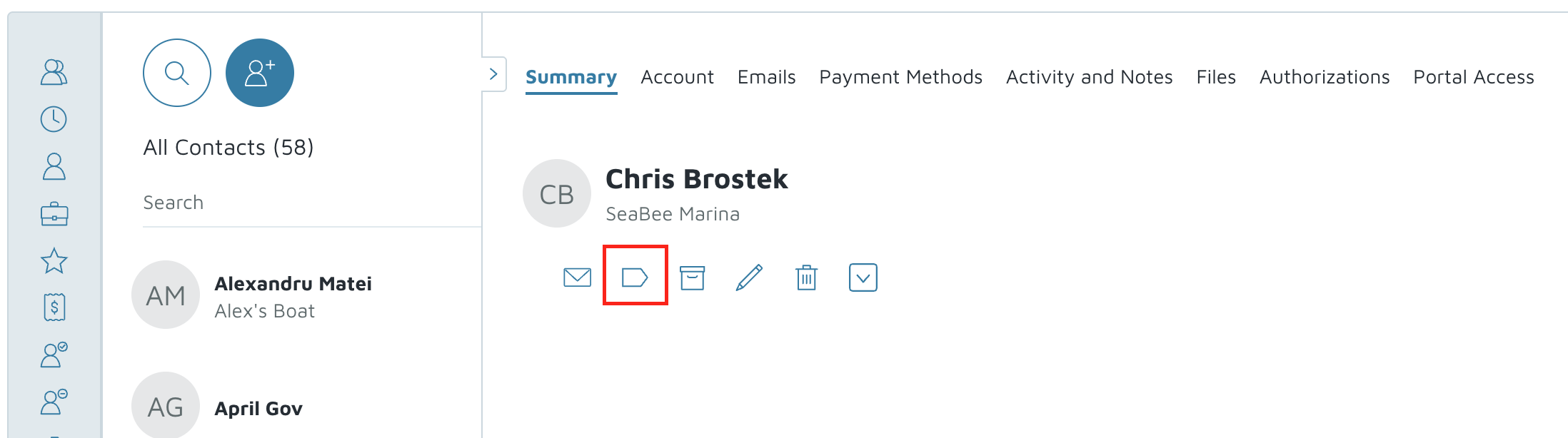
- OR open a contact page and click the Tag button.
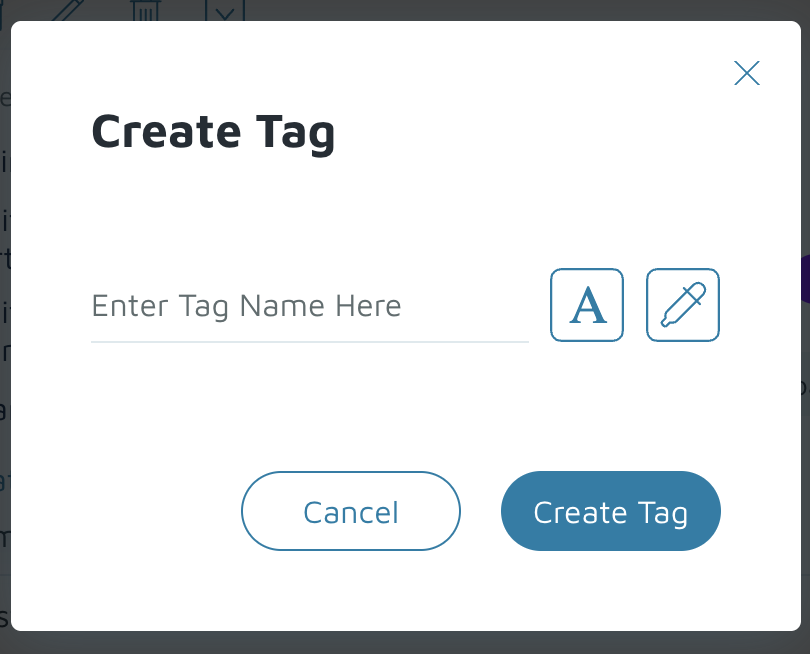
- Select Create New Tag.
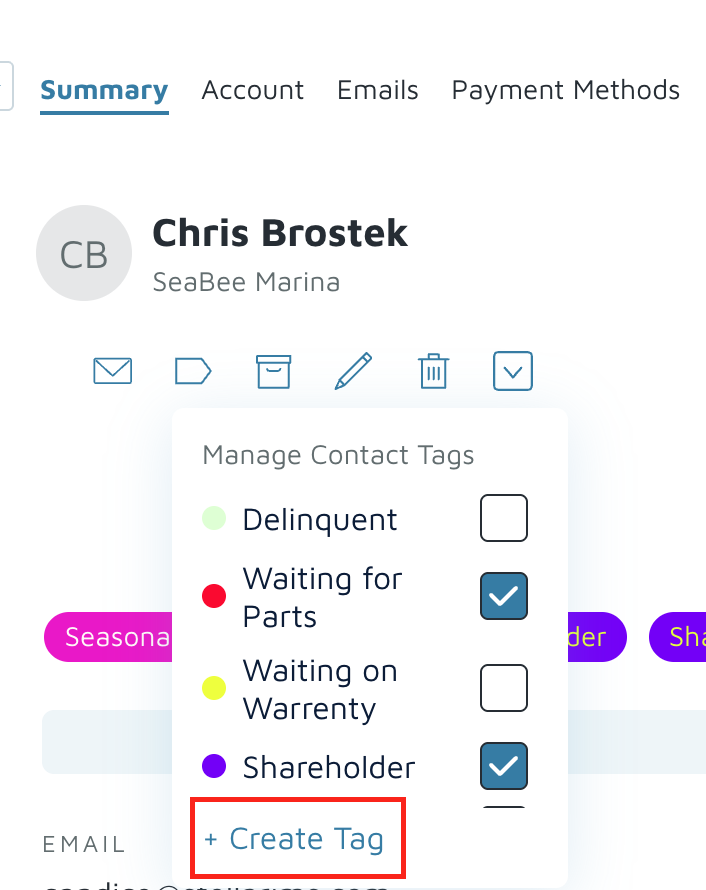
- Name the tag, edit the text color and/or background and save it.
- Click New Tag at the top right
Verification: Verify that the client can edit/delete/create tags.