
- "How do I attach a pedestal to a slip reservation so the customer’s meter readings are tracked?"
- "How do I remove the pedestal link from a reservation when a vessel moves or no longer needs it?"
Resolution Steps
- Go to Spaces → Reservation List and select the reservation you want to edit.
- Click the Move Vessel button.
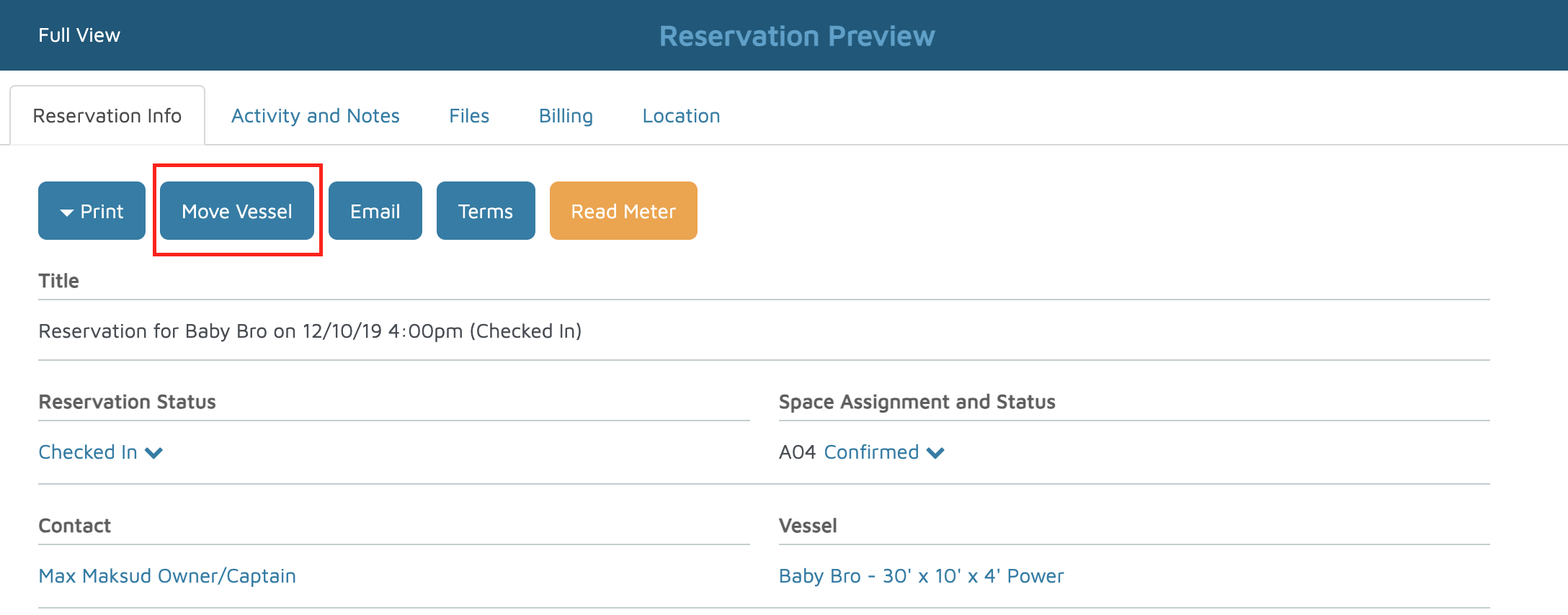
- A pop-up will appear showing available spaces (the current space is shown in gray).
To link a pedestal:- If the space has a pedestal, click the circle under Choose Pedestals to select the pedestal you want to link.
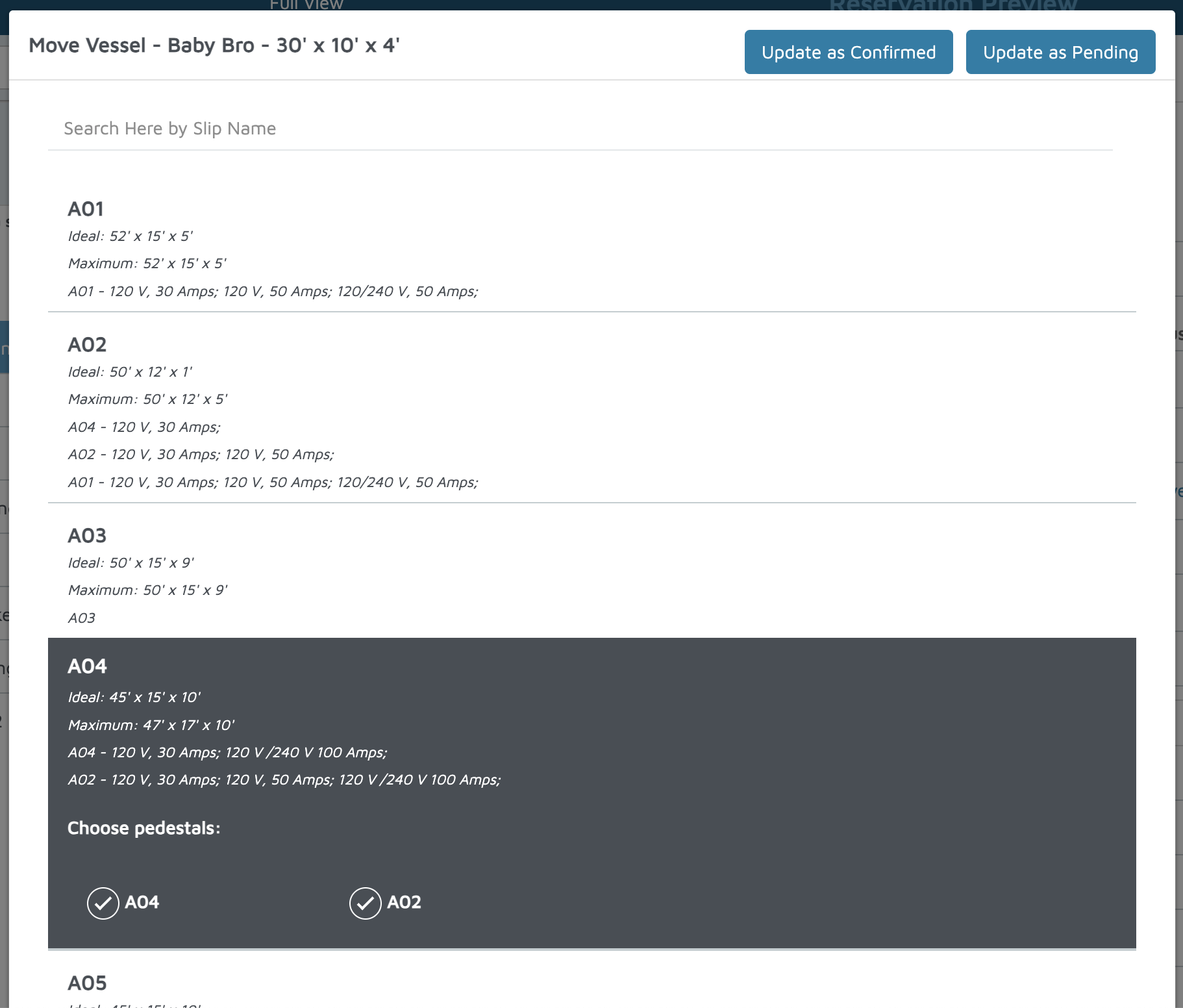
- If the space has a pedestal, click the circle under Choose Pedestals to select the pedestal you want to link.
- To unlinka pedestal from an existing reservation:
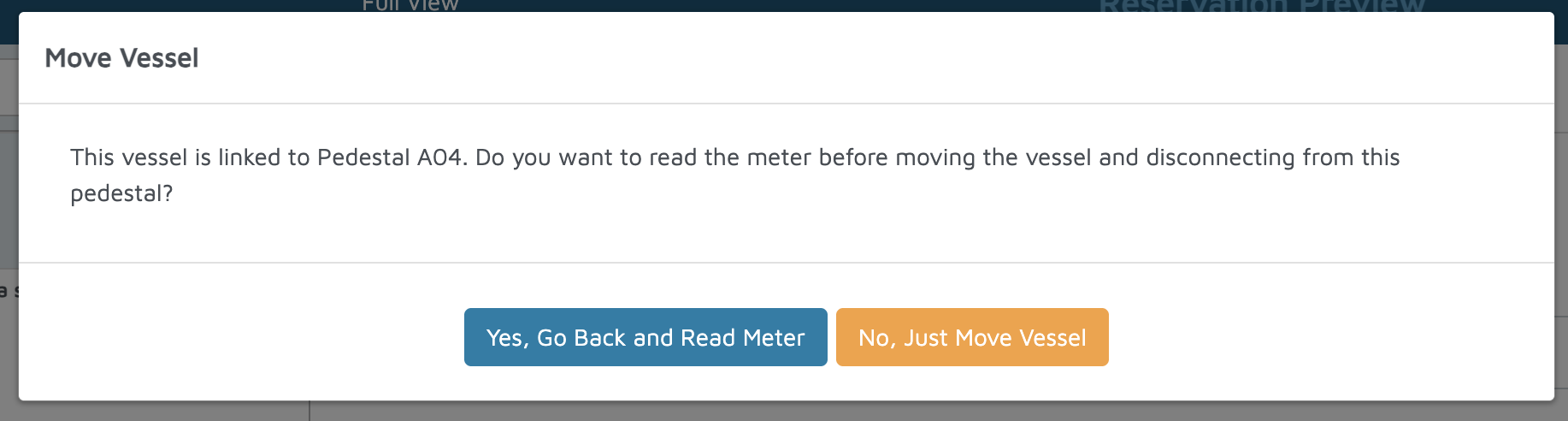
- In the same Move Vessel pop-up, you’ll see a message: “This vessel is linked to Pedestal ‘XYZ’.”
- You may see an option: “Yes, Go Back and Read Meter” (to enter a final meter reading before disconnecting).
- Or select “No, Just Move Vessel”.
- Under Choose Pedestals, uncheck the pedestal to remove it from the reservation.
- To unlink a pedestal while creating a new reservation:
- Go to New → Reservation.
- Select Contact & Vessel → Rates & Dates.
- Select Space.
- If the space has a pedestal, click the circle under Choose Pedestals to deselect (i.e. not link) the pedestal.
Verification: The Read Meter button should appear on the reservation preview page if you are adding a pedestal, and it should disappear if you remove the pedestal.