
- "How do I create a new work order in Molo?"
- "Where do I add jobs, parts, and charges for a work order?"
- "How can I assign technicians and send them notifications?"
Resolution Steps
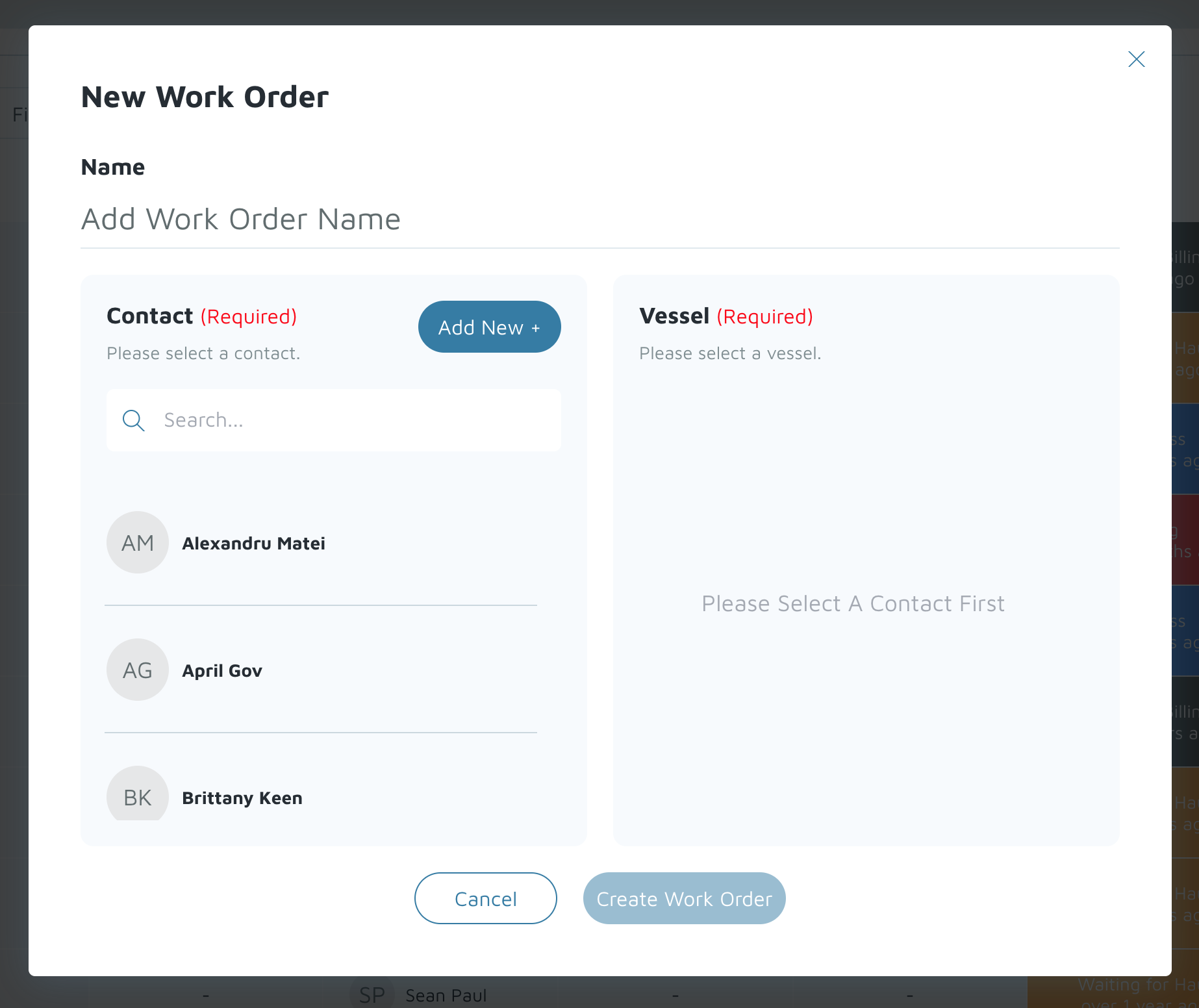
- Go to Service → Work Orders and click either the wrench icon or New Work Order.

- Select the Contact and Vessel for the work order.
Optionally, rename the work order (e.g., Test Estimate). - Click Create Work Order.
- Review the work order details:
- Work Order ID and Status (defaults to In Process).
- Contact and Vessel Details.
- Location (defaults to Yard; additional locations can be configured by your Implementation or Customer Success Manager).
- Under Equipment, click Add Equipment to add motors, sails, or other vessel components.

- Add comments:
- Internal Comments – visible to staff.
- Customer Comments – visible to clients (you can copy from internal comments using Copy to Customer Comments).

- Under Jobs:
- Click Add Empty Job or Add Job Template (templates can be created under Service → Job Templates).
- Edit the job name, age, and status (defaults to Not Started).
- Assign a Primary Technician.
- Optionally, check Notify Primary Technician to send them an automatic email.

- Click the eyeball iconnext to a job to open its details. Add:

- Labor – enter hours and click Save.
- Technician Hours – record actual vs billed hours.
- Parts – select from Molo Inventory or click Add Parts from Catalog (send catalogs to [email protected]).
- Charges – add items such as service fees.
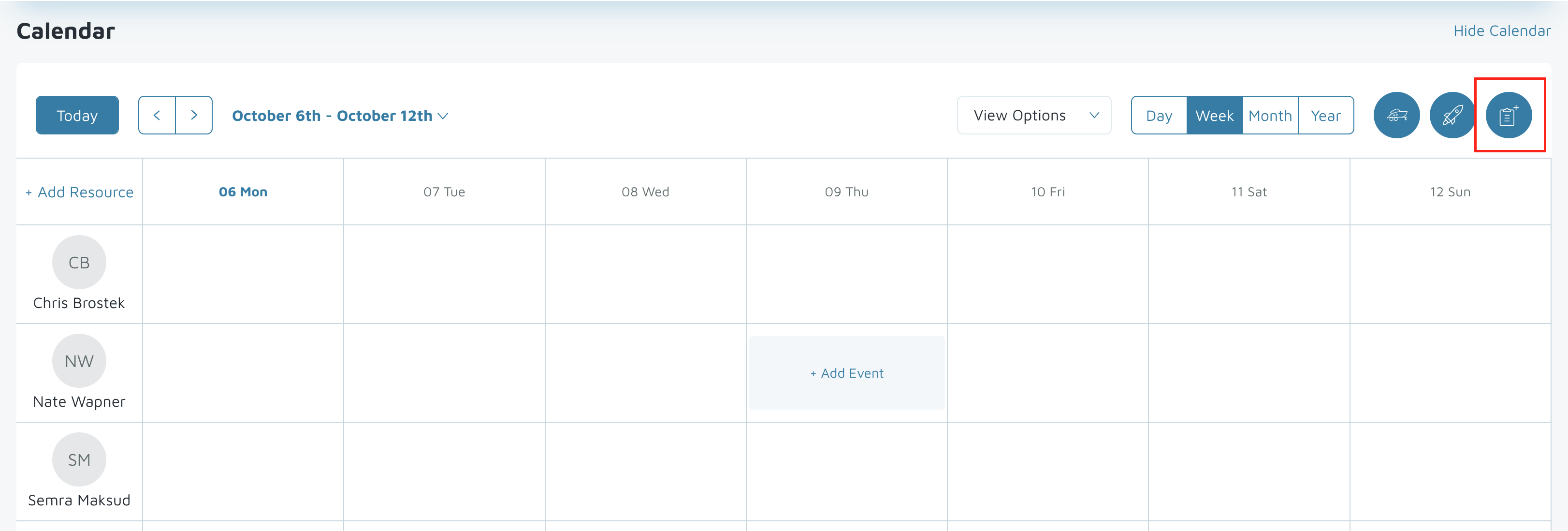
- To create a calendar event, click the clipboard icon and assign jobs to technicians through Service → Calendar.
- Add Terms & Conditions:
- Click Add Terms & Conditions and paste your terms.
- Choose whether to make them default for work orders and/or estimates.
- Click Search Terms & Conditions to view existing templates.

- When work is complete, change the Job Status to Ready to Invoice.

- Print or email a copy of the work order as needed.

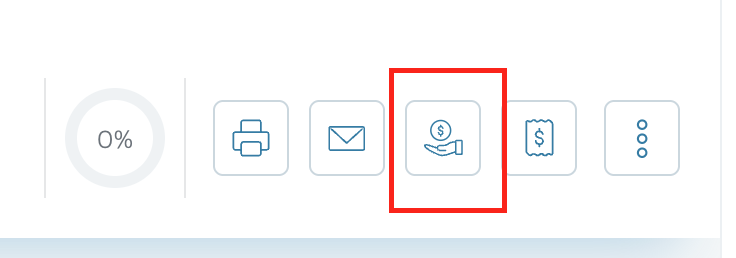
- To collect a deposit:
- Select a Payment Method (e.g., Credit Card).
- Use the stored customer card on file or add a new one.
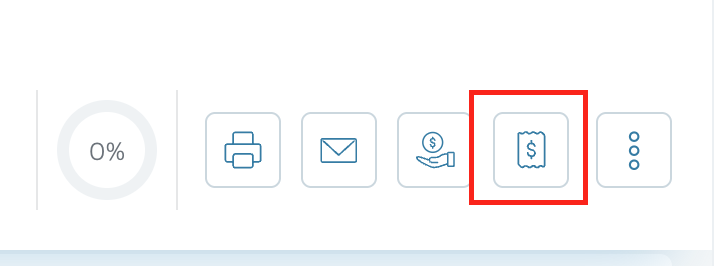
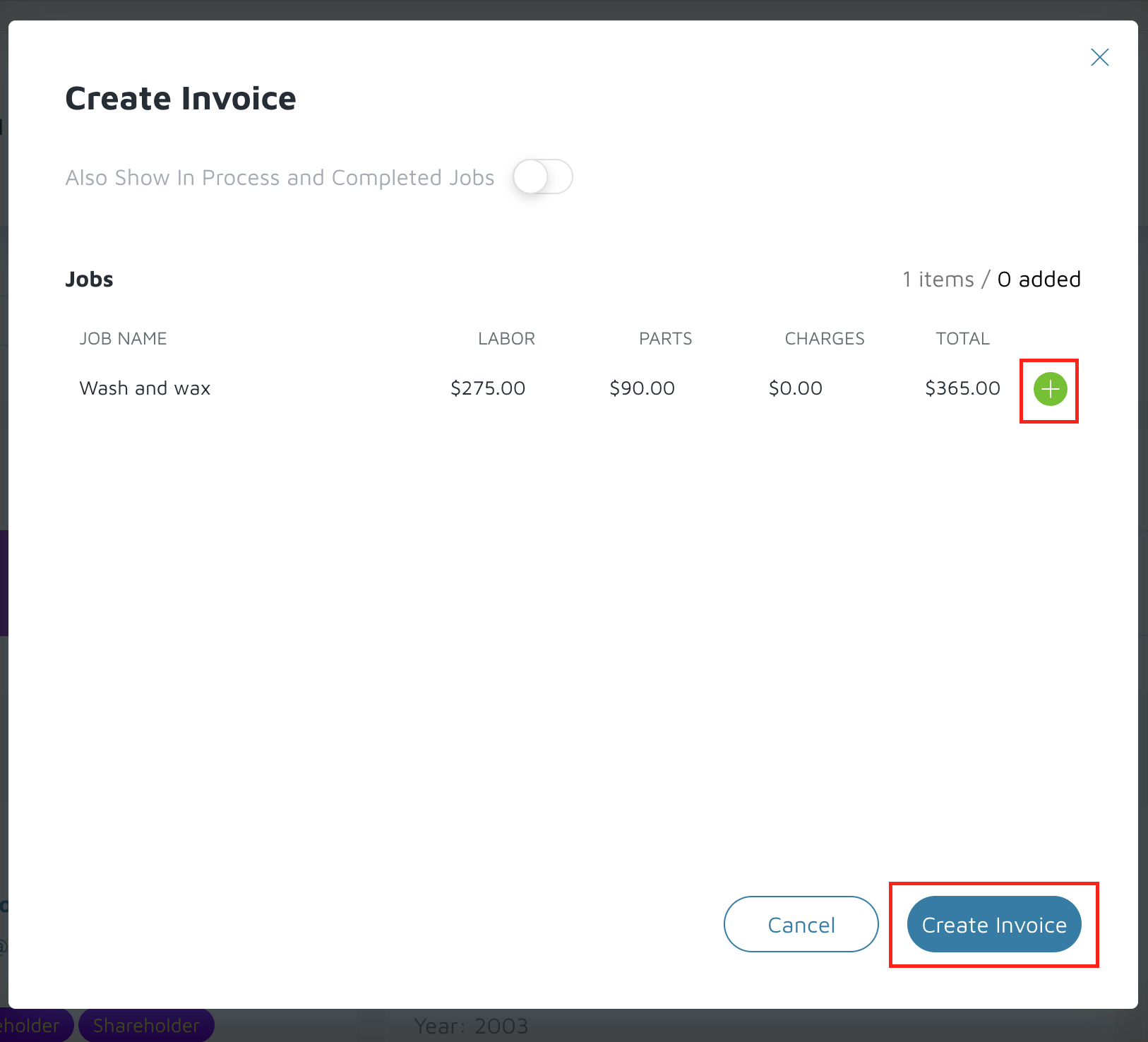
- Click Create Invoice → + → Create Invoice to generate the POS window and process final payment.
Verification: The work order should be created.