How to Move Labor and Parts Between Jobs
Print
Modified on: Thu, 23 Apr, 2026 at 10:15 AM
Problem Description
- "Technicians often add time entries or parts to the wrong jobs by mistake. How can I easily move these entries to the correct job or work order without deleting and re-entering them?"
Resolution Steps
- Navigate to the Work Order containing the labor entry or part you wish to move.
- Locate the specific entry within the job view:
- For Labor Entries: Look for the Move icon (represented by an exchange symbol) at the far right of the entry row.
- For Parts: The Move icon is located between the Edit (pencil) and Delete (trash) icons.
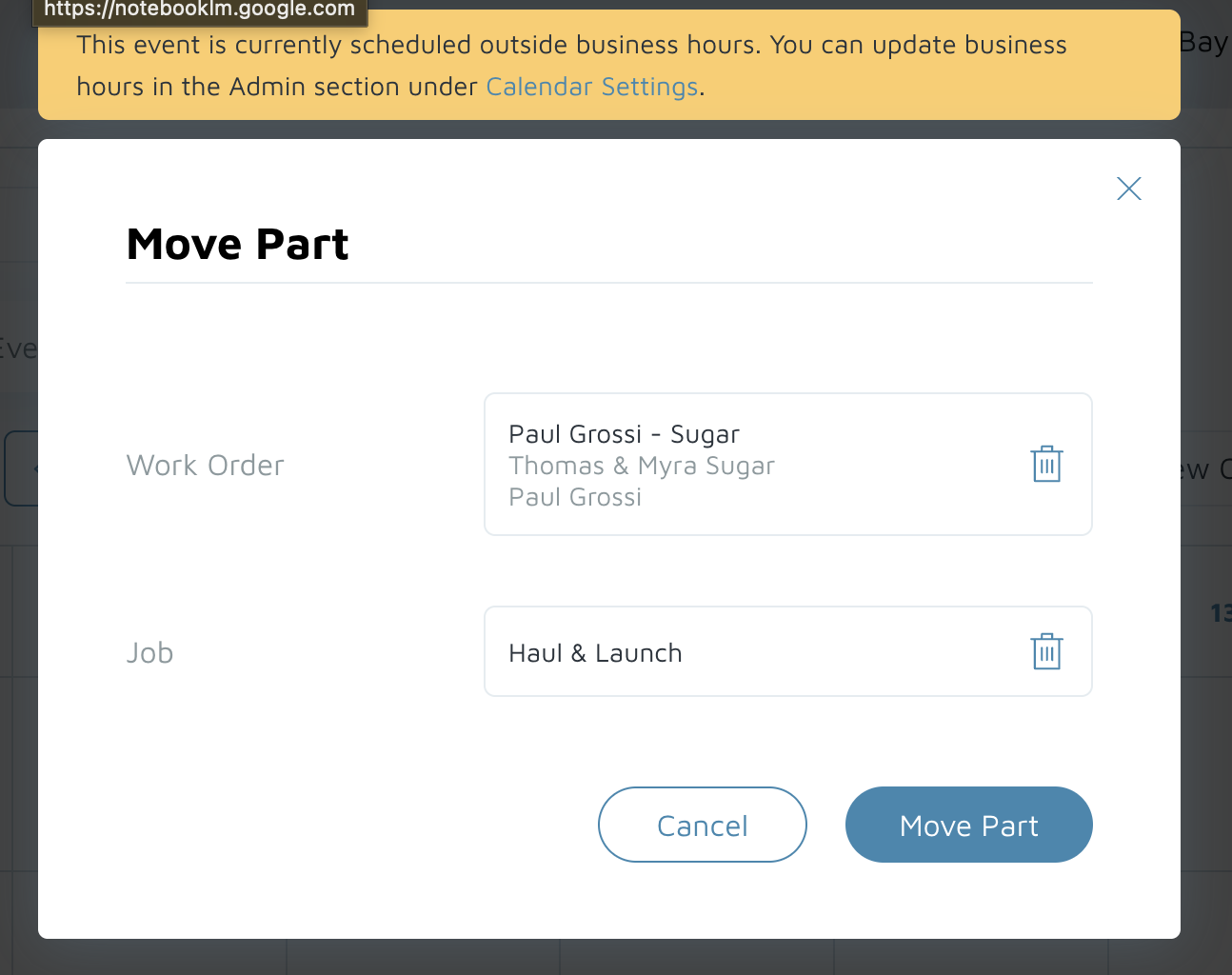
- Click the Move icon to open the Move Labor Entry or Move Part modal.
- In the modal, use the searchable dropdowns to select the destination:
- Work Order: Search for and select the target Work Order.
- Job: Select the specific job within that Work Order.
- Labor Item (Labor Only): Choose to Keep Original Item or select an existing labor header on the target job to merge the entry under.
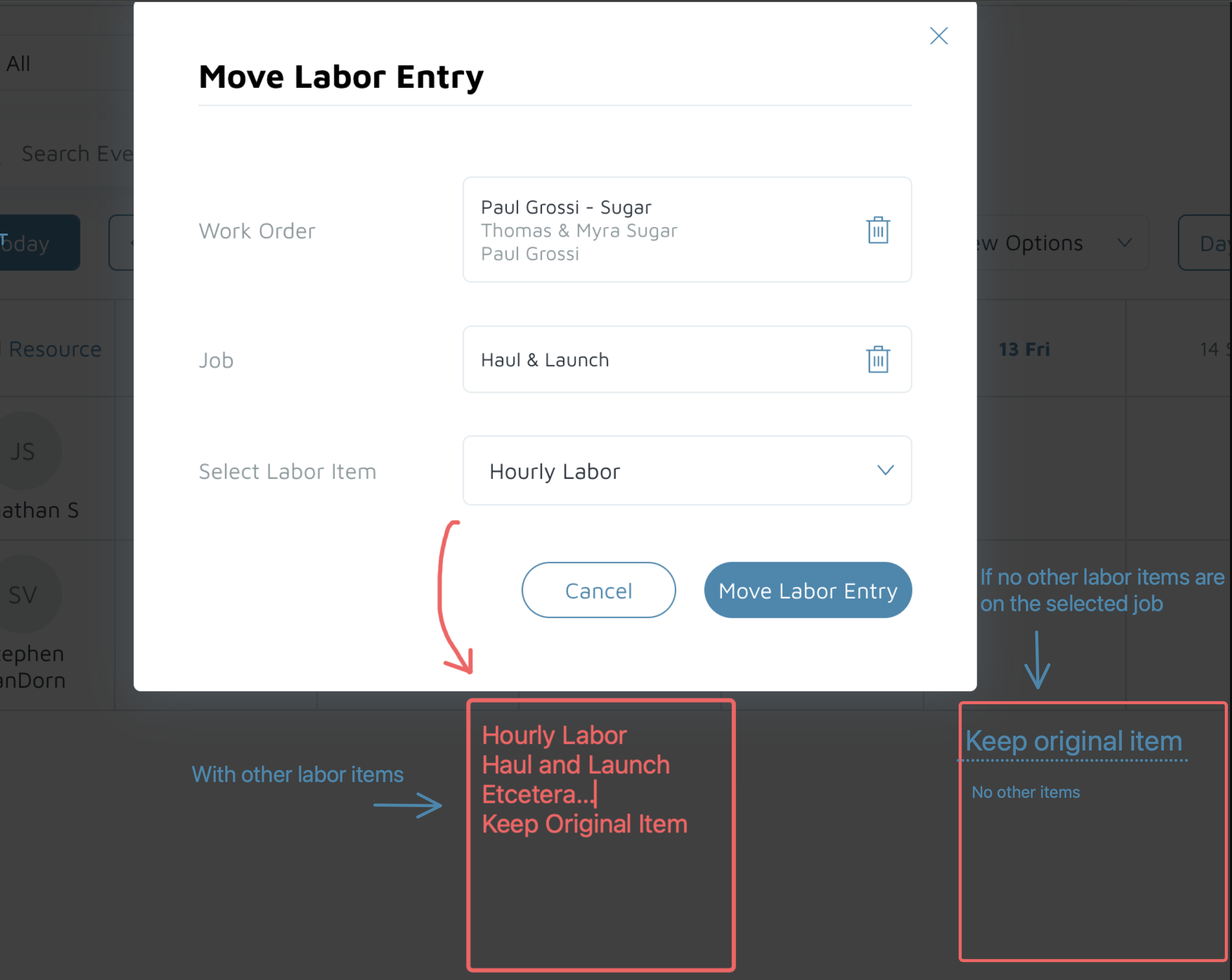
- Click Move Labor Entry / Part to complete the transfer.
- Confirm the success toast notification appears. You can click the job name in the toast to open the destination job in a new tab.
Cause
- This feature allows for the quick correction of common data entry errors where technicians accidentally bill time or materials to the incorrect service job.
Applicable Workarounds
- Part Collisions: If a move is blocked because the target job already contains that specific part, you must manually adjust the quantities on the target job instead of using the Move tool.
Additional Information
- Invoiced Jobs: Labor or parts cannot be moved into a job that has already been invoiced or closed.
- Access Control: This feature requires the elevated access point Move Labor/Parts Between Jobs to be enabled for your user role. It is enabled by default for Super Users.
- Automatic Recalculations: Molo automatically recalculates totals for both the source and destination jobs upon movement. For items billed "Per Foot," the system will automatically use the length overall (LOA) of the vessel on the target Work Order.
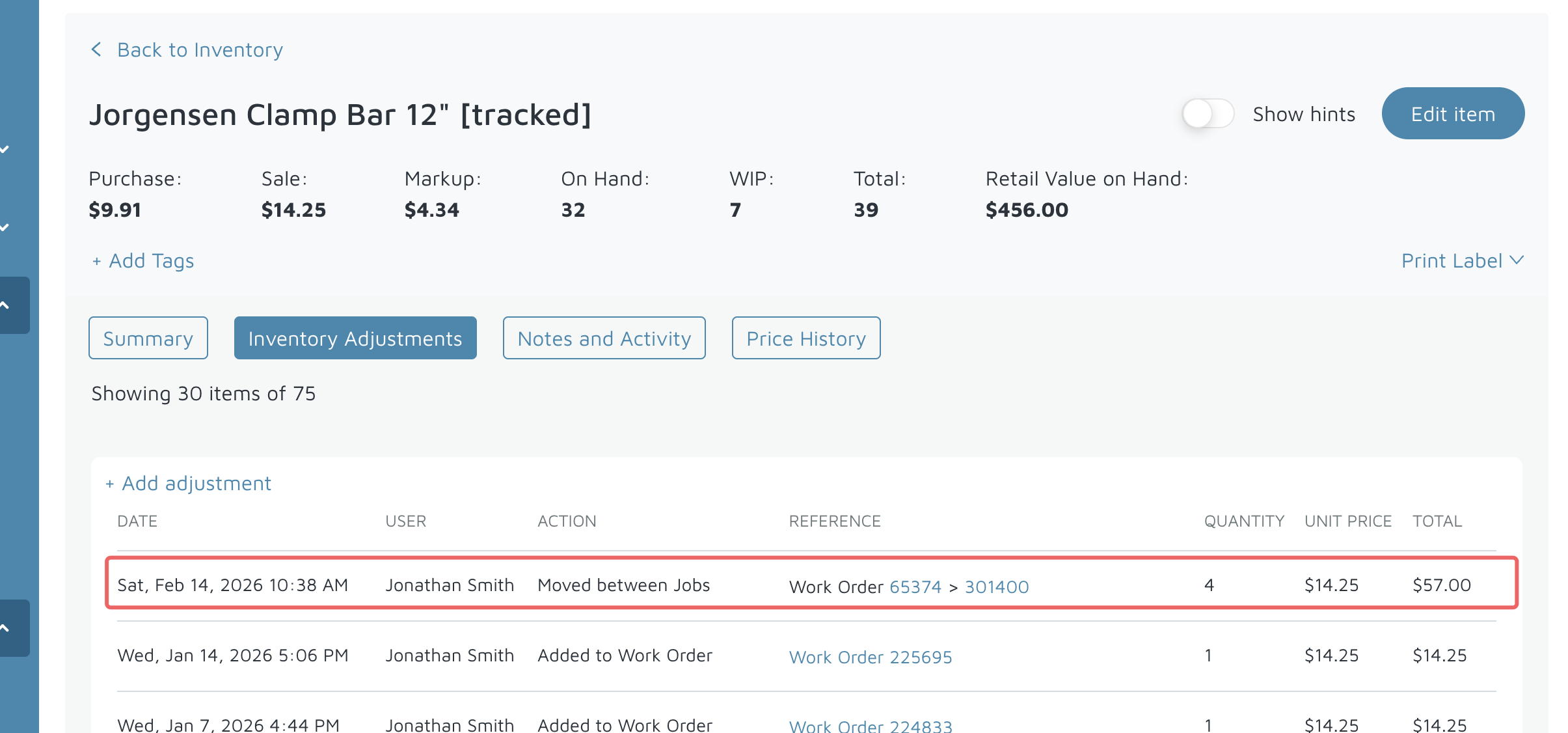
- Inventory Tracking: For tracked parts, an automatic entry is created in the Inventory Adjustments tab (e.g., "Moved between Jobs") to maintain a clear audit trail.
- Mobile App Status: While these transfers are supported on the web platform, labor hours and time entries may currently require a manual refresh to reflect correctly in the Molo mobile app following a transfer.
Did you find it helpful?
Yes
No
Send feedback Sorry we couldn't be helpful. Help us improve this article with your feedback.
